Scheduling maintenance for a unit under warranty
Who this is for: Service Coordinators and Service Managers — the people who hold the dispatch board.
What you'll do: take a customer's unit that's still under the manufacturer's warranty, record the warranty period, and get preventive-maintenance visits scheduled across it.
Before you begin
You need the unit recorded as an asset, and its status must be
Installed. A machine still in stock or already shipped hasn't been
commissioned, so there's nothing to maintain yet, and the section won't appear.
You don't need the warranty dates on file beforehand — you can enter them as
part of this, and they'll be saved onto the asset.
Step 1 — Open the unit and find the Warranty card
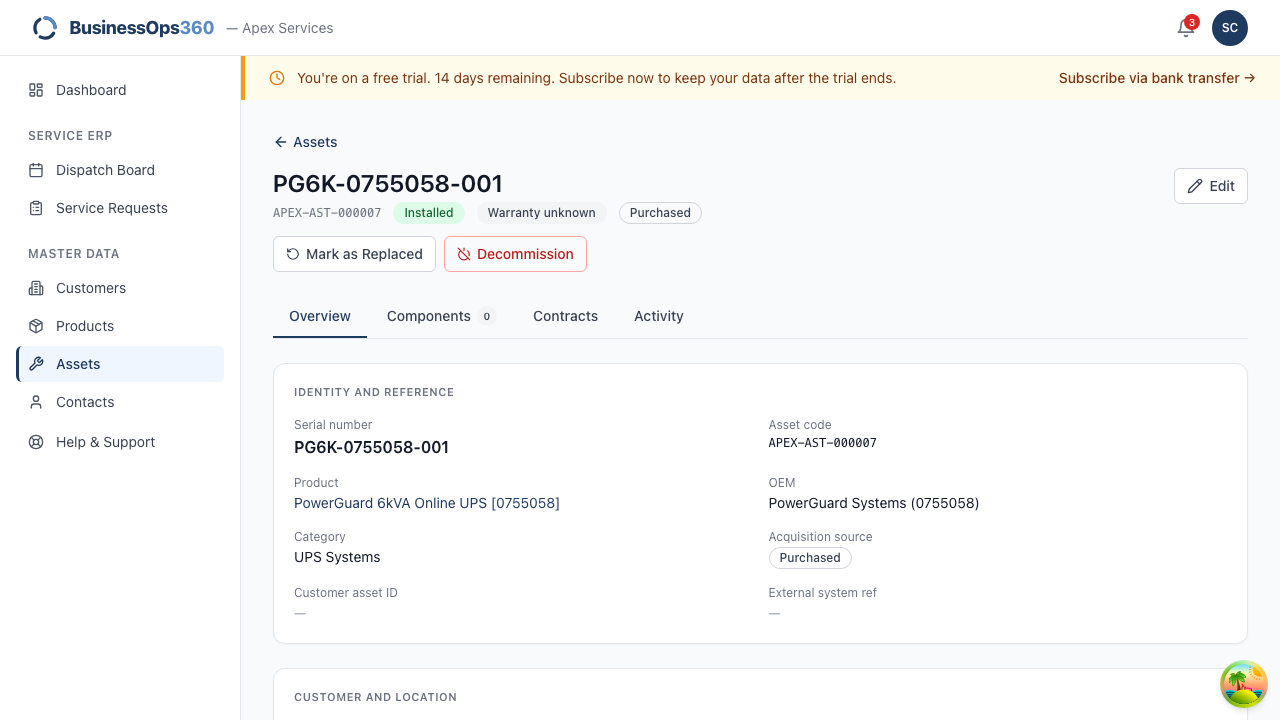
Everything lives on the asset. There's no separate screen and no menu entry —
open the unit from Assets, stay on the Overview tab, and scroll to
Warranty.
If the unit has no plan, you'll see "No maintenance plan — this unit is under
warranty but has no scheduled preventive maintenance" and a Generate PM Plan
button.
Step 2 — Read the warning before you fill anything in
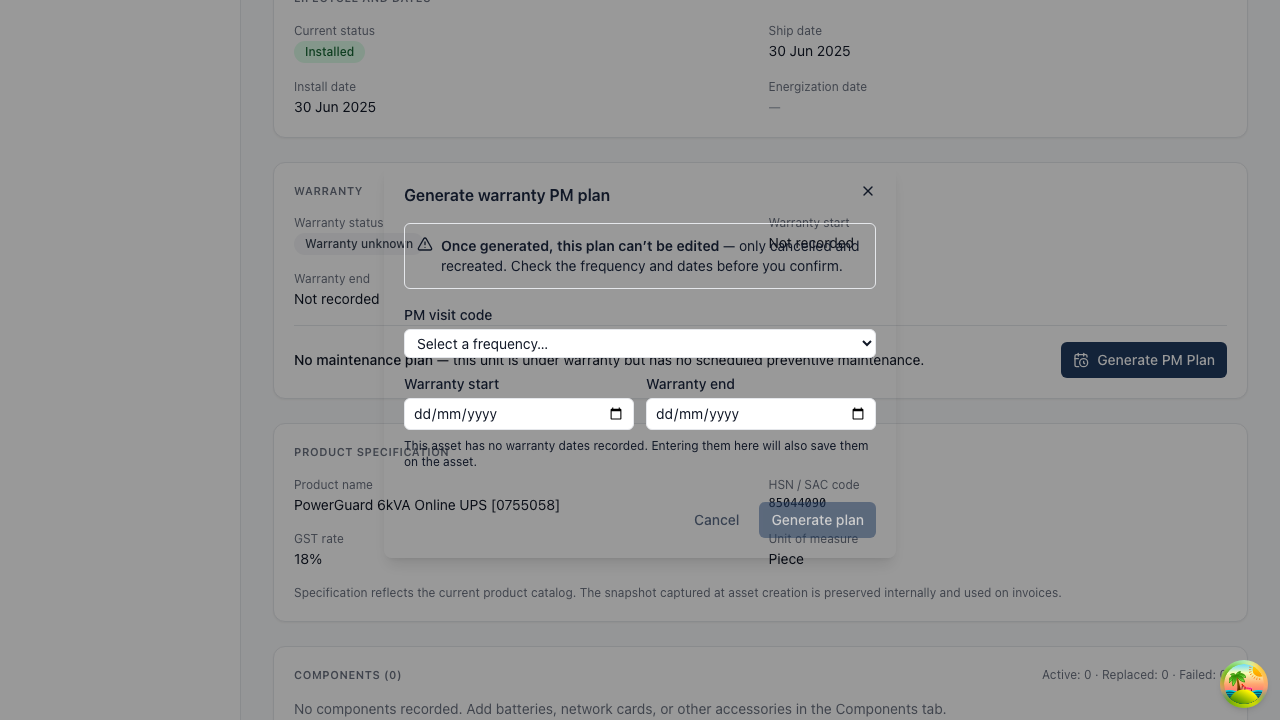
| Field | What to put |
|---|---|
| PM visit code | How often the unit should be visited — Quarterly, Half-yearly, Monthly or Annual. |
| Warranty start | When the manufacturer's cover began. |
| Warranty end | When the cover ends. This is the one that decides how many visits you get. |
The dates are pre-filled from the asset if it has them, and you can change them.
If the unit has no warranty dates recorded — which is normal for a machine
created from an invoice — a note tells you that entering them here also saves
them on the asset.
Step 3 — Check the dates the system works out
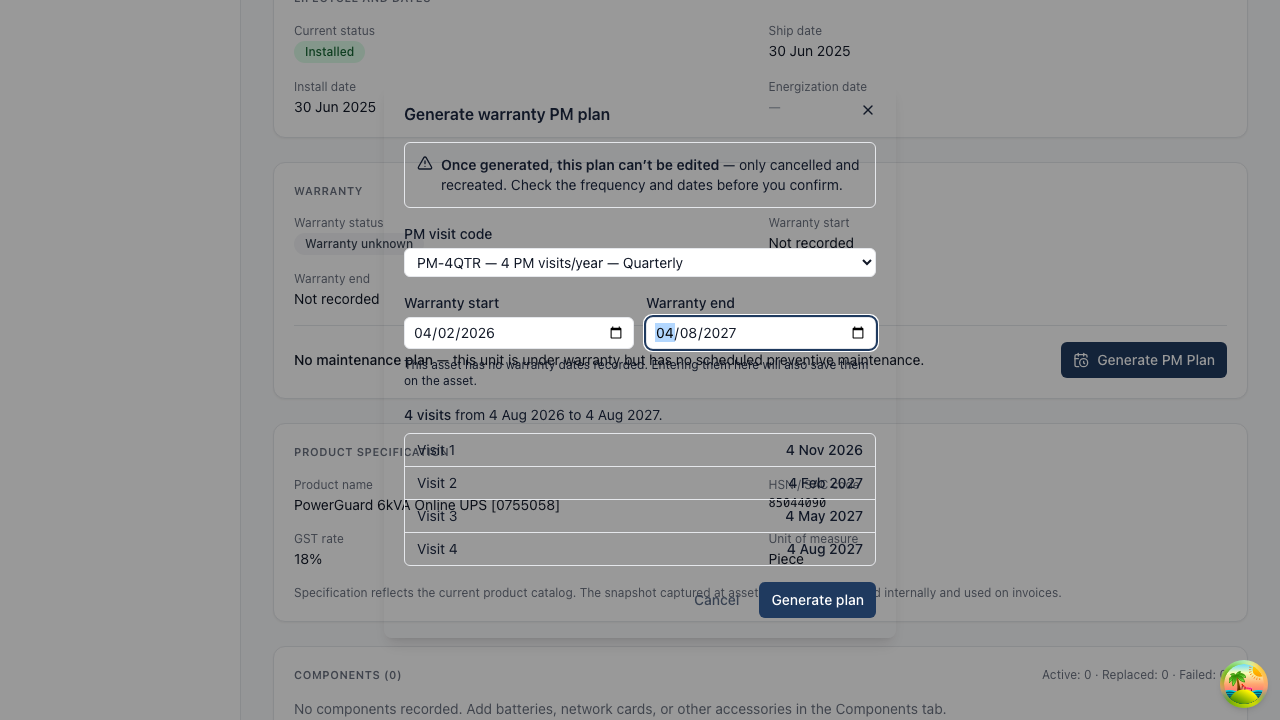
As soon as you've picked a frequency and an end date, the schedule appears. These
dates come from the server, not your browser — so what you see here is exactly
what will be written.
Read them. This is your only checkpoint.
Step 4 — Generate
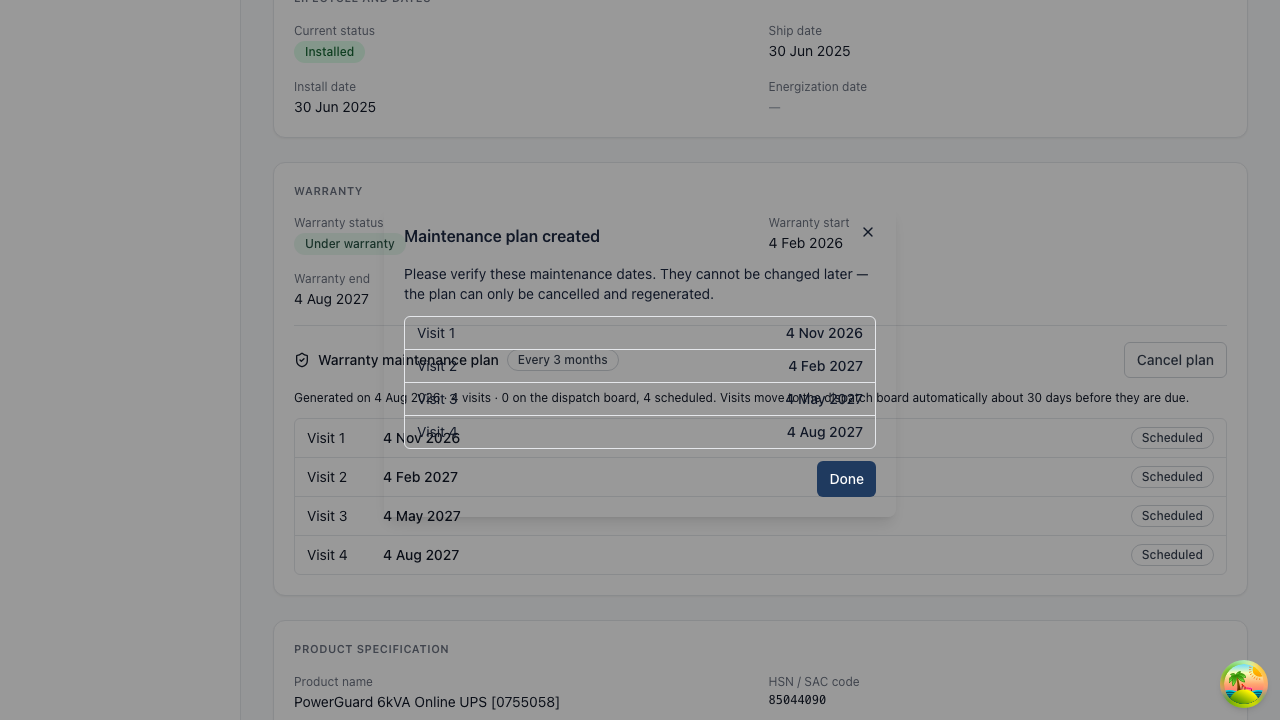
The dates are shown once more to verify, with a reminder that they can't be
changed later. Click Done.
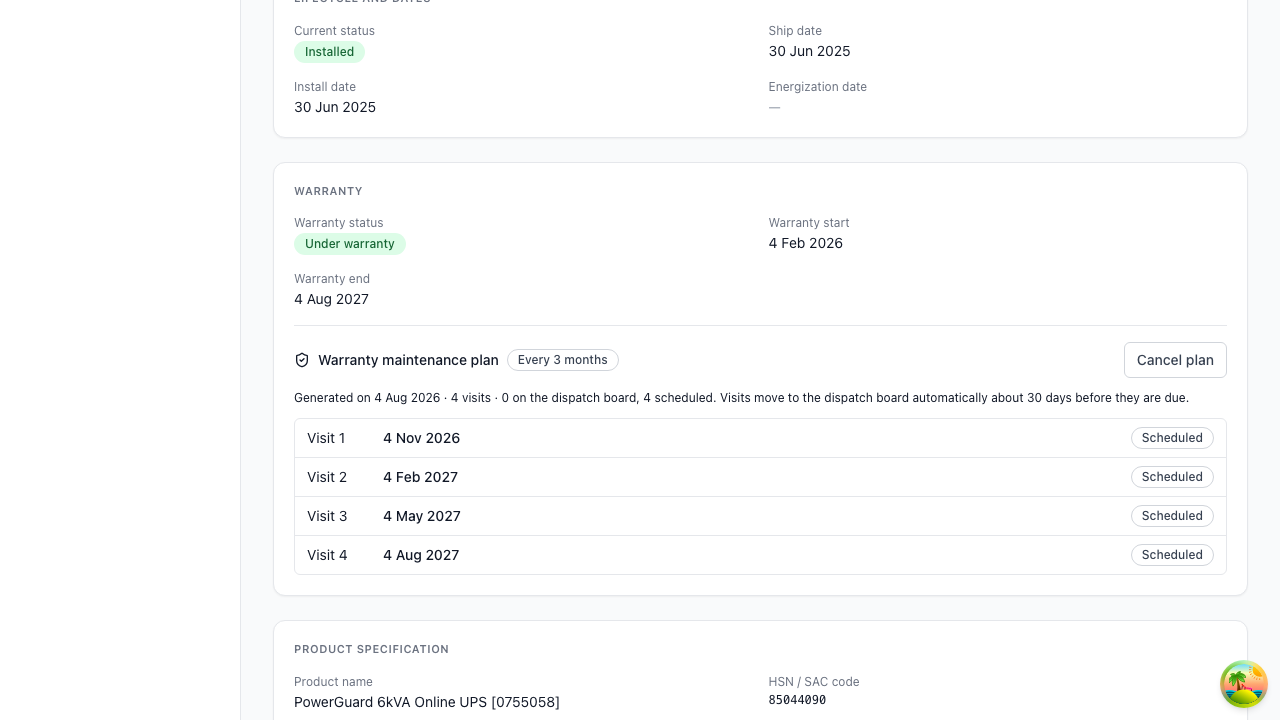
The plan now sits on the Warranty card: the frequency, when it was generated, how
many visits, and each visit with its date and status.
If you entered the warranty dates in the dialog, the Warranty fields above
the plan now show them too — they were saved onto the unit, exactly as the dialog
said they would be.
How the visit dates are worked out
There's one rule, and it's worth knowing because it surprises people:
For a plan generated on 4 August 2026 at quarterly cadence, on a warranty ending
4 August 2027:
| Visit | Due |
|---|---|
| 1 | 4 November 2026 |
| 2 | 4 February 2027 |
| 3 | 4 May 2027 |
| 4 | 4 August 2027 |
Why it counts from today and not from the warranty start
Because a warranty almost always started months before anyone gets round to
scheduling maintenance for it. If the system counted from the warranty start, a
unit sold eighteen months ago would hand you a plan with visits that were
already overdue the moment you created it — a backlog of visits that were never
going to happen, on your dispatch board, permanently.
Counting from today means every visit on the plan is a visit you can actually
make.
The practical consequence: generate the plan when you want the visits to
start. Waiting three months doesn't shift the schedule — it removes a visit
from the end.
Three things that follow from the rule
- There's no visit today. The first is one interval out.
- A visit landing exactly on the warranty end date does count. Visit 4 above.
- Nothing is ever scheduled past the warranty end. A 14-month warranty at
quarterly cadence gets 4 visits — at months 3, 6, 9 and 12. The fifth would
be month 15, past the end, so the last two months simply have no visit. The
system won't create a part-visit or shuffle the dates to fit.
When the visits reach the dispatch board
The plan is a schedule, not a pile of jobs. Each visit becomes a real Service
Request about 30 days before it's due, raised automatically overnight.
So a fresh plan will normally read "0 on the dispatch board, 4 scheduled" —
that's correct, not broken. The line under the plan says the same thing.
Cancelling a plan
Because a plan can't be edited, Cancel plan is how you correct one. You'll be
asked for a reason.
Cancelling also cancels the service requests that were raised from it — except
any visit an engineer has already started. Those are listed back to you by SR
number, and you'll need to speak to the engineer if the visit shouldn't go ahead.
Once cancelled, the slot is free and you can generate a corrected plan.
There's no Warranty PM section on the asset
Two reasons:
- The unit isn't Installed. Check Current status on the asset. A unit
that's in stock or shipped hasn't been commissioned. - It isn't yours to do. Warranty PM sits behind the same permission as
editing warranty dates — Service Coordinator, Service Manager or Tenant Admin.
Sales roles, including AMC sales, don't have it.
"No PM visits fit this warranty window"
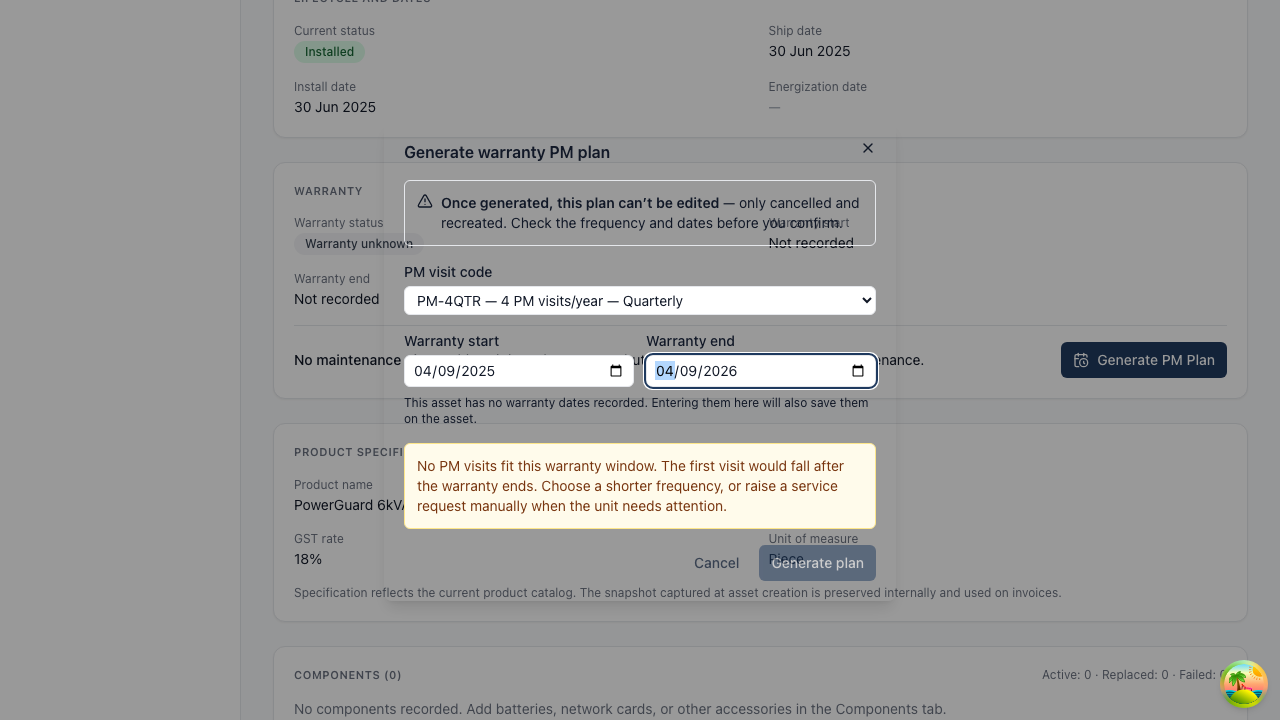
What it means: the first visit would fall after the warranty ends. Usually
there's only a month or two of cover left and you've chosen a quarterly or
annual frequency.
What to do: choose a shorter interval if that's genuinely useful, or don't
create a plan — raise a service request by hand when the unit needs attention.
The system won't create an empty plan, because an empty plan can't be edited
afterwards either.
The Generate button isn't there, but the section is
You can see the plan but not create or cancel one — you have view access to the
asset without the warranty permission. Ask your Service Manager.
I picked the wrong frequency
Cancel the plan and generate a new one. There's no edit — see
Cancelling a plan.
The customer bought an AMC after I made this plan
Cancel the warranty plan. The contract's own schedule takes over, and leaving
both in place would put two sets of visits on the board for one machine.
Screens shown are from a demo workspace with invented company and equipment
details. Your numbers and names will differ.