Selling an AMC and getting the maintenance visits scheduled
Who this is for: Service Sales Executives — the people who sell annual maintenance contracts — and the Service Sales Manager who activates them.
What you'll do: quote an AMC for a customer's equipment, set the visit cadence, convert it to a contract, and get the preventive-maintenance (PM) visits scheduled across the term.
Before you begin
You'll need the customer and the equipment already recorded as assets
against them — an AMC can only cover units the customer owns. If a machine isn't
in the system, ask your admin to add it; you can't create assets yourself.
Step 1 — Your workspace
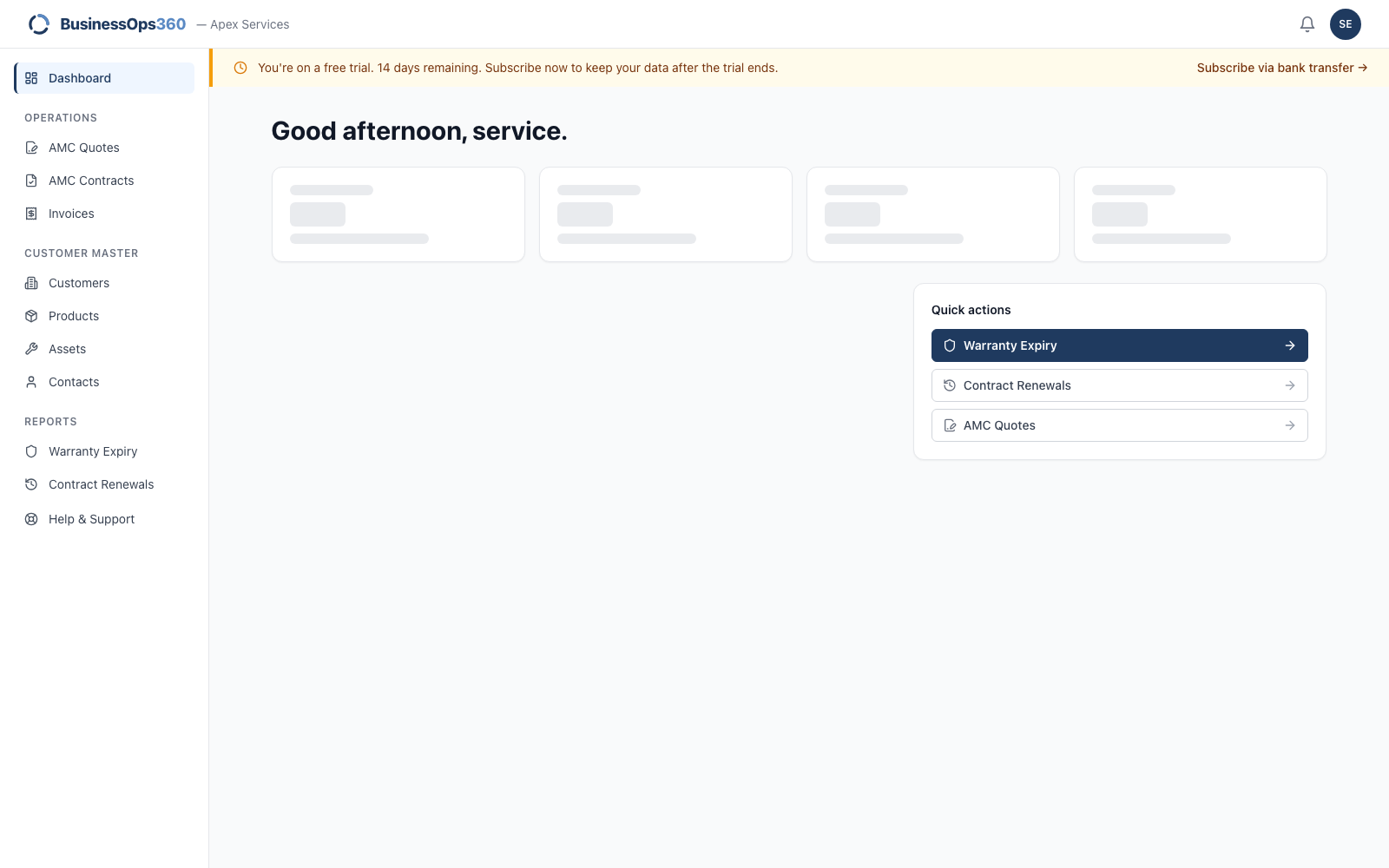
AMC Quotes, AMC Contracts, plus the customer and asset records you quote
against, and two reports — Warranty Expiry and Contract Renewals — that tell you
who to call next.
Step 2 — Start the quote and set the term
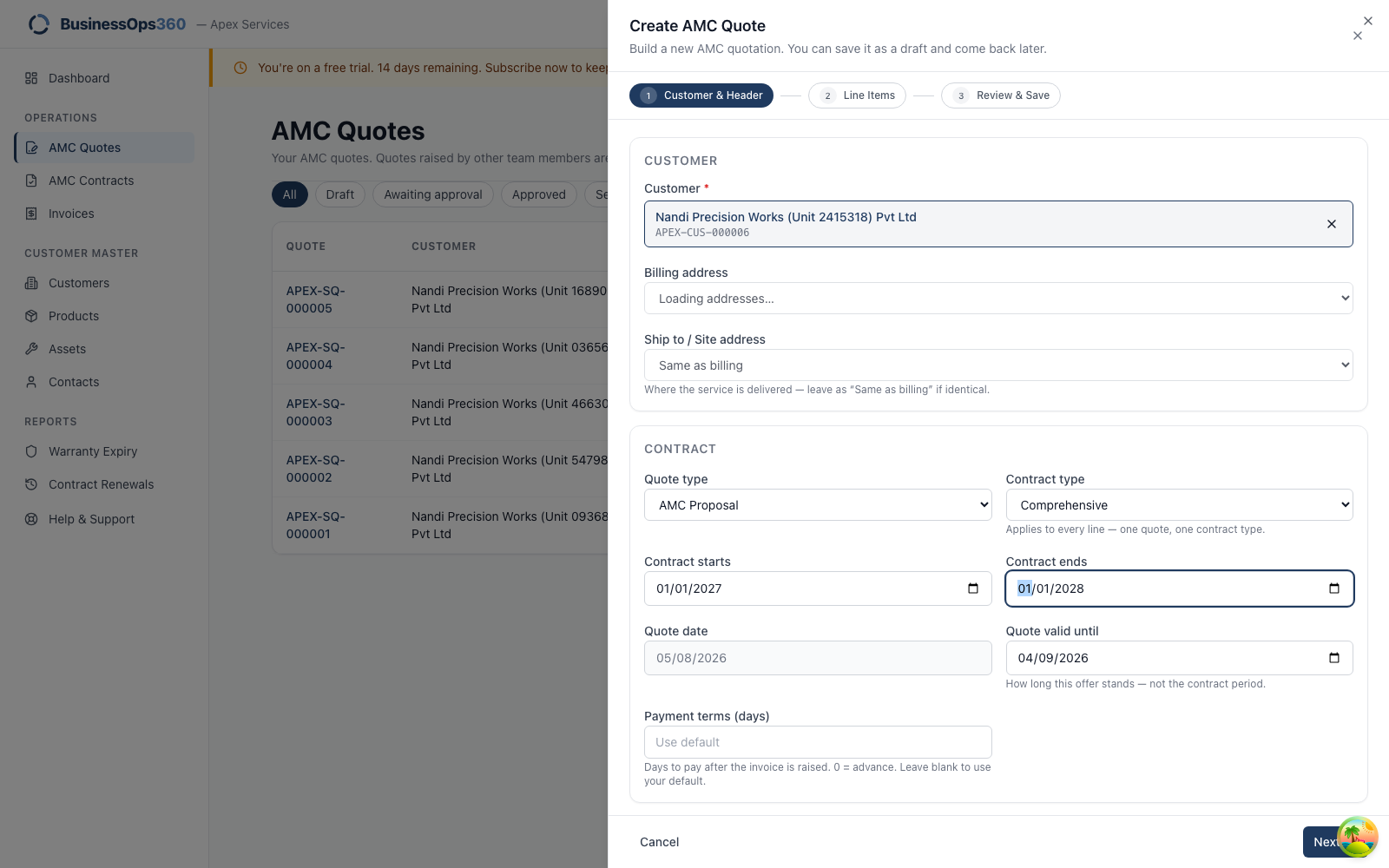
Go to AMC Quotes → New AMC Quote.
| Field | What it's for |
|---|---|
| Customer | Search by name or code. |
| Quote type | AMC Proposal for new business; AMC Renewal when continuing an existing contract. |
| Contract type | Comprehensive includes parts; Non-Comprehensive is labour only. |
| Contract starts / ends | The term. Every PM visit date is computed from these two dates — see How the visits are calculated. |
| Quote date / valid until | How long your offer stands. |
Step 3 — The equipment and the visit cadence
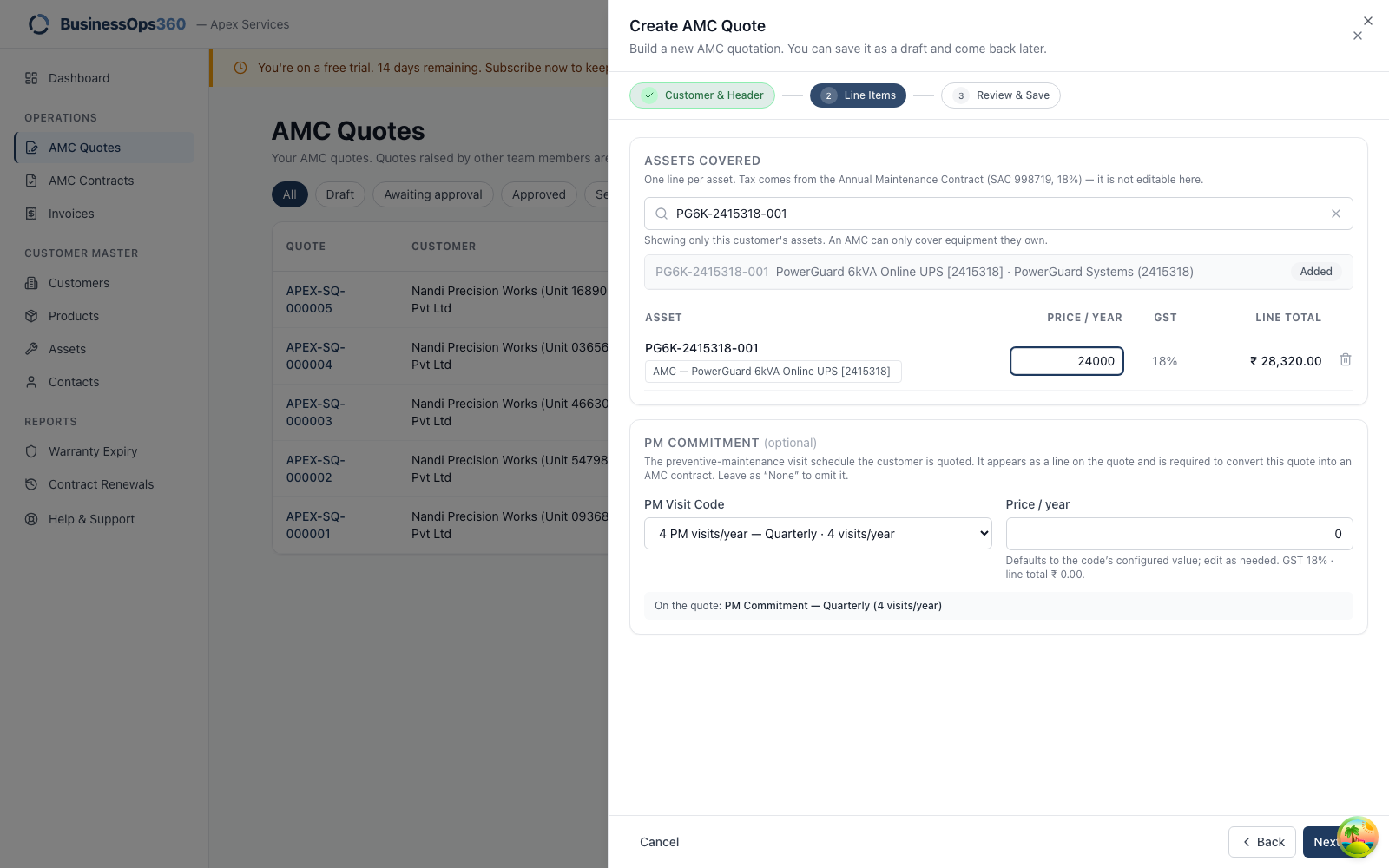
Assets covered — search the customer's equipment and add each unit, with its
price per year. Tax comes from the AMC product and isn't editable here.
PM commitment — this is the cadence you're selling:
| PM Visit Code | Interval | On a 1-year term |
|---|---|---|
| Quarterly | every 3 months | 4 visits |
| Half-yearly | every 6 months | 2 visits |
| Monthly | every month | 12 visits |
| Annual | every 12 months | 1 visit |
It appears as its own line on the quote, and it is required to convert the
quote into a contract. Leaving it as None means you're selling cover without
scheduled visits.
Step 4 — Review and save
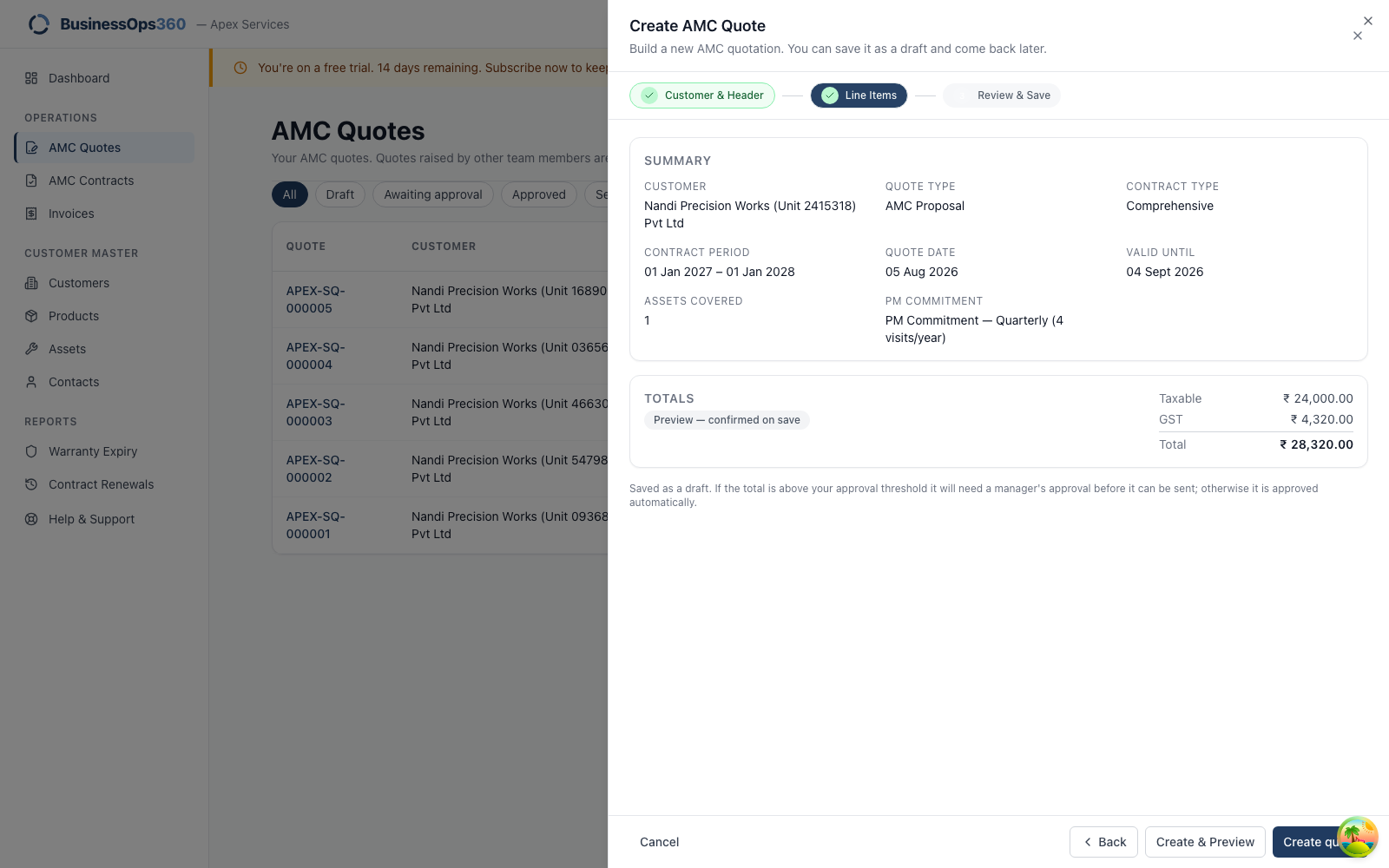
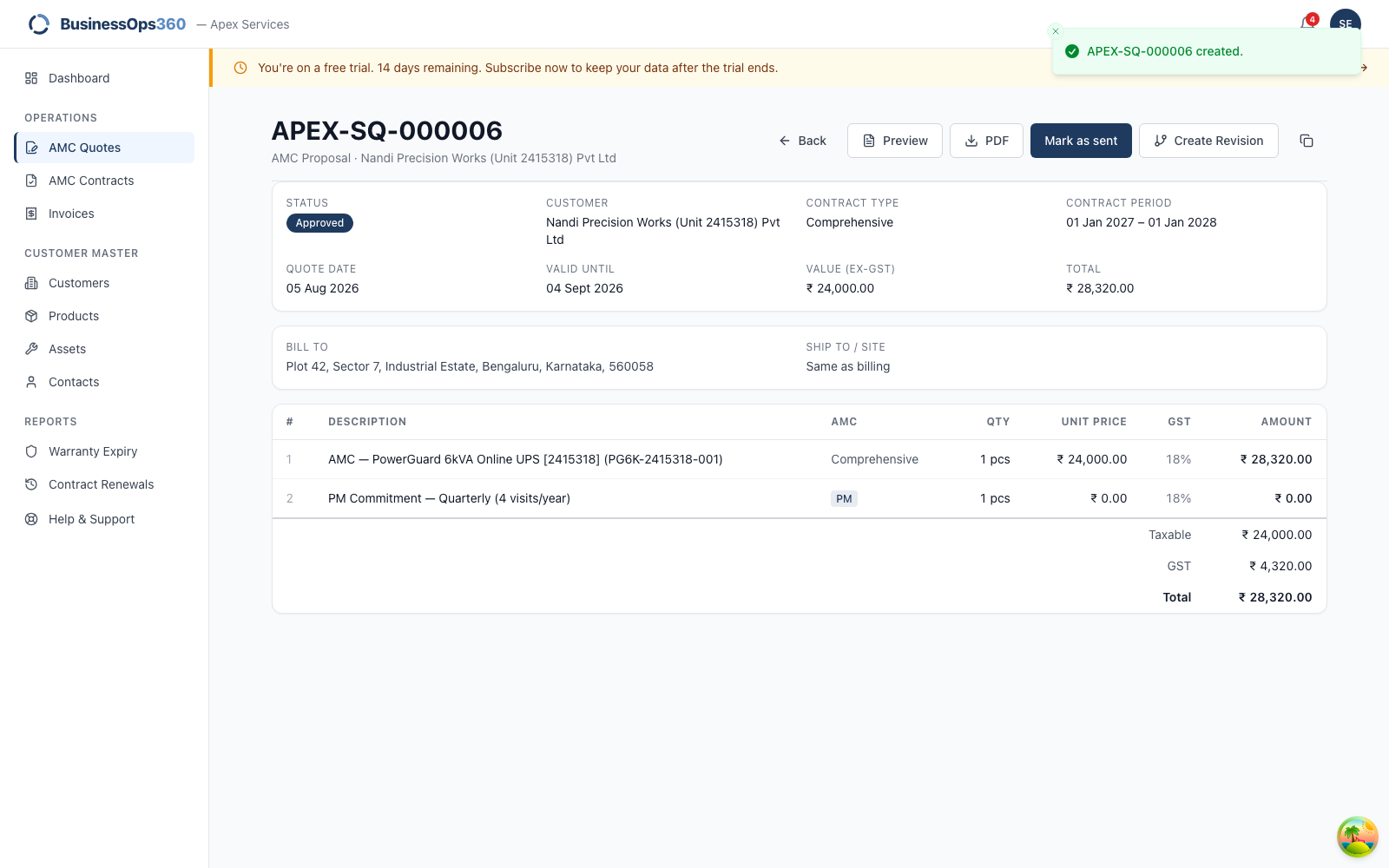
Below your agency's approval threshold the quote is approved automatically —
there's no submit step, and it goes straight to Approved.
Check the VALUE (EX-GST) against the TOTAL: the contract value is the
pre-tax figure, and it's the one that carries to the contract. Tax is shown
separately.
Step 5 — Send it, and record the answer
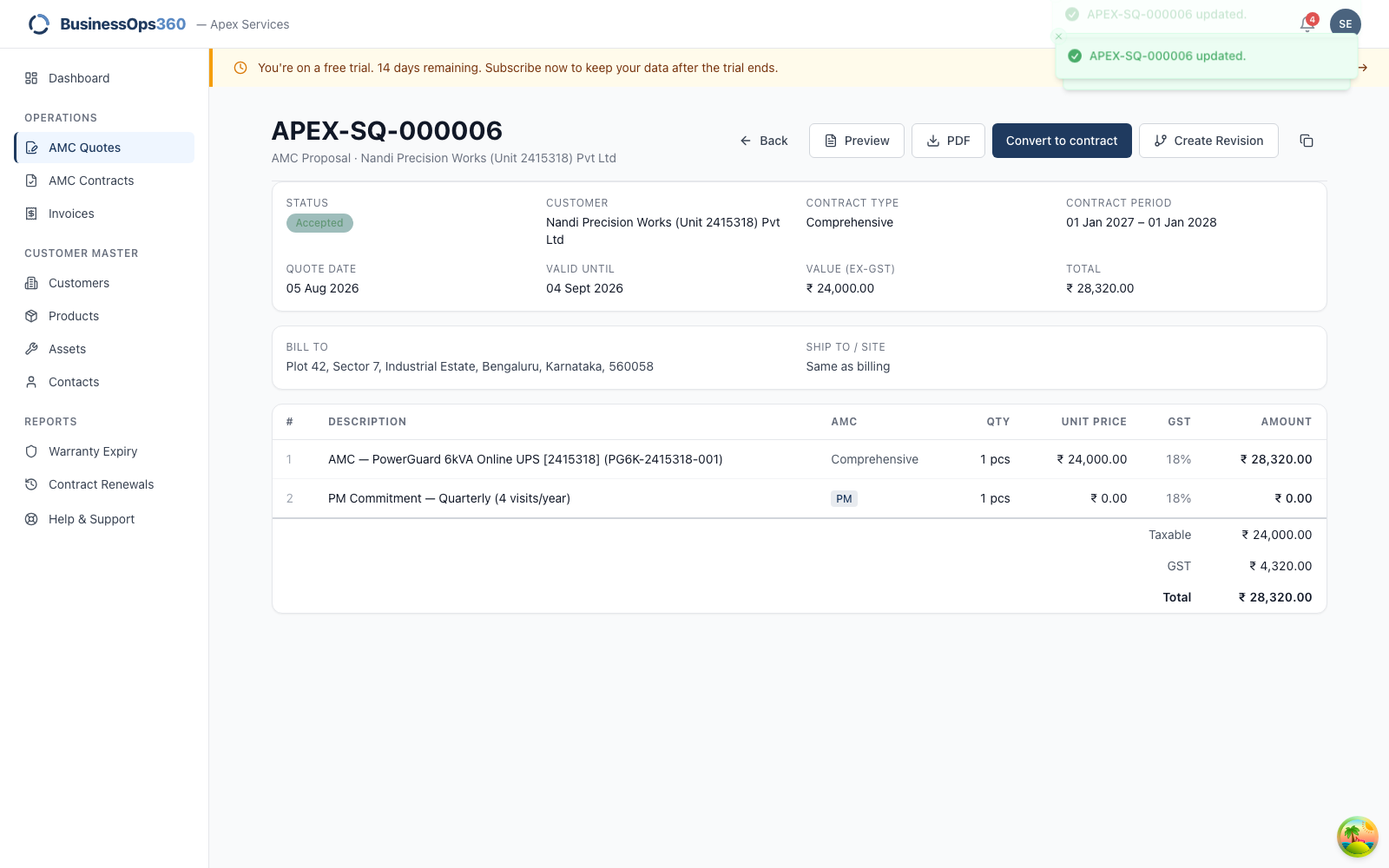
Download the PDF and email it, then Mark as sent. When the customer agrees,
Mark as accepted — and the Convert action appears.
Step 6 — Convert to a contract
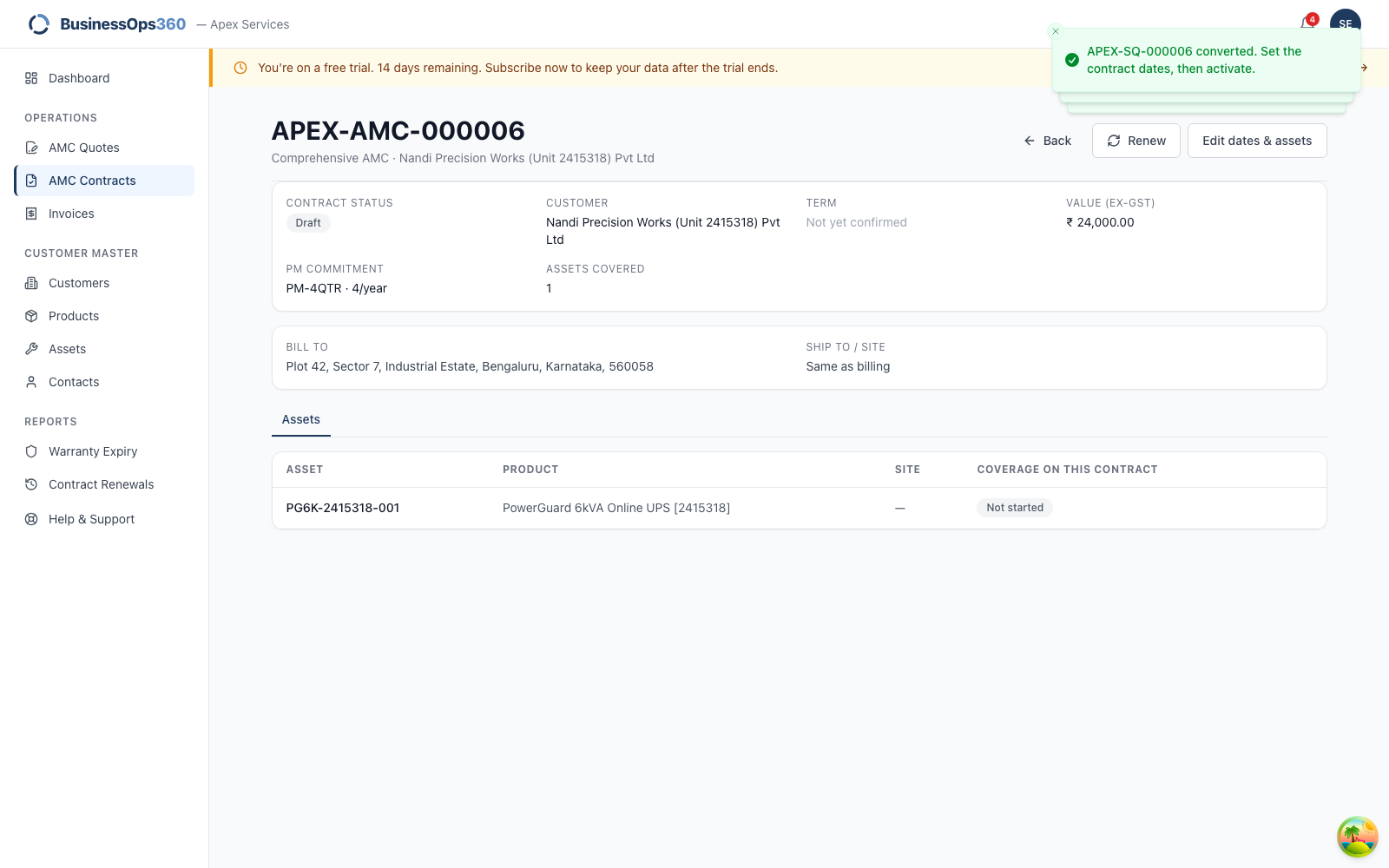
Converting creates a draft contract carrying the customer, the covered
assets, the value and the PM cadence.
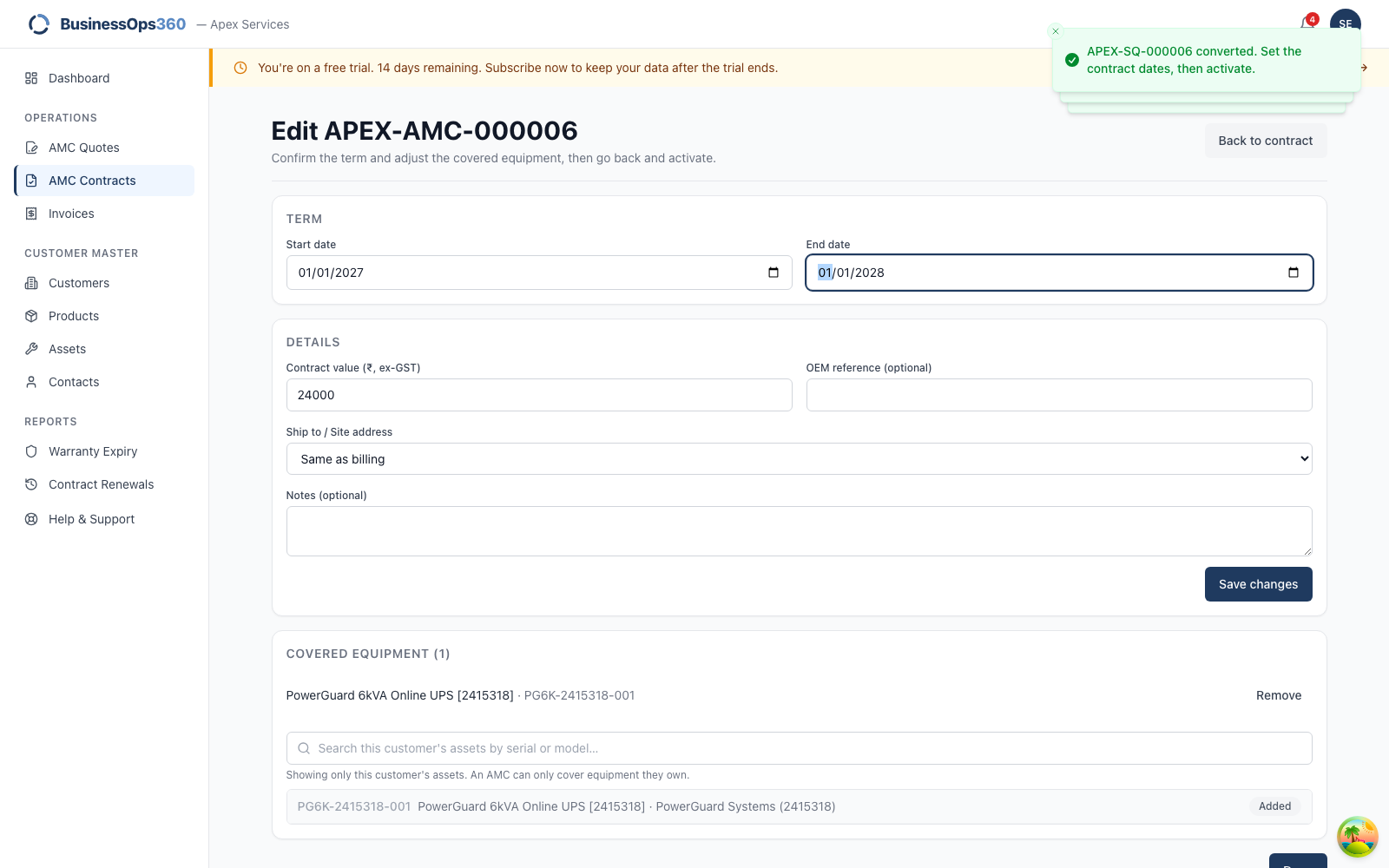
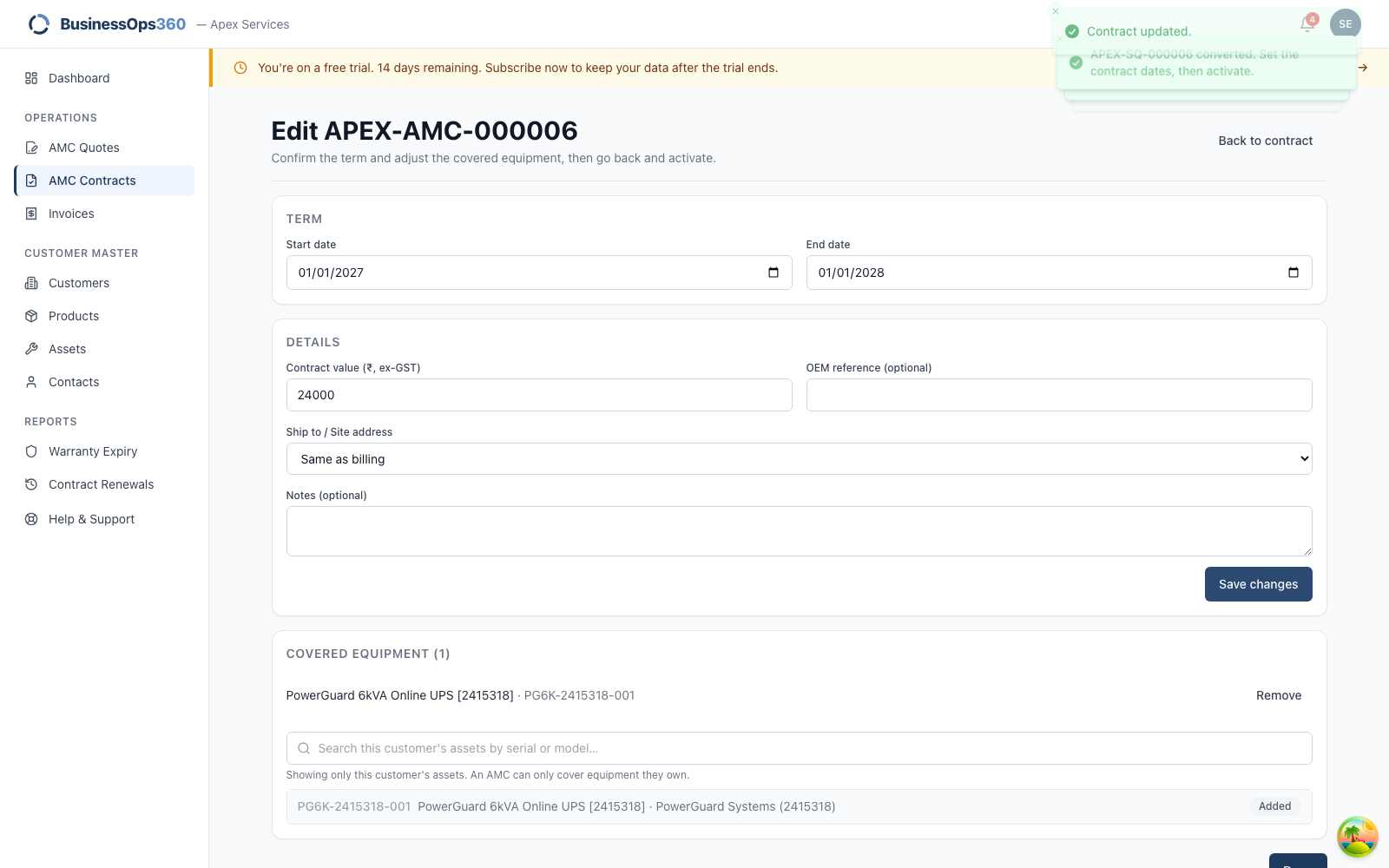
Click Edit, set the real start and end dates the customer agreed to,
and save. A draft is editable; once activated the contract is fixed.
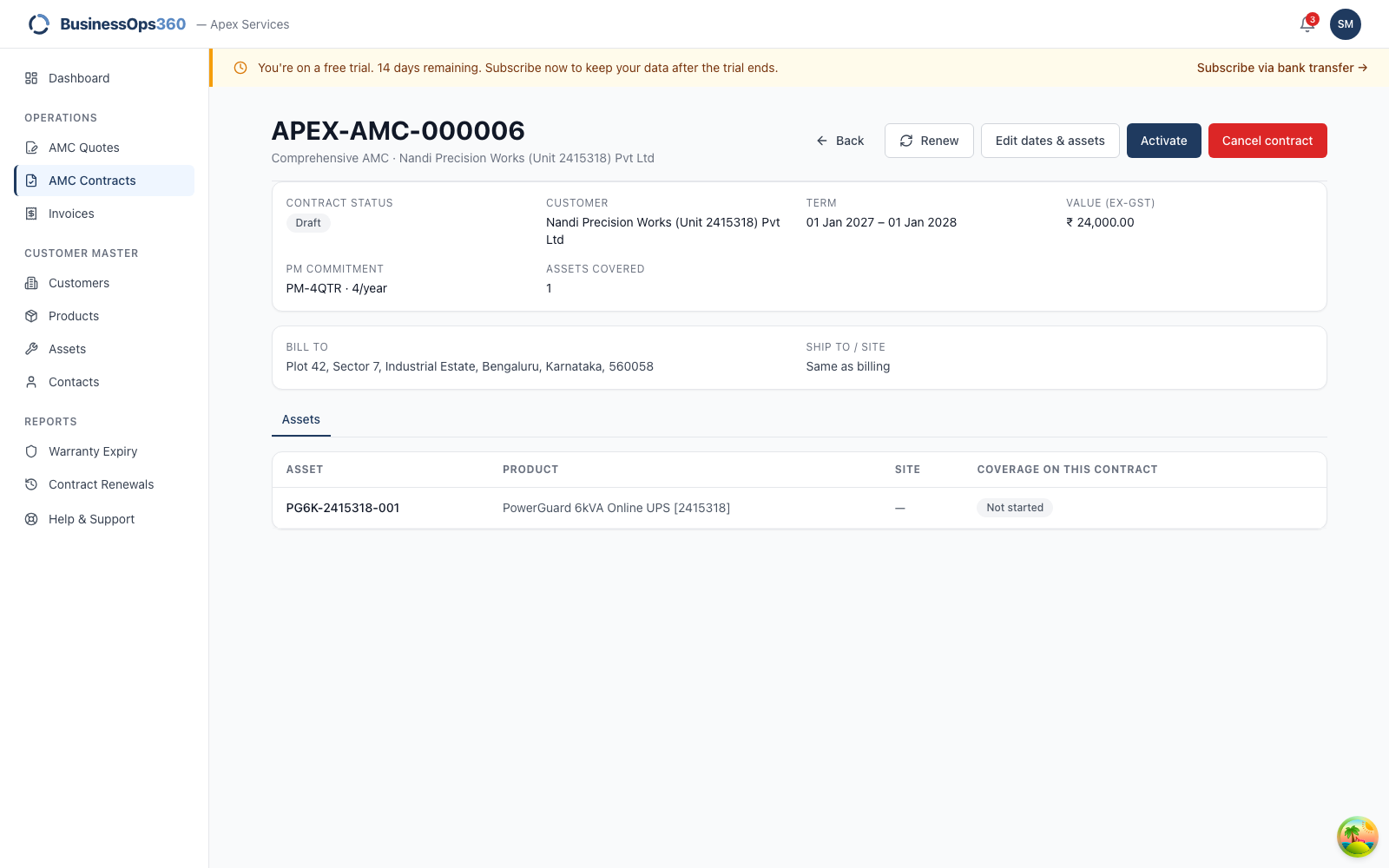
Step 7 — Hand it to your manager to activate
There's no Activate button on your screen. Activation commits the agency to a
schedule of visits, so it's the Service Sales Manager's decision.
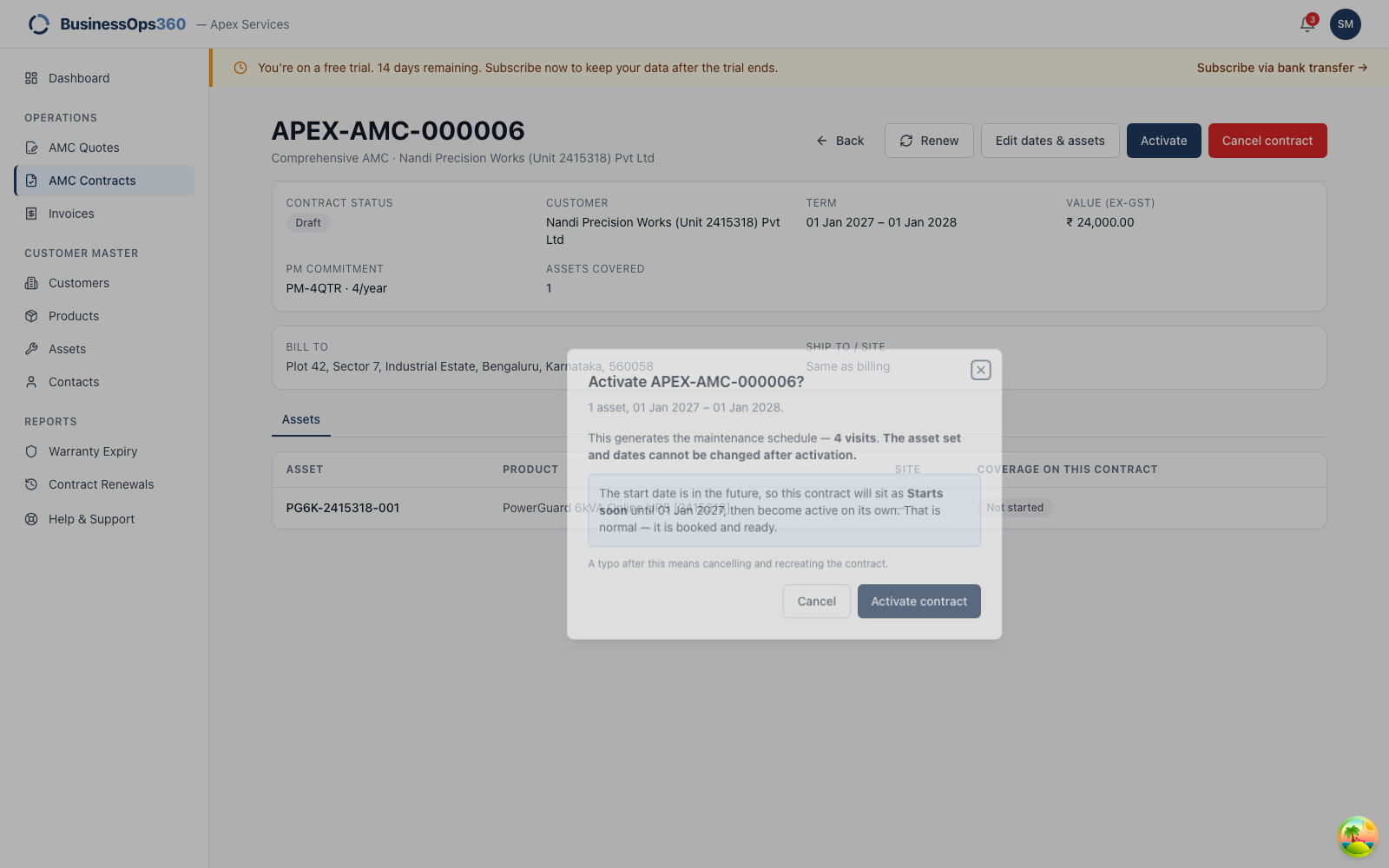
When they activate, the PM visits are generated across the whole term.
How the visit schedule is calculated
The rule is simple and worth knowing, because it's what the customer is buying:
For a 1 January 2027 → 1 January 2028 quarterly contract:
| Visit | Due |
|---|---|
| 1 | 1 April 2027 |
| 2 | 1 July 2027 |
| 3 | 1 October 2027 |
| 4 | 1 January 2028 |
Four visits. Three things follow from the rule:
- There's no visit on the start date. The first is one interval in.
- A visit landing exactly on the end date does count. Visit 4 above.
- Nothing is ever scheduled past the end date. A 6-month quarterly contract
gets 2 visits, not 4 with two after it expires.
When the term doesn't divide evenly
A 14-month contract at quarterly cadence gets 4 visits — at months 3, 6,
9 and 12. The fifth would be month 15, past the end, so it isn't scheduled and
the last two months simply have no visit.
The system does not create a part-visit or shuffle the dates to fit. If you want
a visit in that tail, either set the term to a whole number of intervals, or ask
your coordinator to raise that one visit manually.
When the visits actually become jobs
The schedule is a plan. Each visit becomes a real Service Request for an engineer
as its due date approaches (within about a month), raised automatically. You
won't see service requests for visits a year out — that's expected.
"Save" is greyed out on the quote
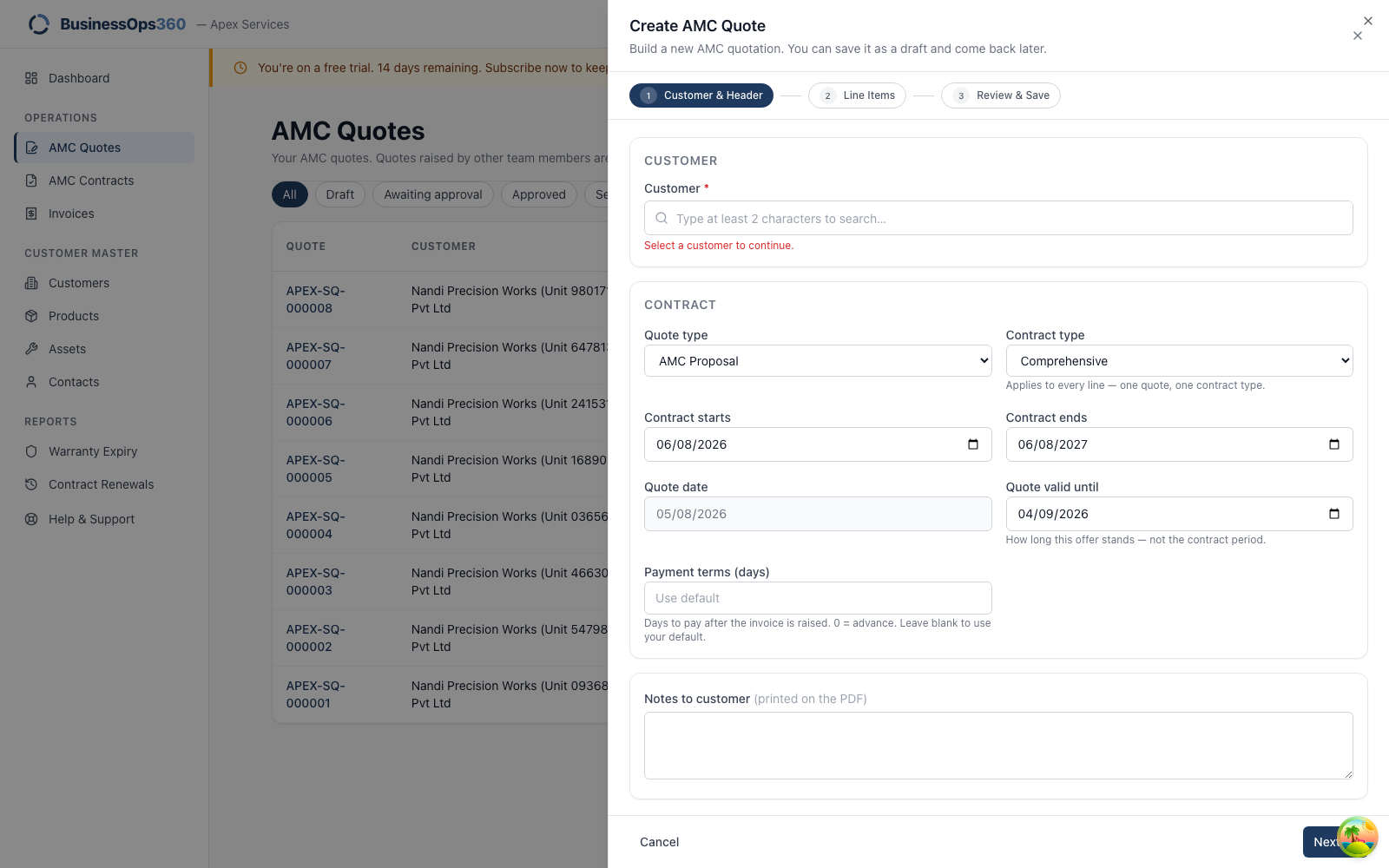
Work down the form — the step won't advance until the required fields are in.
Most often it's the customer, or an asset line with no price per year.
The end date won't accept my date
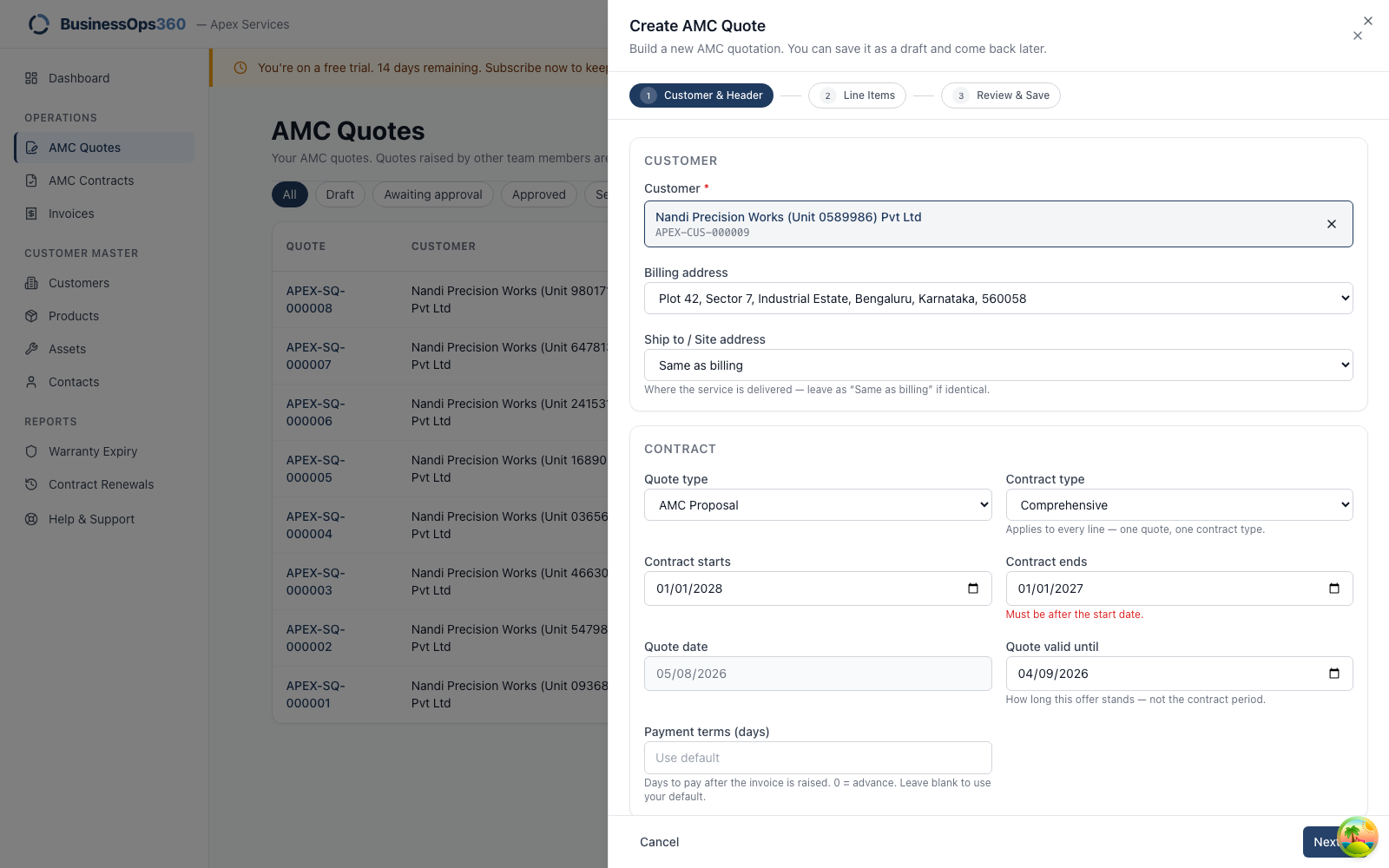
A contract can't end before it starts. The term is what the entire visit schedule
is computed from, so a backwards one is refused outright.
"No assets covered"
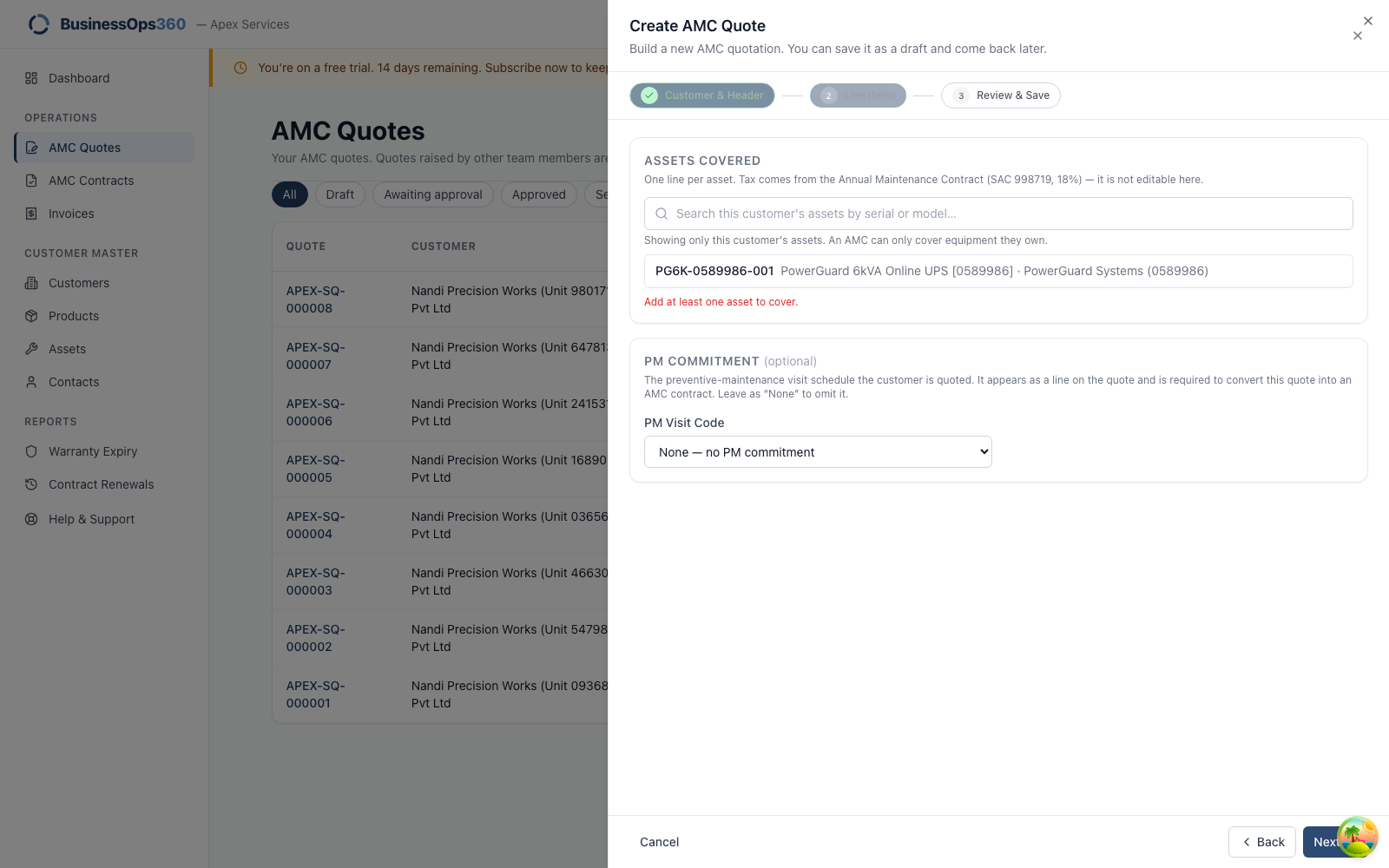
An AMC has to cover something. Add at least one of the customer's assets. If the
list is empty, that customer has no equipment recorded — an AMC can only cover
units they own.
I can't activate the contract
Two reasons, in order of likelihood:
- The term is empty. Edit the draft and set the start and end dates — see
Step 6. - It isn't yours to activate. Only the Service Sales Manager can.
Checking the visit schedule
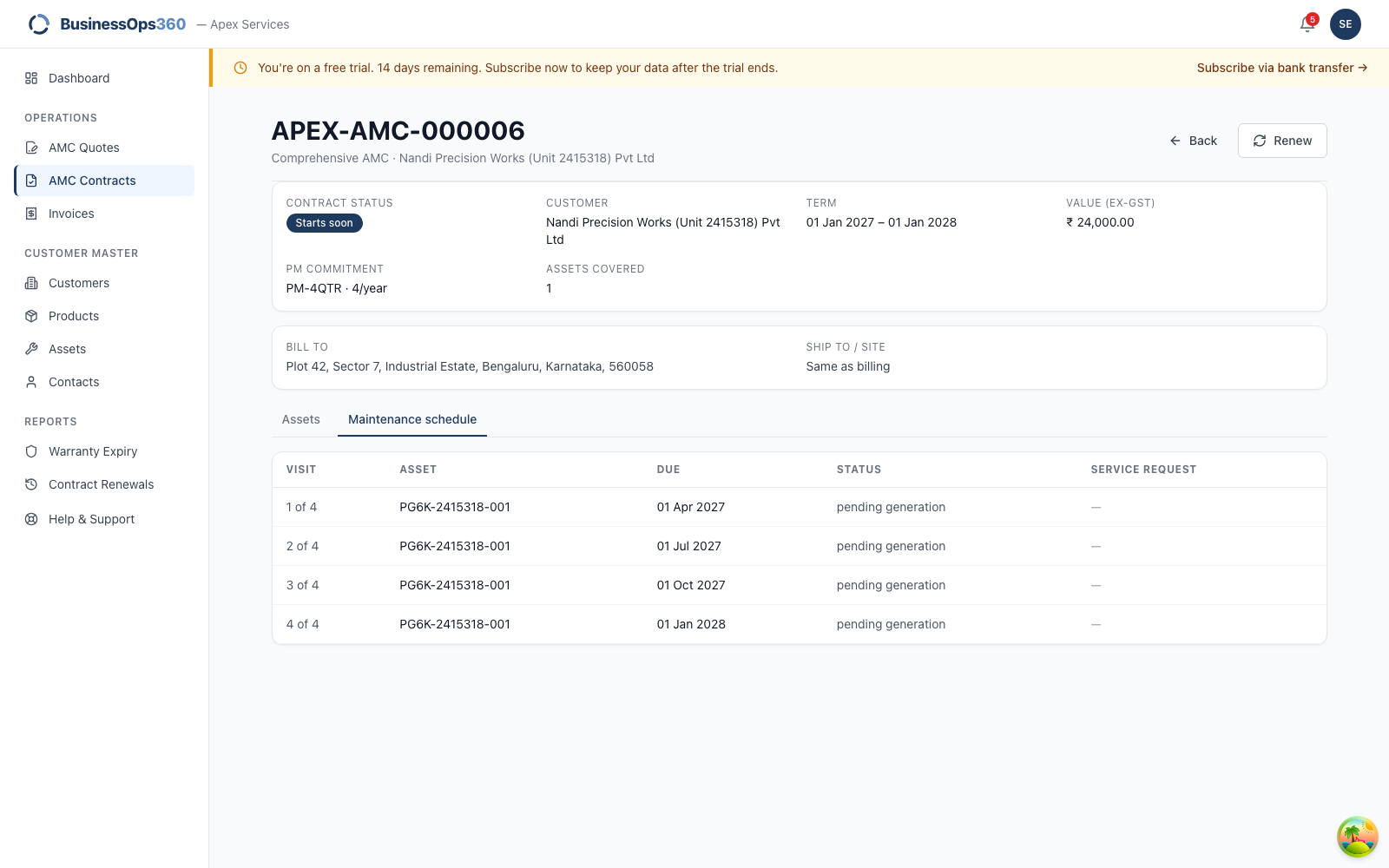
Open the contract and go to the Maintenance schedule tab. Each row is one
visit: its number in the plan, the unit's serial number, the due date, its
status, and — once it has been raised — the service request number to quote
when you follow it up.
A visit reading Pending generation with no service request is normal: the
request is raised automatically about 30 days before the due date. See
When the visits actually become jobs.
Screens shown are from a demo workspace with invented company and equipment
details. Your numbers and names will differ.