Quoting a customer, and getting paid
Who this is for: the sales desk — Sales Executives who prepare quotations, convert won deals into orders, and raise the invoice once goods have gone out.
What you'll do: build a quotation, send it, turn the customer's purchase order into a Sales Order, dispatch the units, raise the GST tax invoice and record the payment — with the paper trail intact at every hop.
Before you begin
Three things must already exist. You cannot create the first two yourself —
they're your Tenant Admin's job, and the buttons simply won't be there for you.
| You need | Who sets it up |
|---|---|
| The product, in the catalogue | Tenant Admin. You can search and quote from it, but not add to it. |
| For serialised products — units in stock | Tenant Admin. You cannot dispatch a serial the system hasn't taken into stock. |
| The customer, with a billing address | You can create this yourself. |
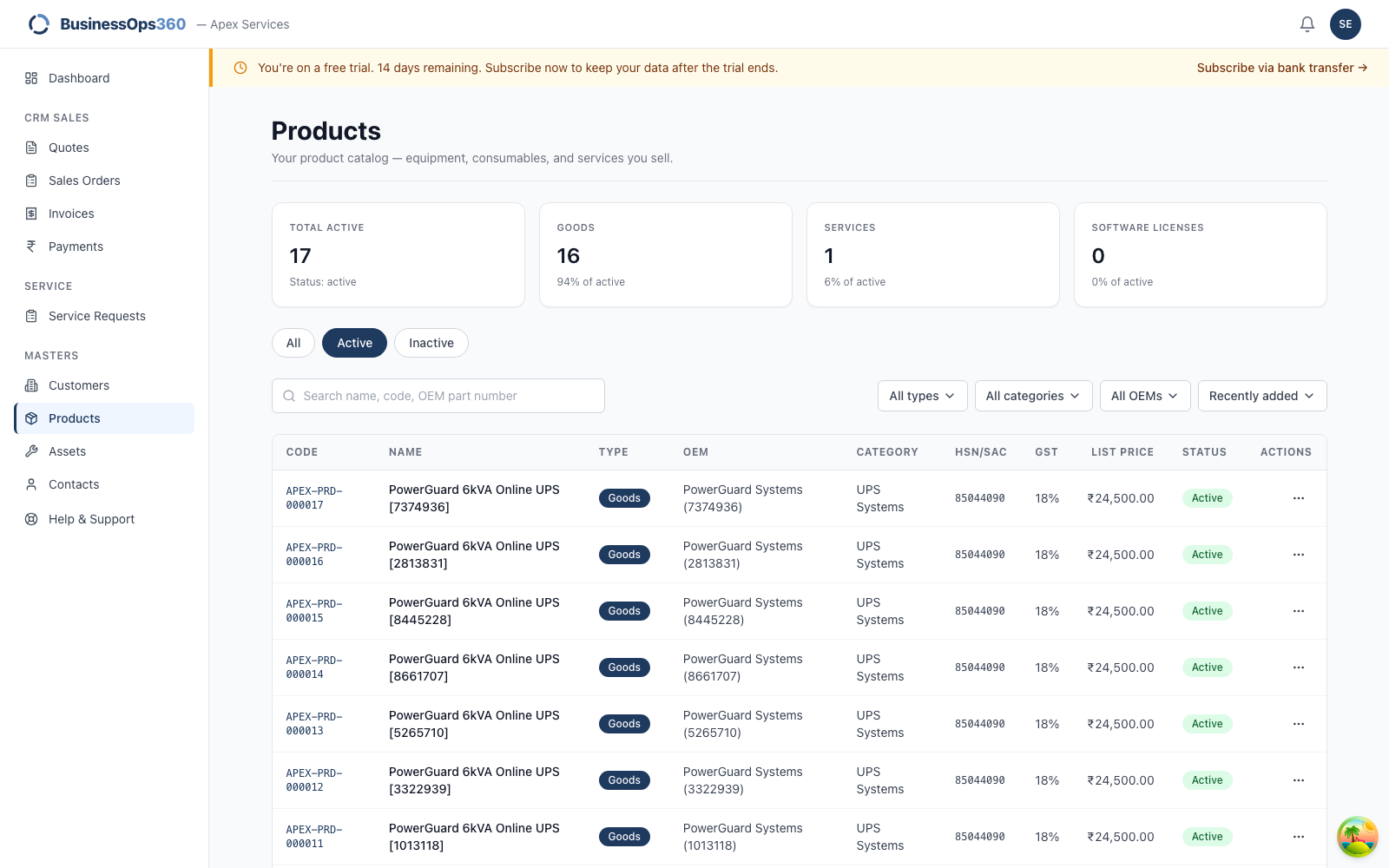
You can open Masters → Products and search the catalogue — you need to, to
quote from it — but there's no "Add product" button. If something you need to
sell isn't listed, ask your Tenant Admin to add it.
Step 1 — Your workspace
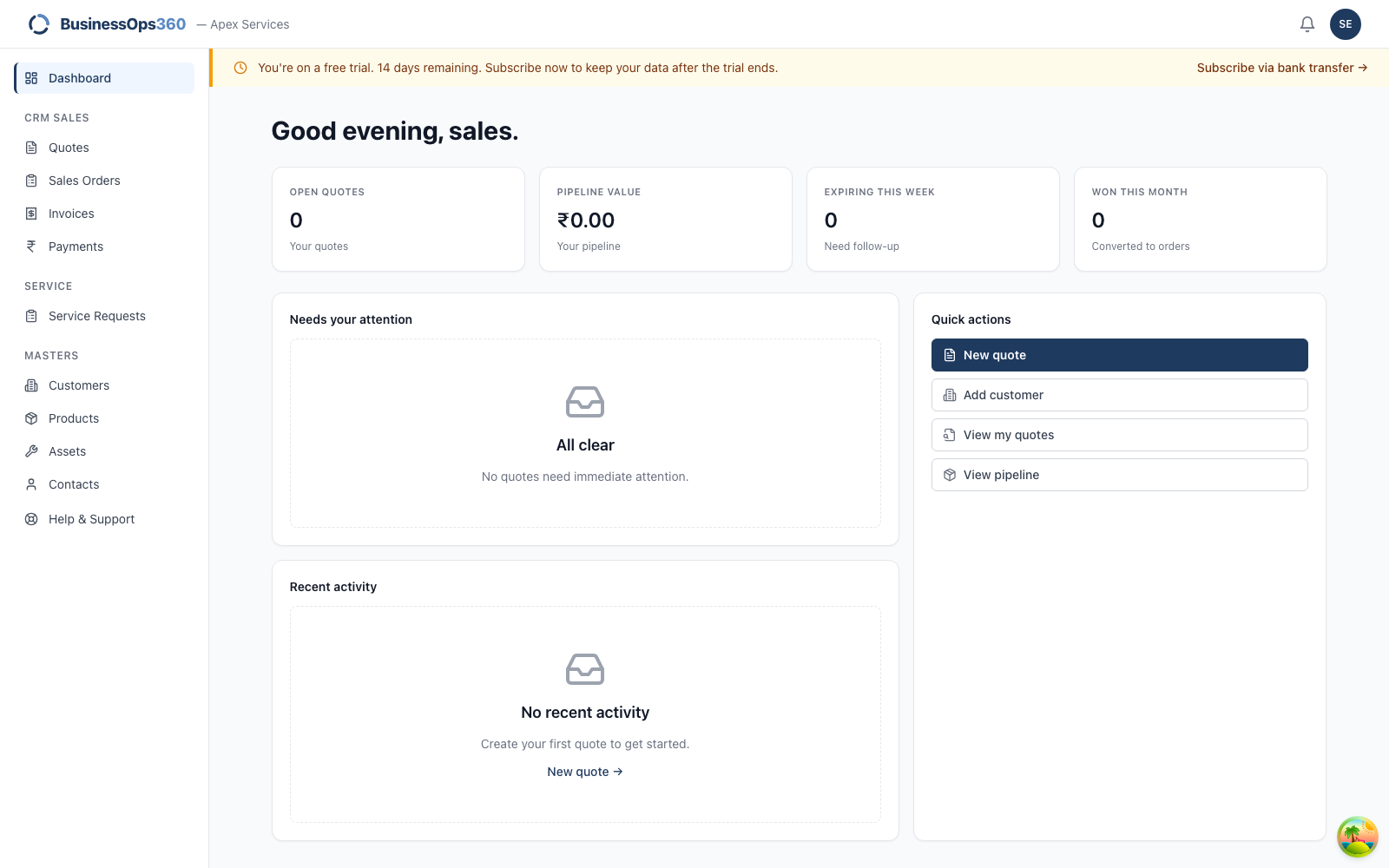
Your left-hand nav is the sales pipeline — Quotes, Sales Orders, Invoices,
Payments — plus the master data you read from. Administration screens (Users,
Roles & Permissions, Billing) aren't shown because they aren't yours.
Step 2 — Open the Quotes screen
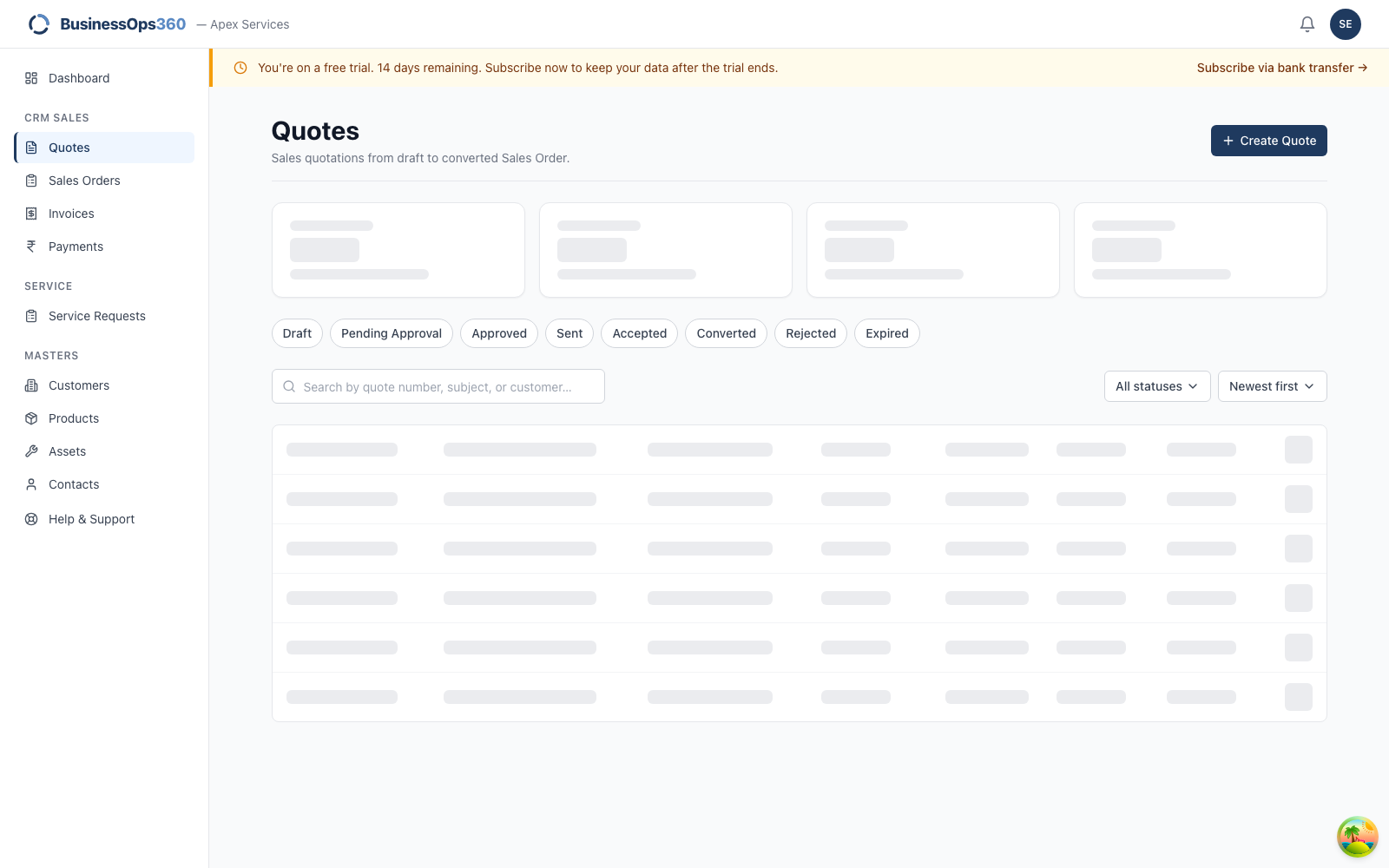
Go to Quotes. This is every quotation you can see, newest first, with its
status and value. Click Create Quote.
Step 3 — Who the quote is for
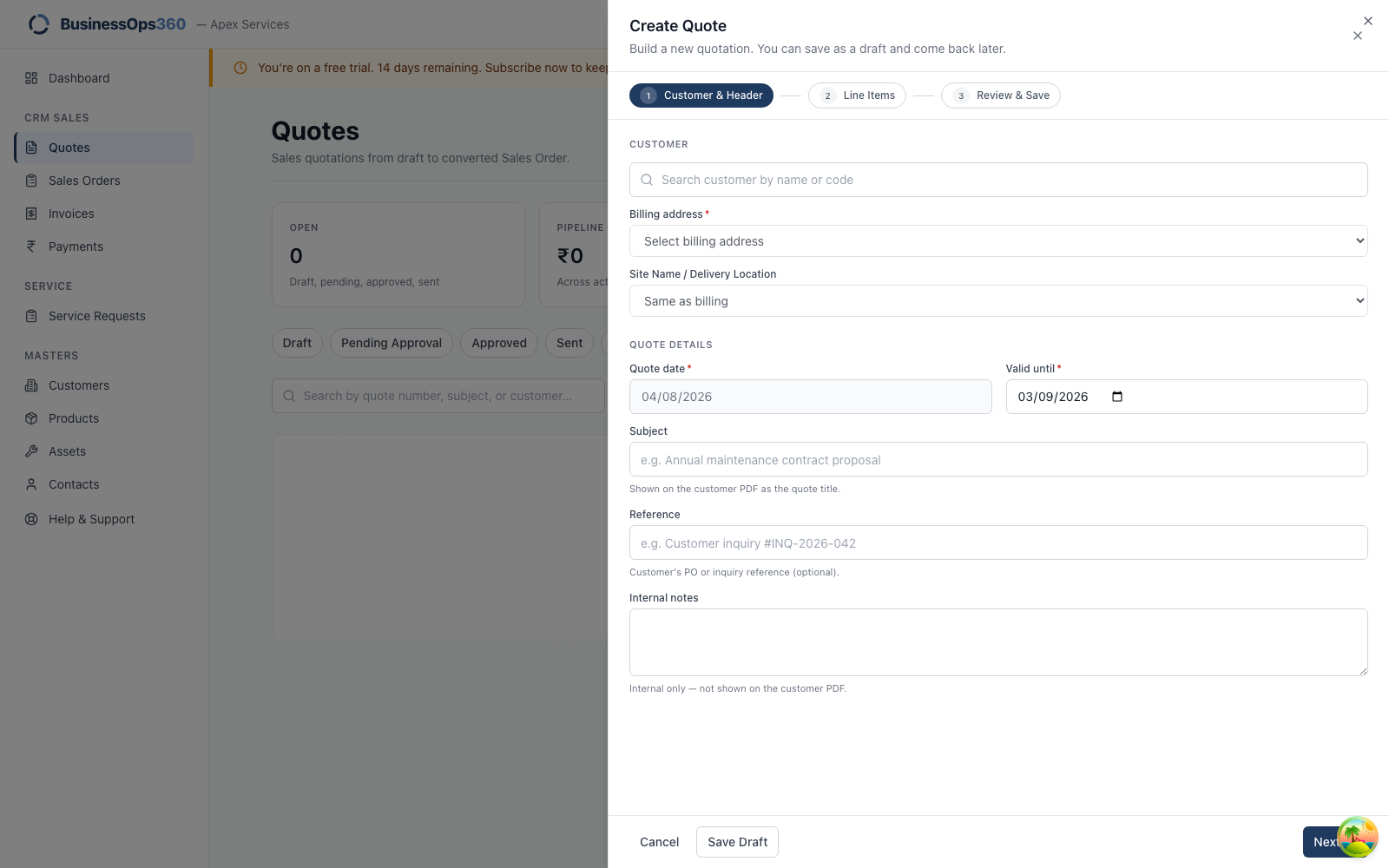
The form has three steps: Customer & Header, Line Items, Review &
Save. You can move back and forth freely and save a draft at any point.
Start typing the customer's name or code and pick them from the list.
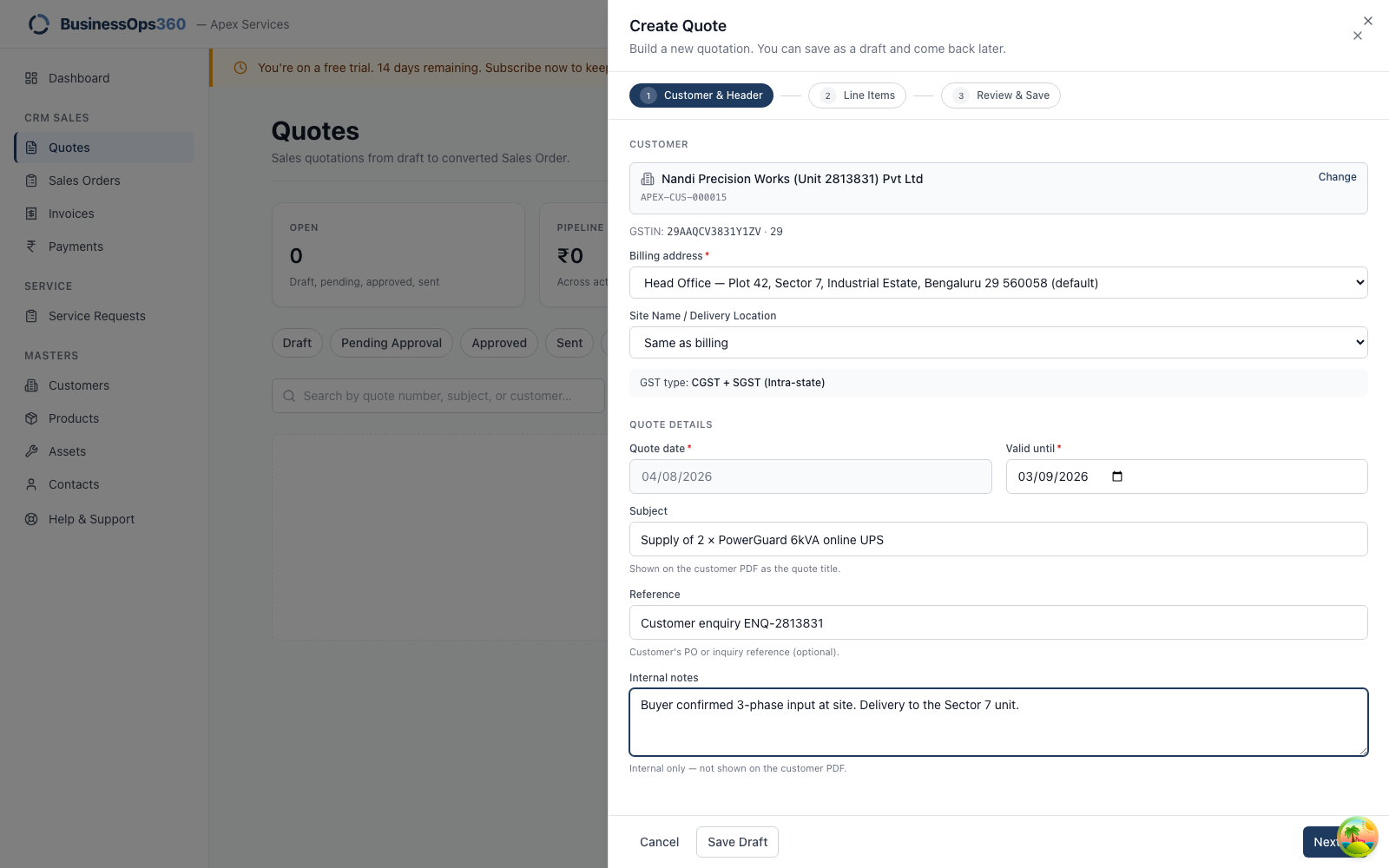
| Field | What it's for |
|---|---|
| Billing address | From the customer record. This decides the GST treatment. |
| Site Name / Delivery Location | Where the goods physically go. Leave it on Same as billing, or pick another address. |
| Quote date | Today, and not editable. A quotation is dated when it's raised. |
| Valid until | How long your price holds. A commercial promise — set it deliberately. |
| Subject | What the customer sees as the title. Write it for them. |
| Reference | Their enquiry or RFQ number, so they can match their own paperwork. |
| Internal notes | Never shown to the customer. Site conditions, who you spoke to. |
Click Next.
Step 4 — What you're selling
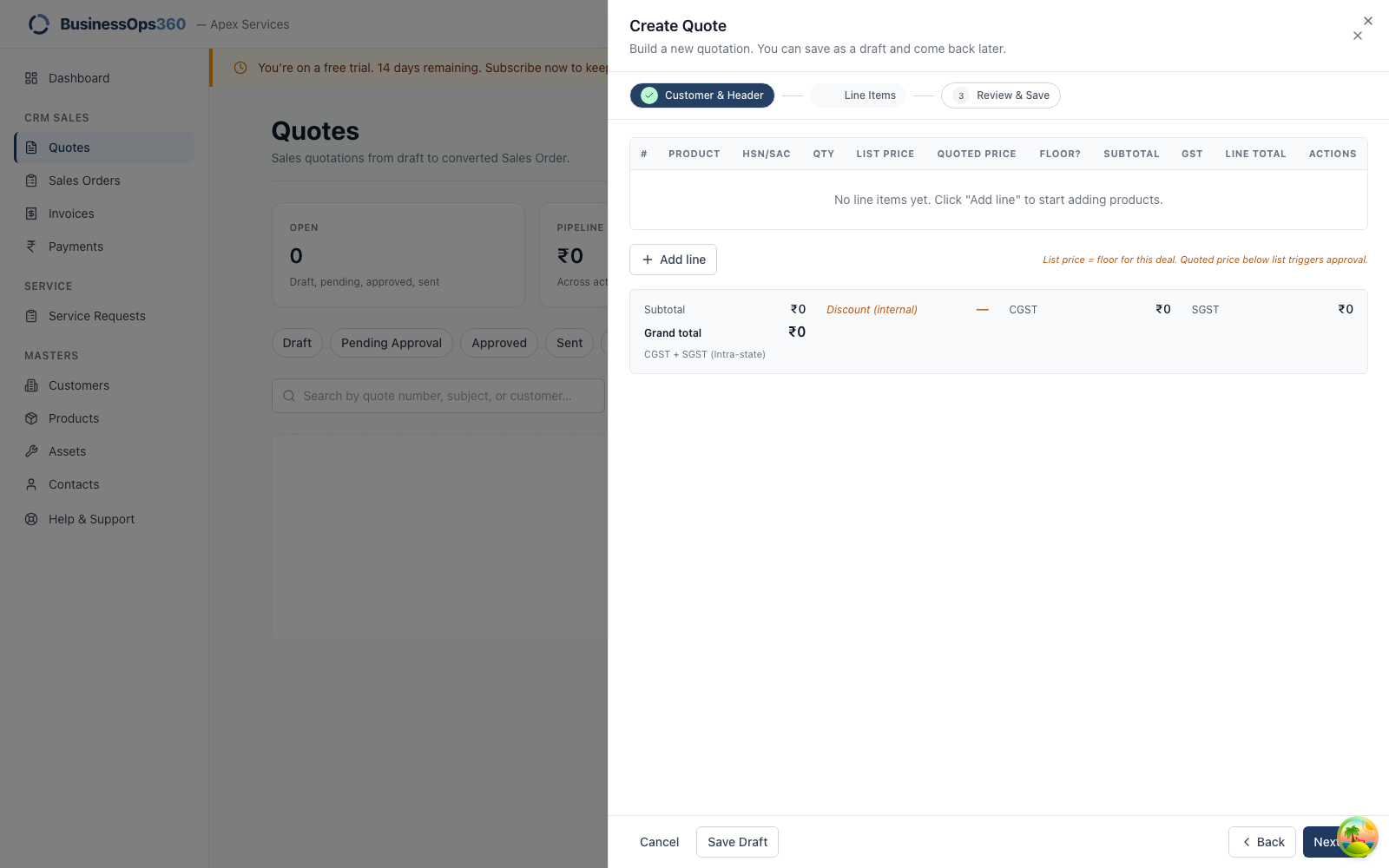
Click + Add line and search the product by name or code.
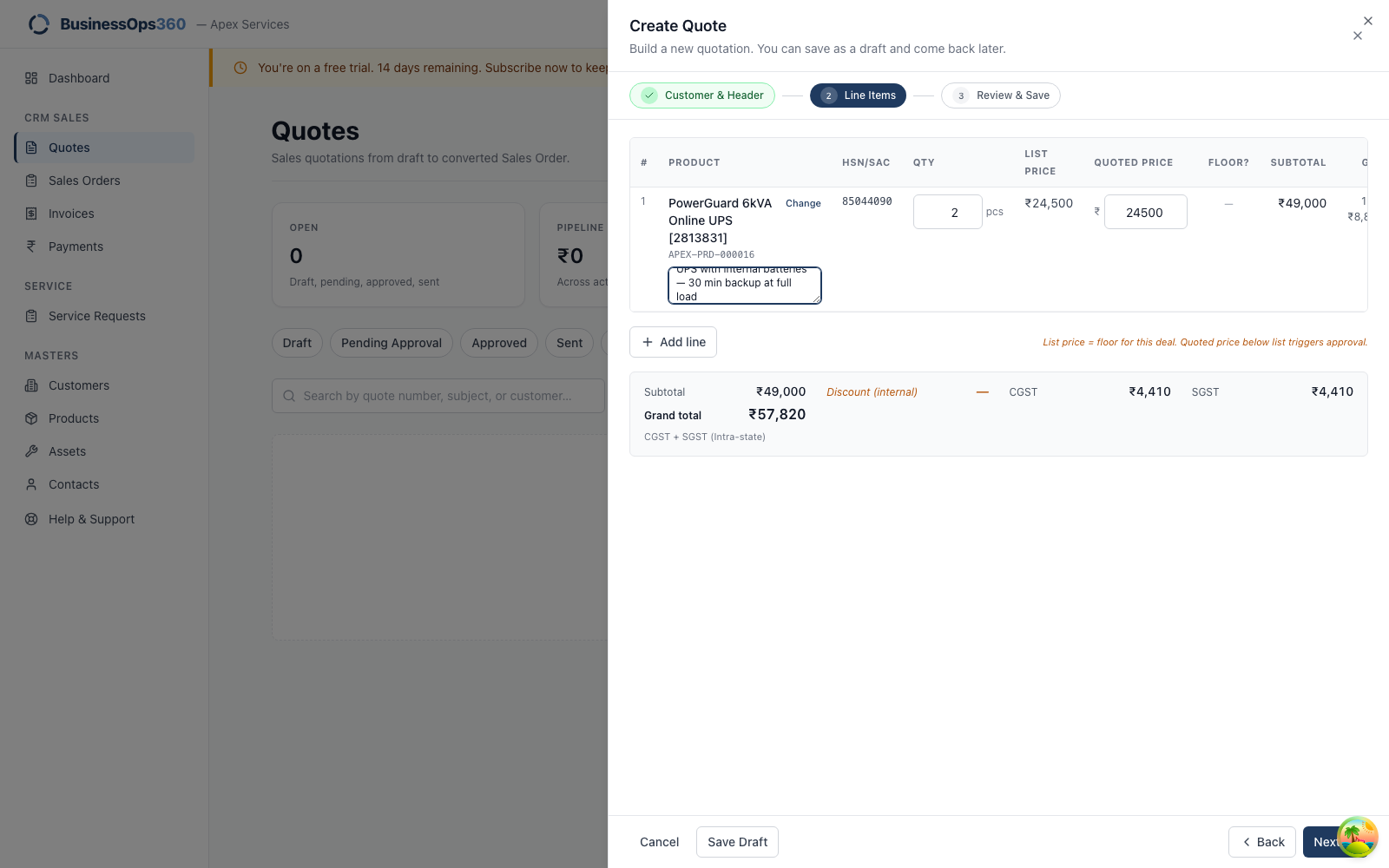
For each line you set Qty and Quoted price:
- List price comes from the catalogue and cannot be typed over. It's the
floor your Tenant Admin set. - Quoted price is yours. Above list is free. Below list is allowed but
sends the quote for approval — see Discounting below list. - HSN/SAC comes from the product, drives the tax rate, and prints on the invoice.
- + Add description lets you write a line description that replaces the
catalogue product name on the customer's PDF — use it to describe what
you're actually supplying.
Click Next.
Step 5 — Review and save
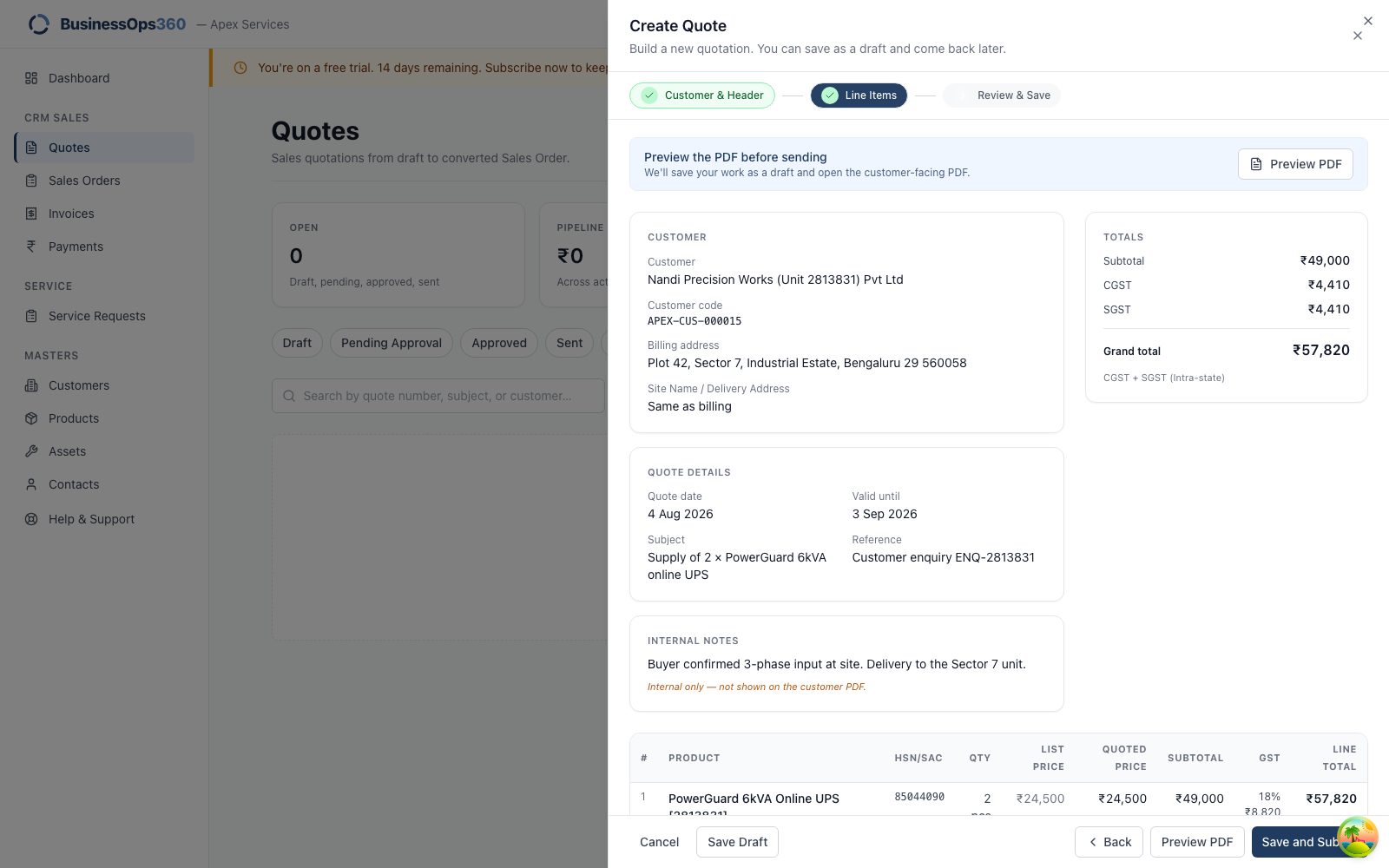
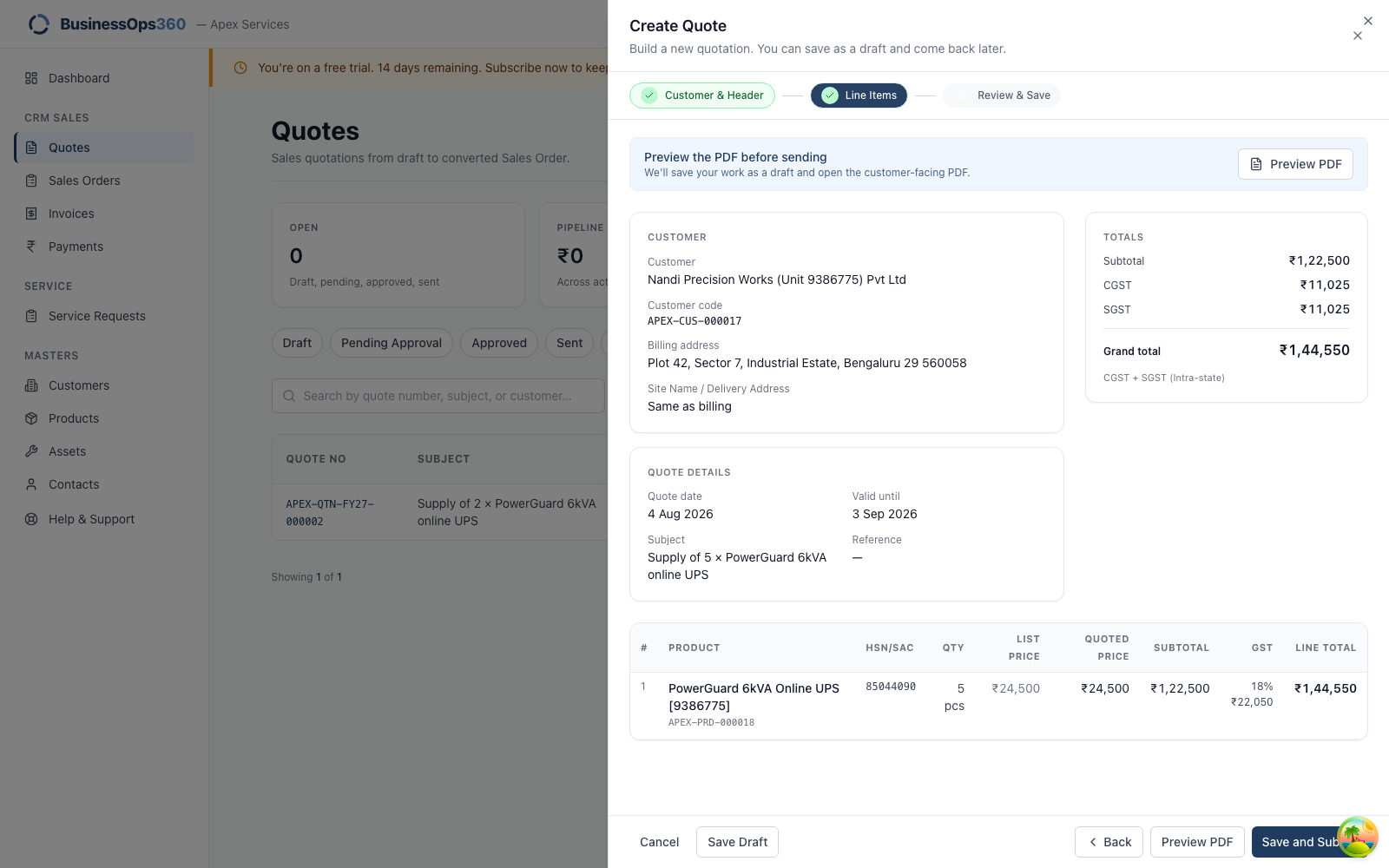
A last look at the customer, the lines and the grand total. Click Save Draft.
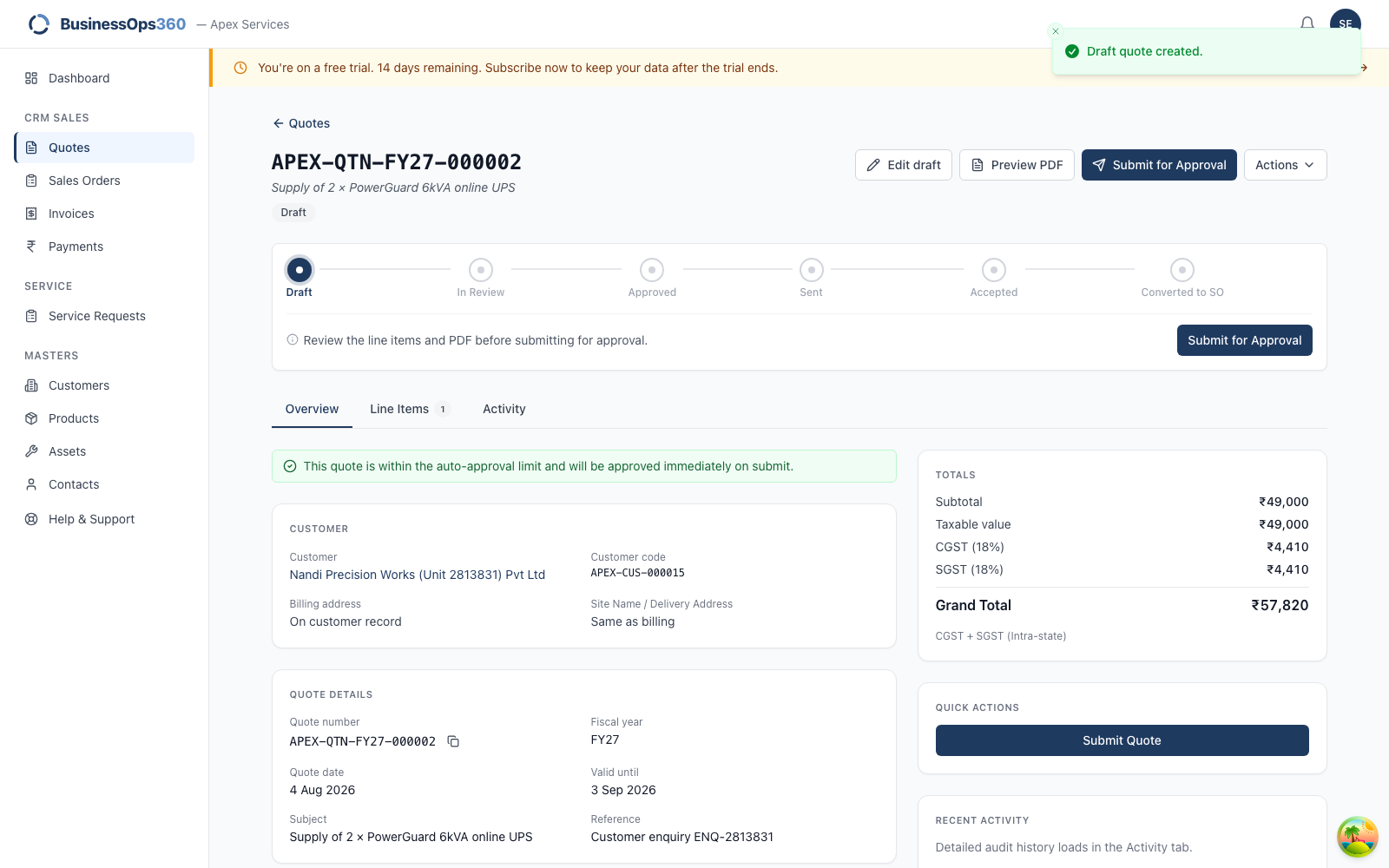
The quotation now has a number and sits in Draft. Note the totals card
here shows the correct CGST + SGST split. Nothing has gone to the customer yet.
Step 6 — Check the PDF the customer will get
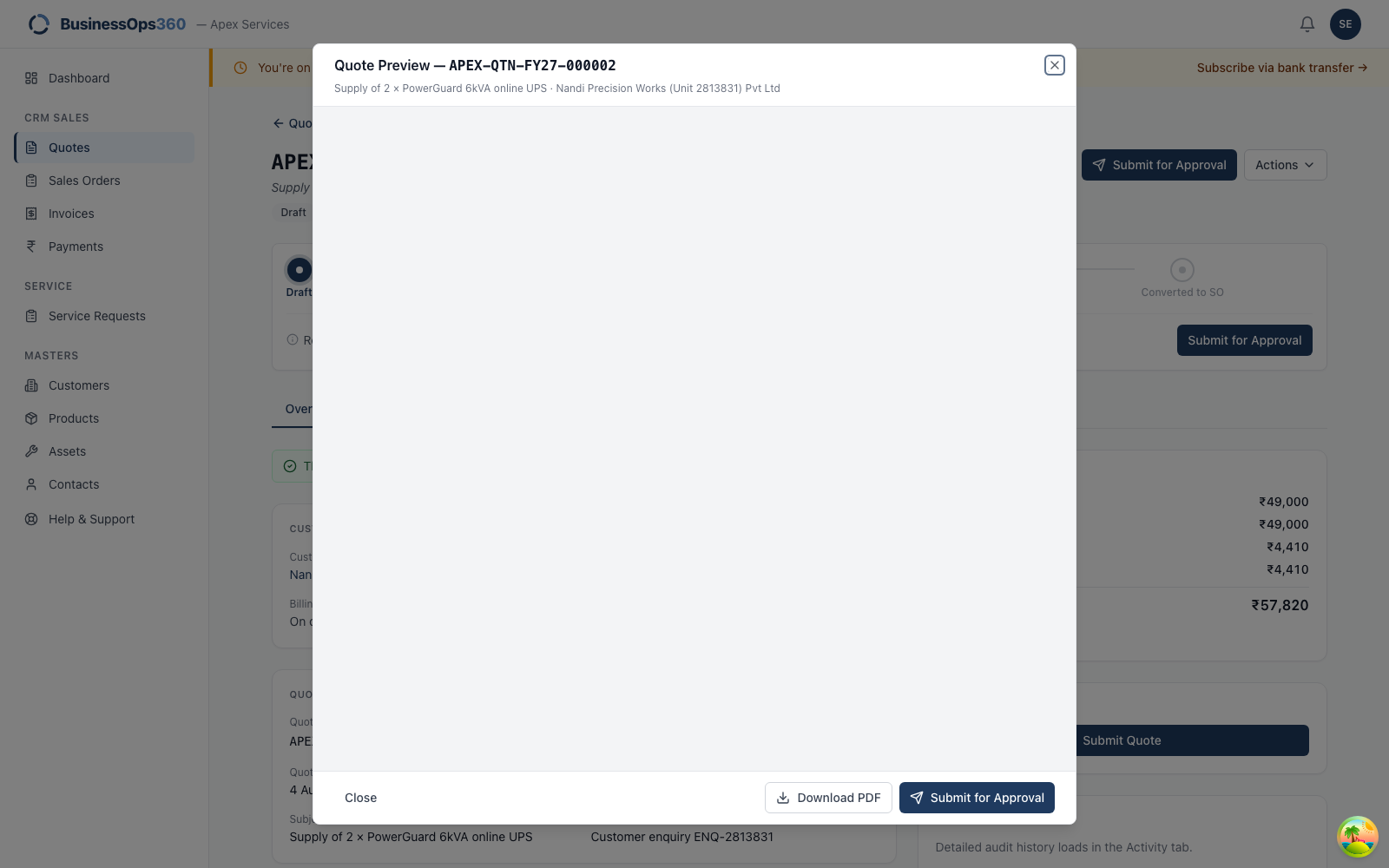
Click Preview PDF. This is exactly what your customer will receive — check
the description, prices and tax before it leaves your hands.
Step 7 — Submit
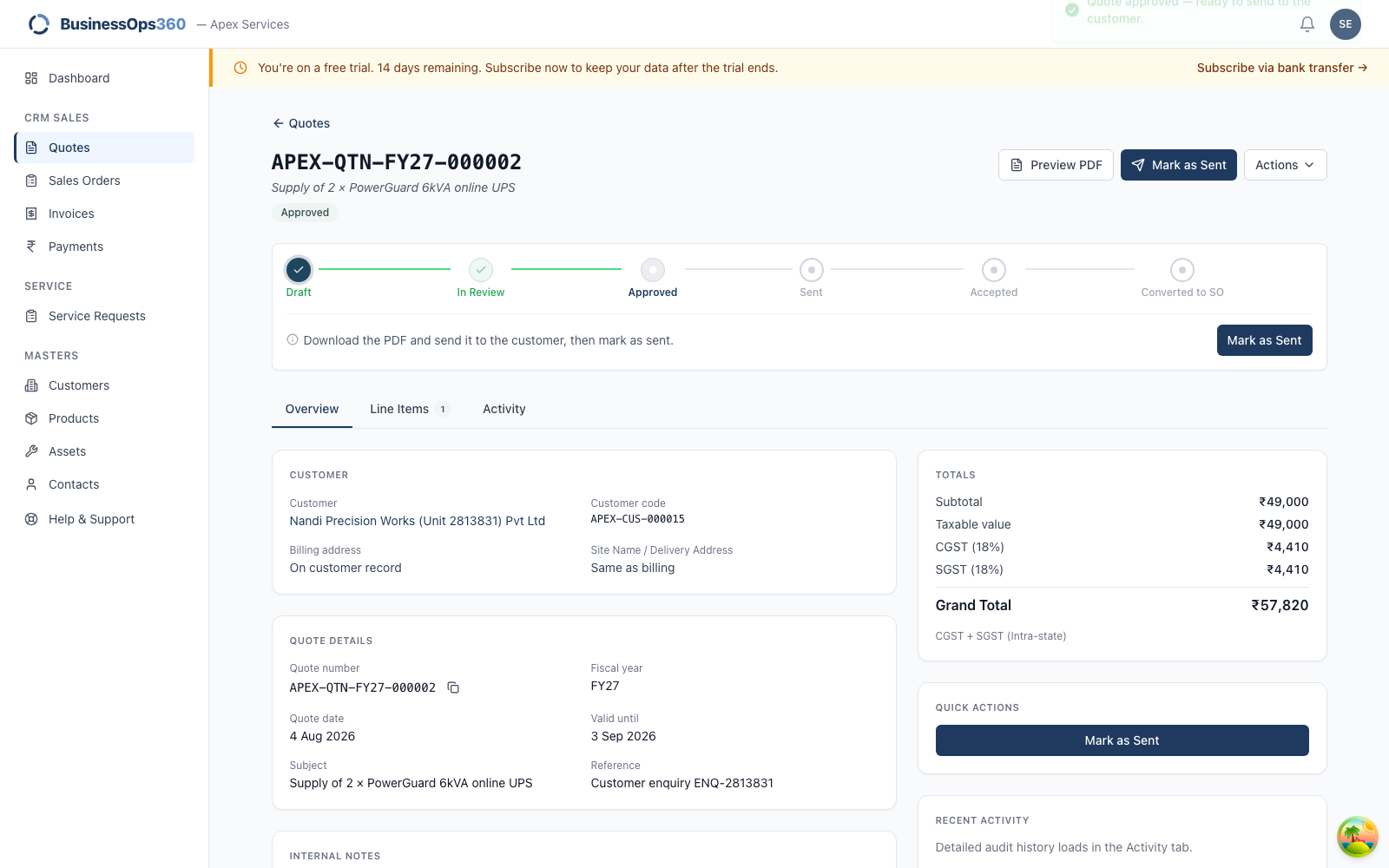
Click Submit. What happens next depends on the value:
- Under the approval threshold, priced at or above list → approved straight
away, as here, and it stays with you. - Over the threshold, or discounted below list → Pending approval, and it
goes to your approver. See When your quote needs approval.
Step 8 — Send it
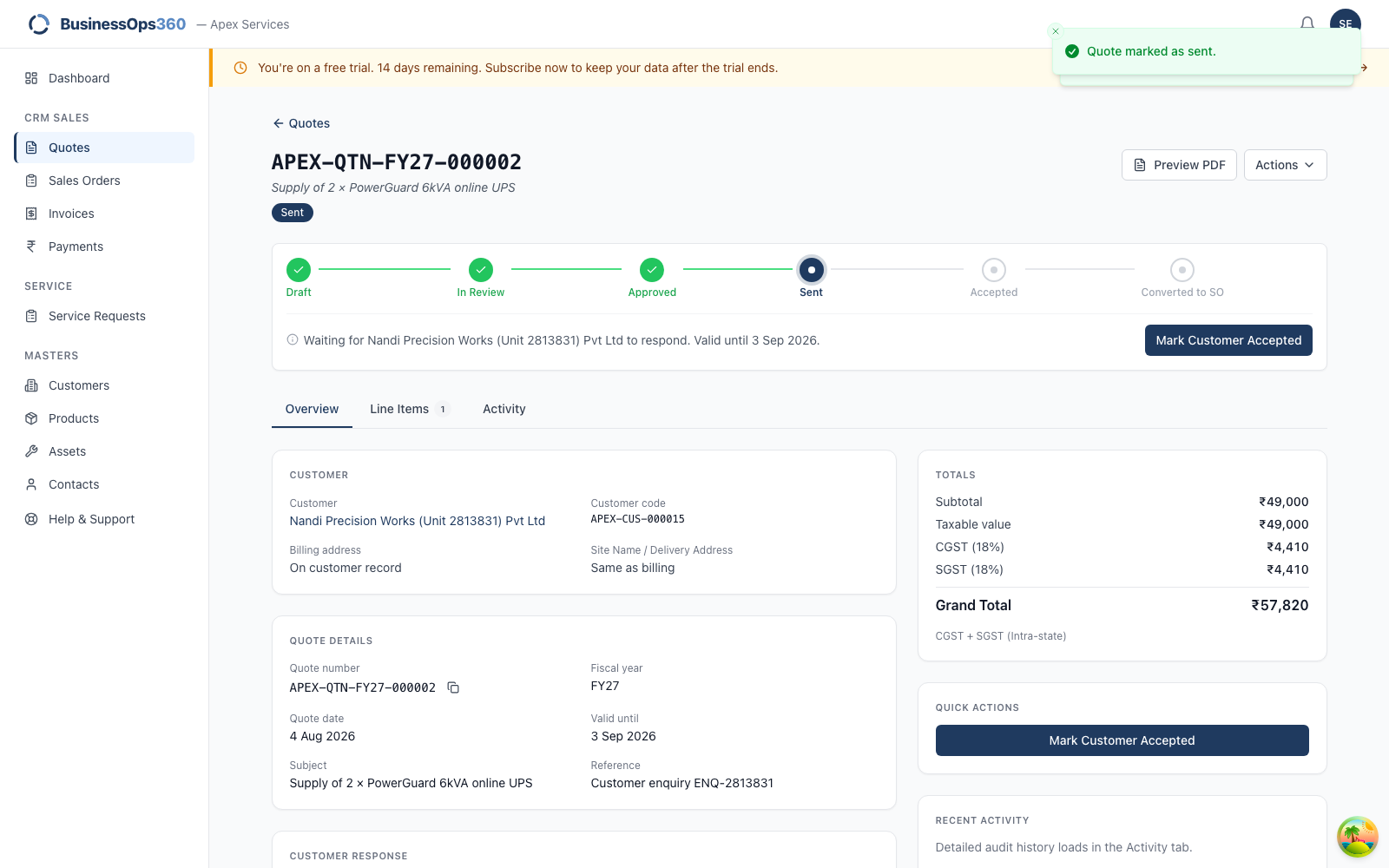
Download the PDF, email it to your customer from your own mailbox, then click
Mark as Sent.
Step 9 — Record their answer
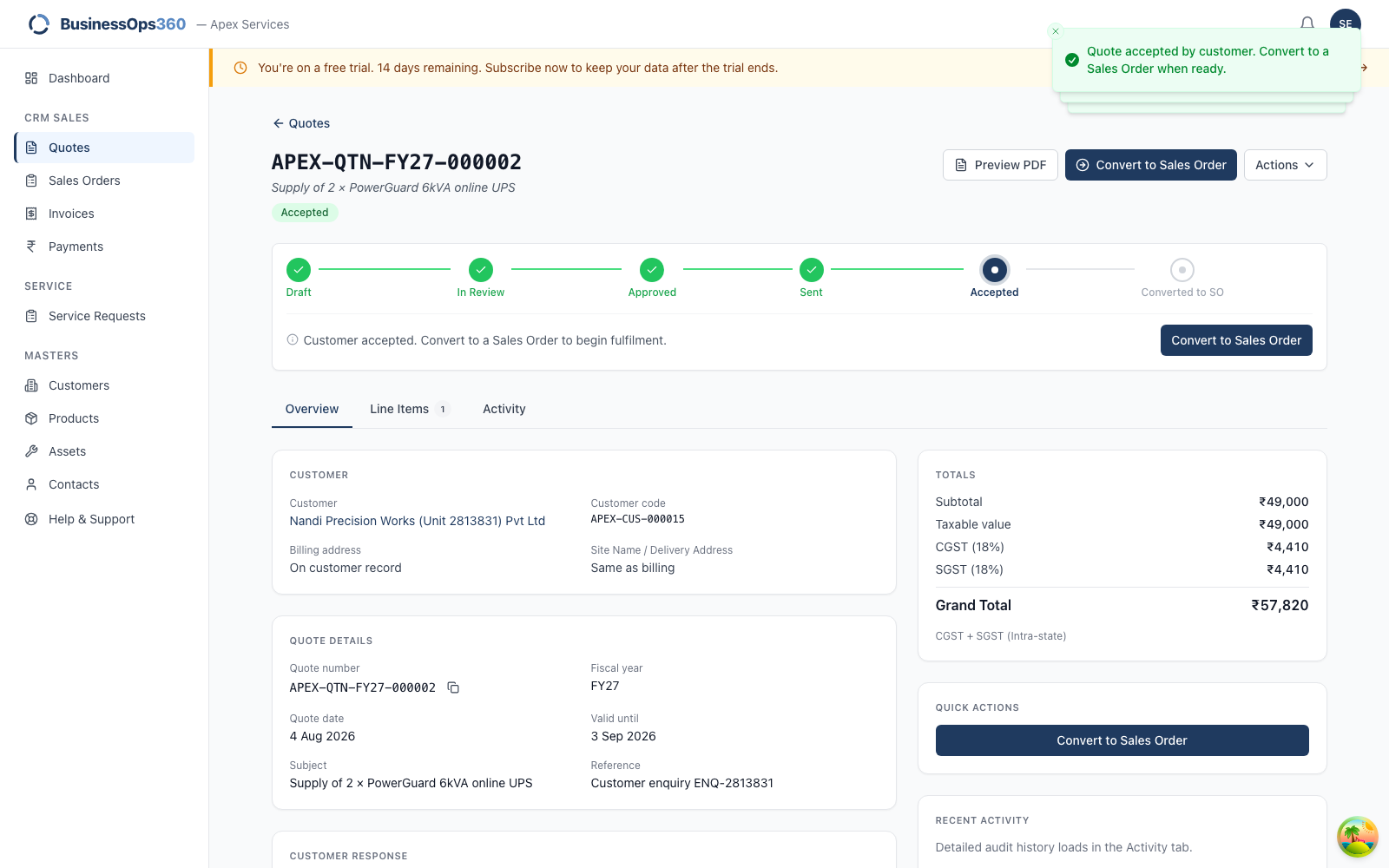
When the customer comes back, open Actions → Mark customer accepted. The
quote moves to Accepted and Convert to Sales Order appears.
Step 10 — Convert to a Sales Order
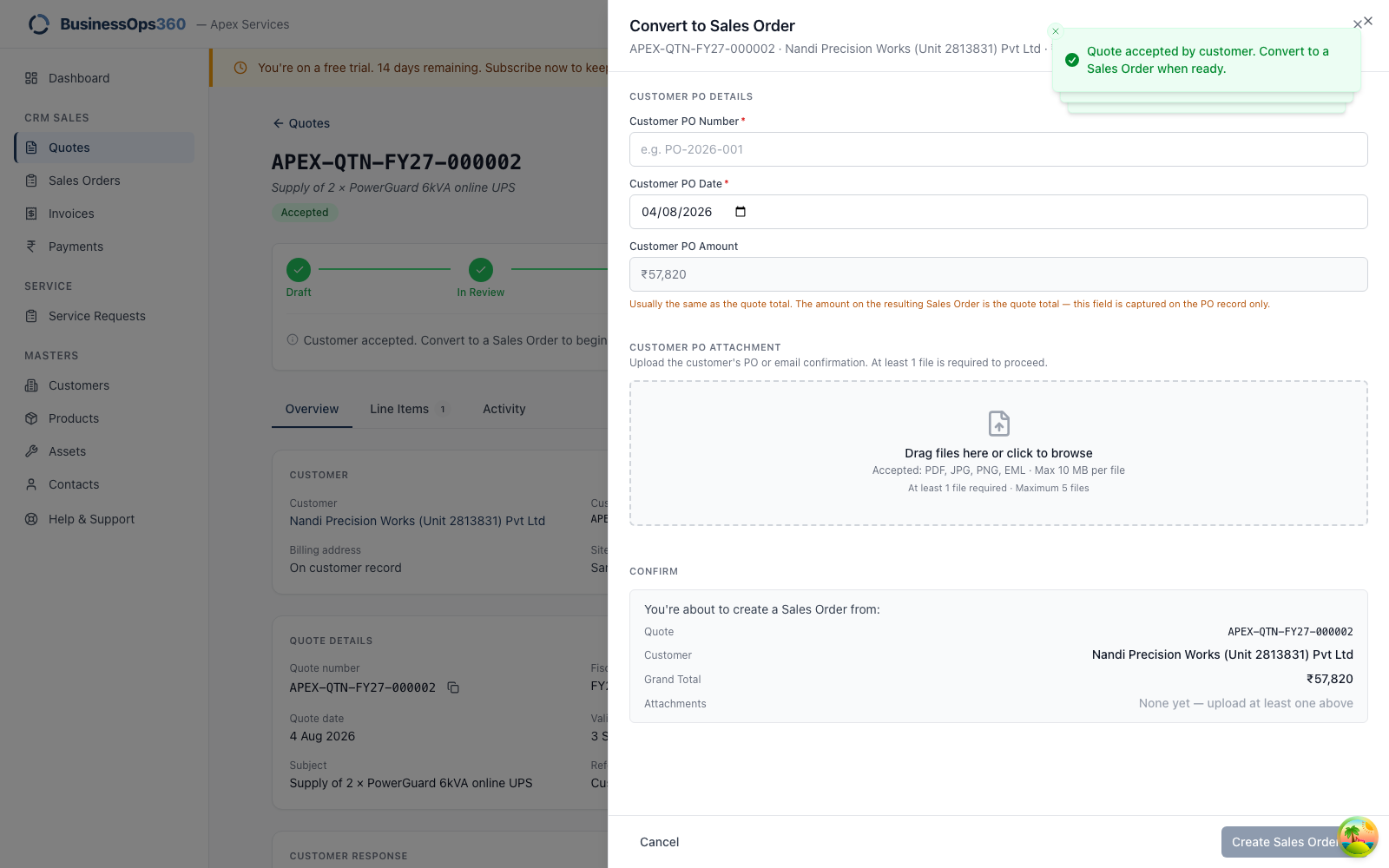
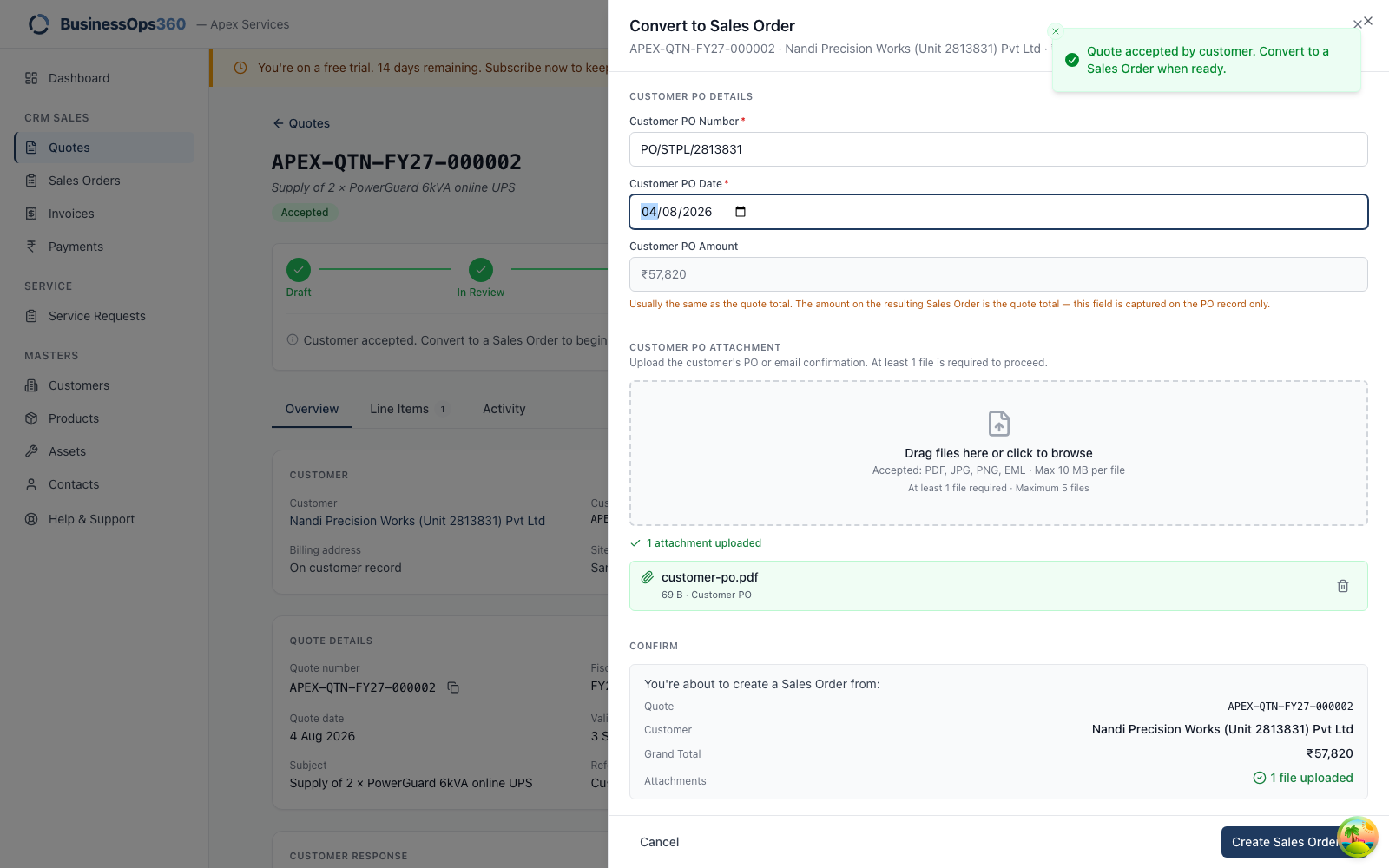
| Field | Notes |
|---|---|
| PO number | Their number, exactly as printed on their document. |
| PO date | The date on their PO. |
| PO document | Required. Attach their actual PO — PDF or image. |
You land on a new Sales Order carrying the same value as the quote and a link
back to it. The quote is now Converted and closed to further changes.
Step 11 — Confirm, then dispatch
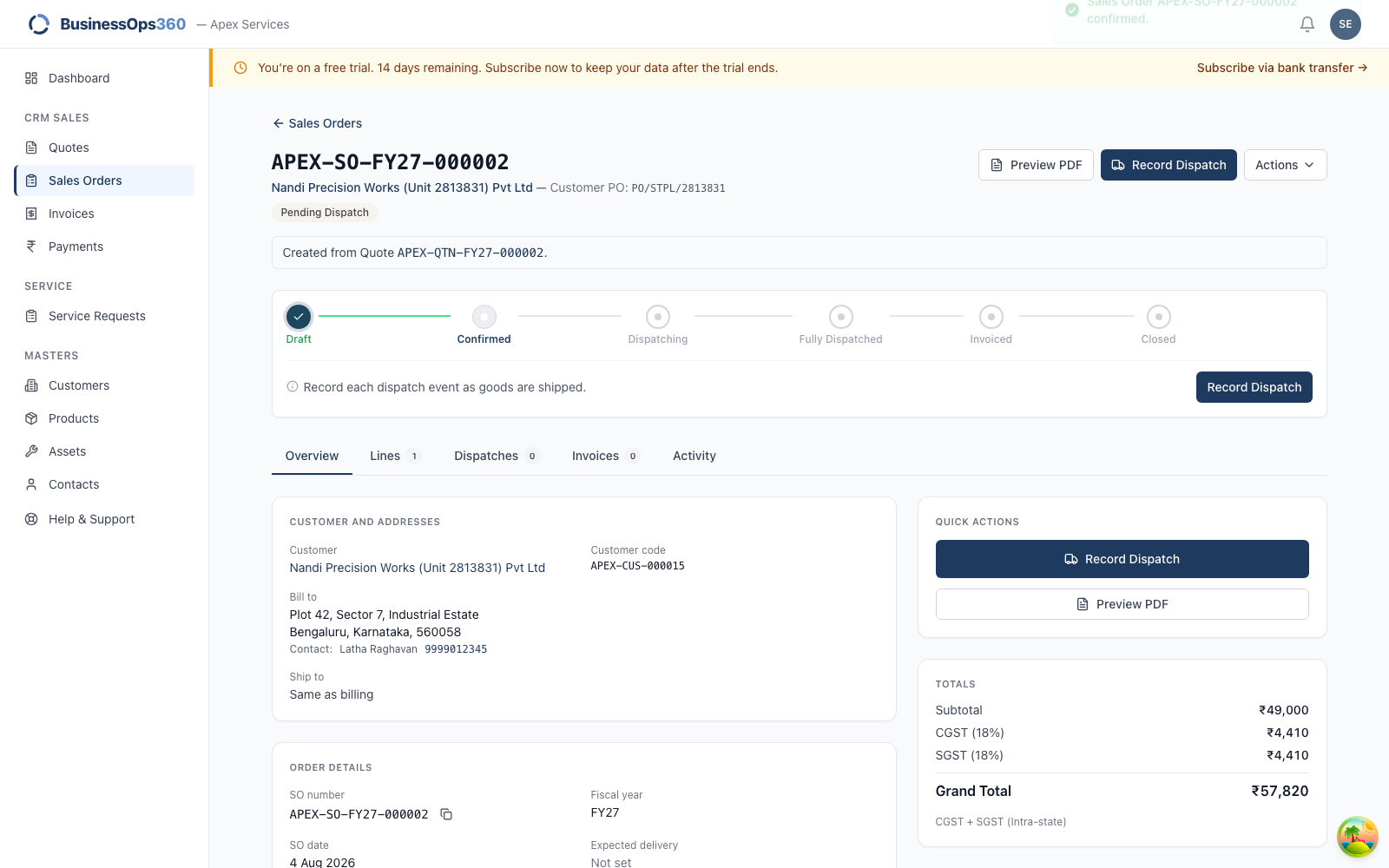
Click Confirm Order — you're committing to supply. Then Record Dispatch.
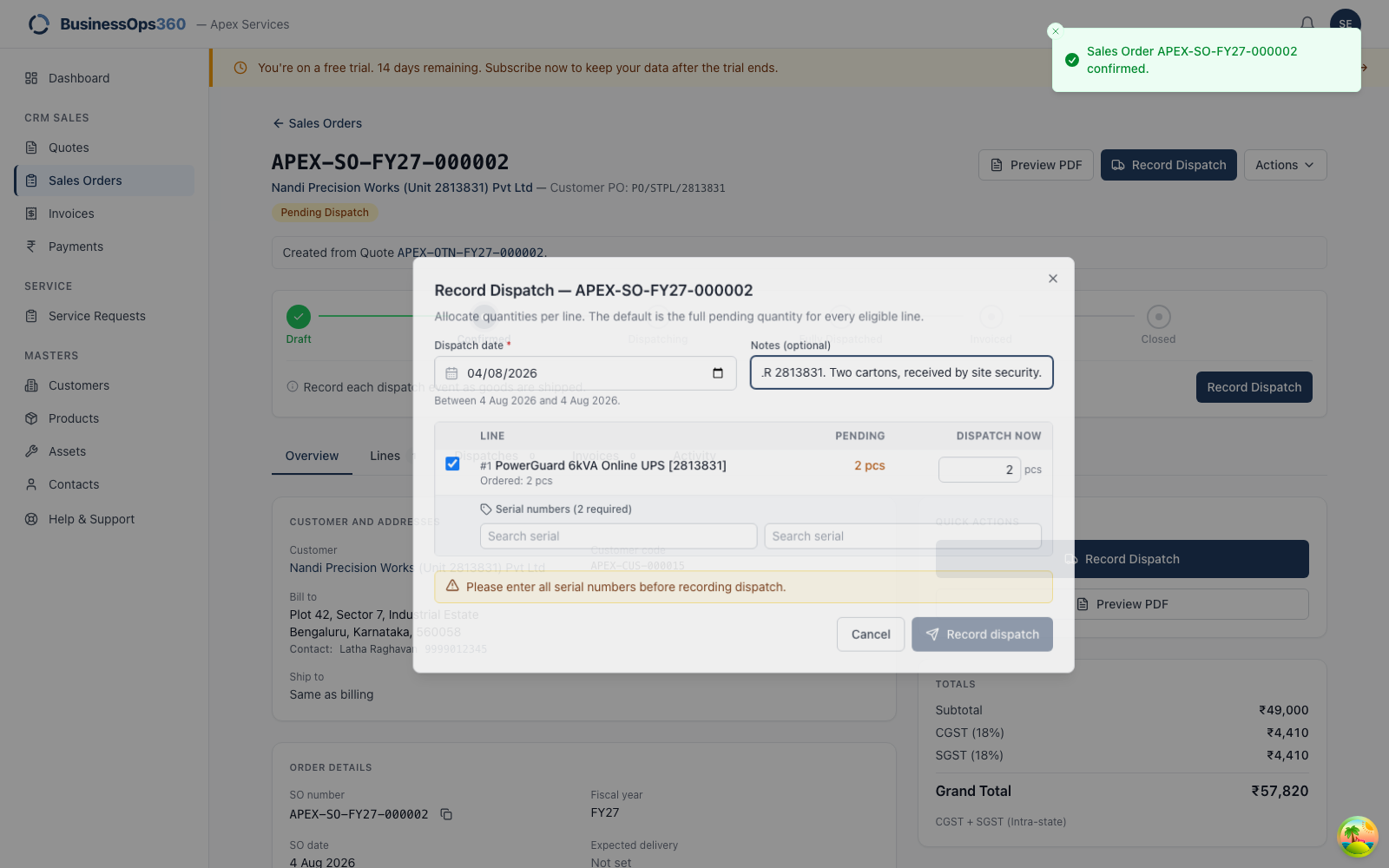
Set the dispatch date — the date goods actually left. It matters more than it
looks: the invoice takes its date and its financial year from here. Add
dispatch notes (transporter, LR number, who received it) if useful.
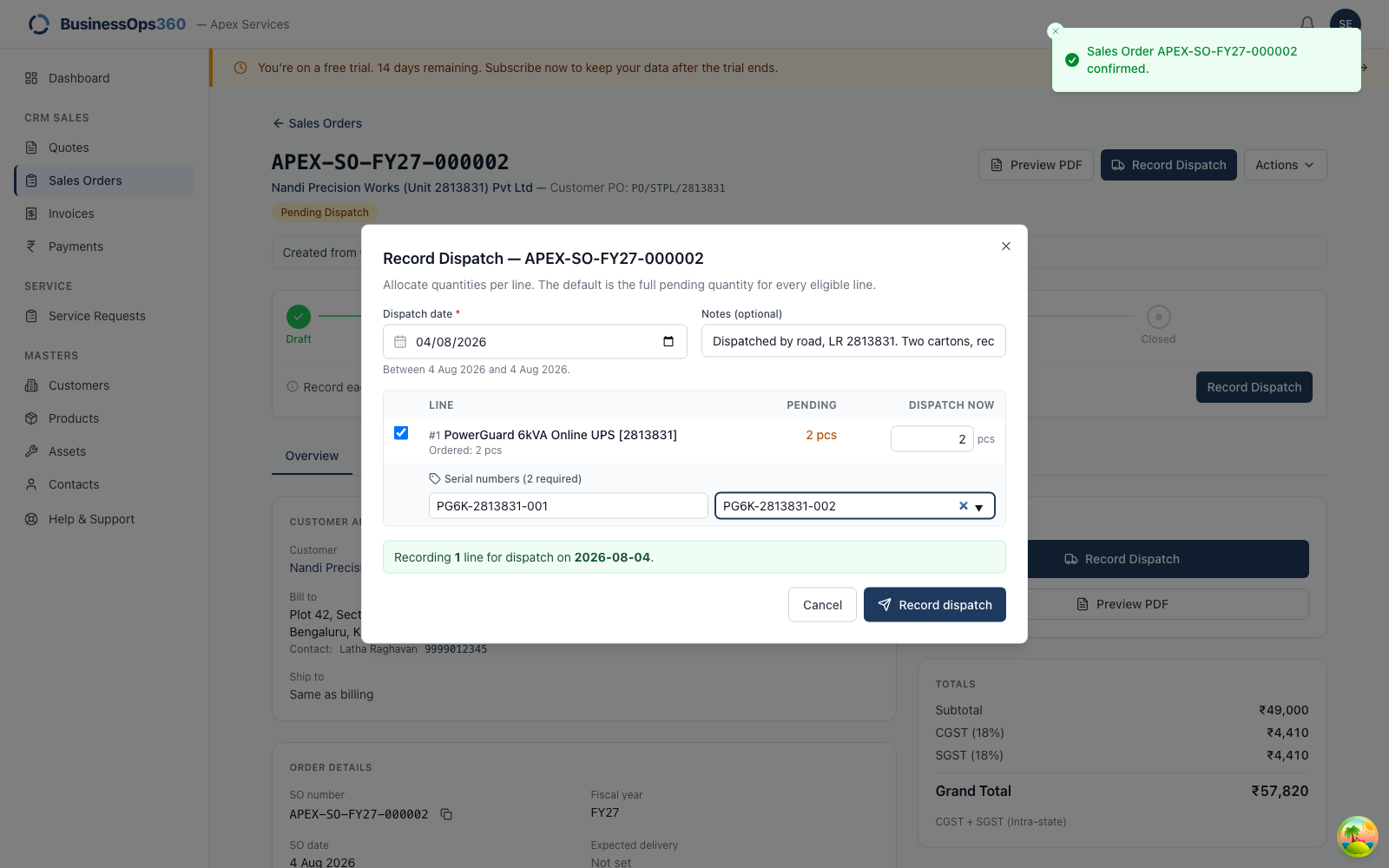
For a serialised product you must name each physical unit — one serial
per unit.
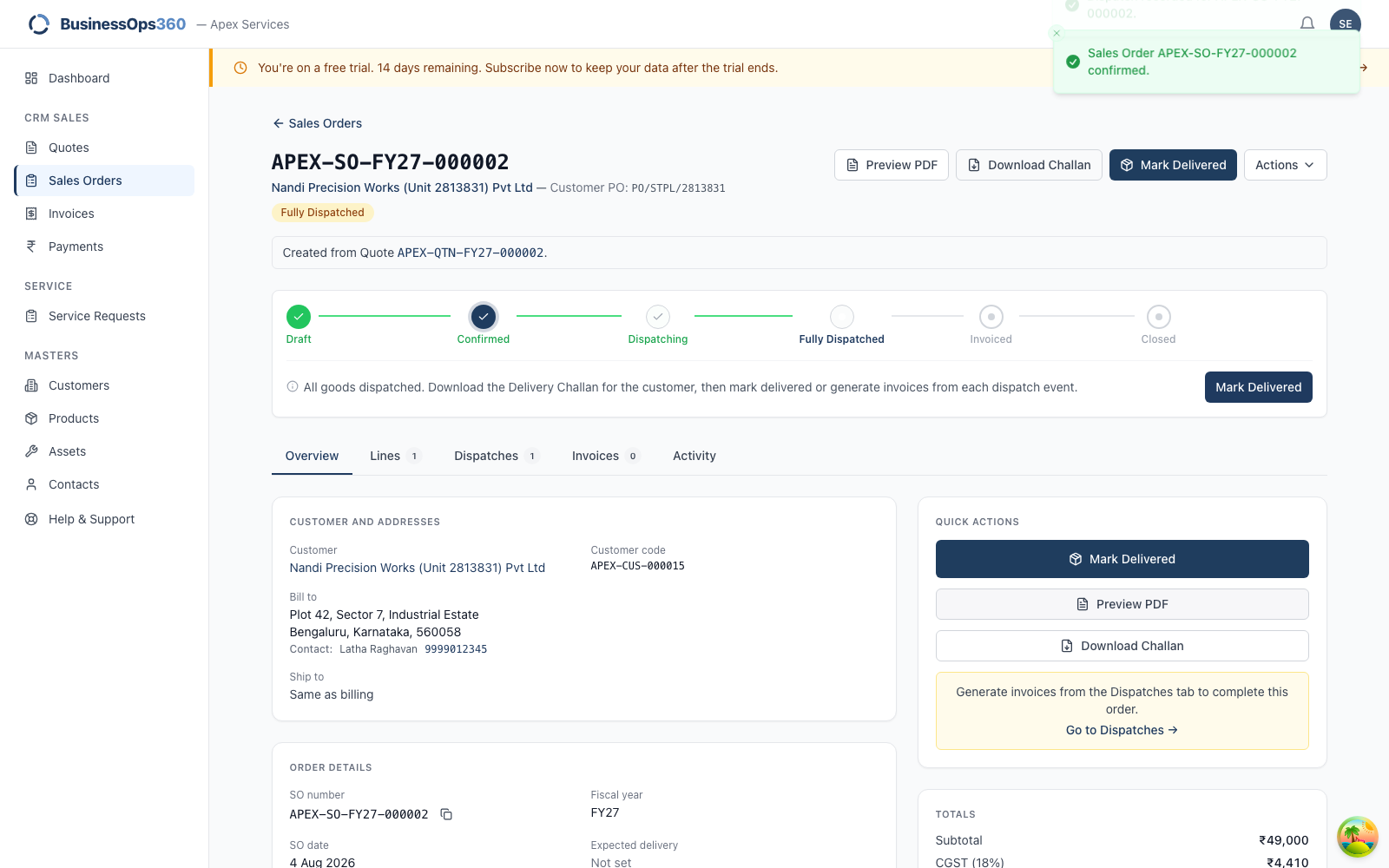
Once every ordered unit has gone, the order reads Fully dispatched — worked
out from the quantities, never set by hand.
Step 12 — Raise the tax invoice
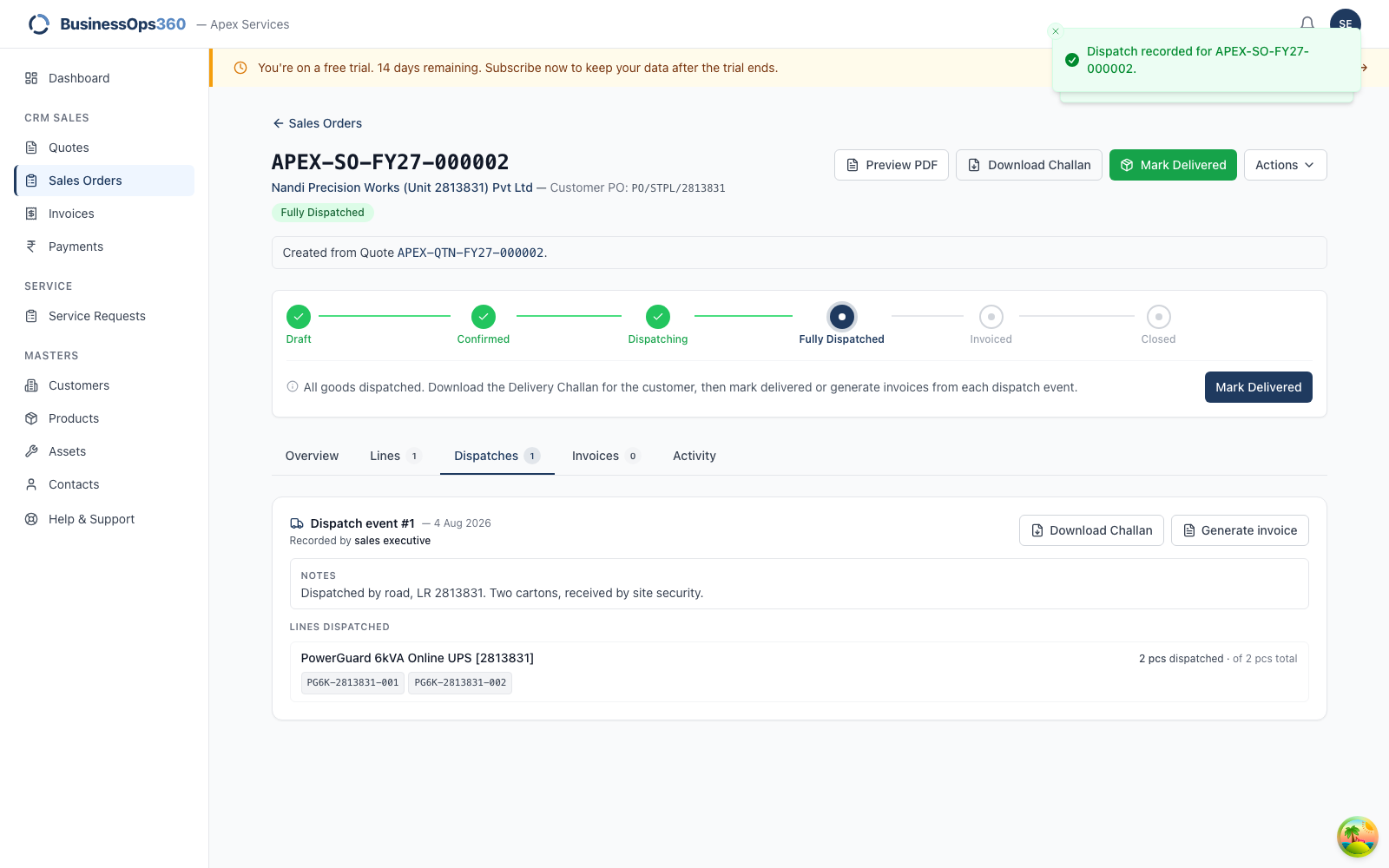
Open the Dispatches tab. Each dispatch lists the serials that went out. Click
Generate Invoice on the one you're billing.
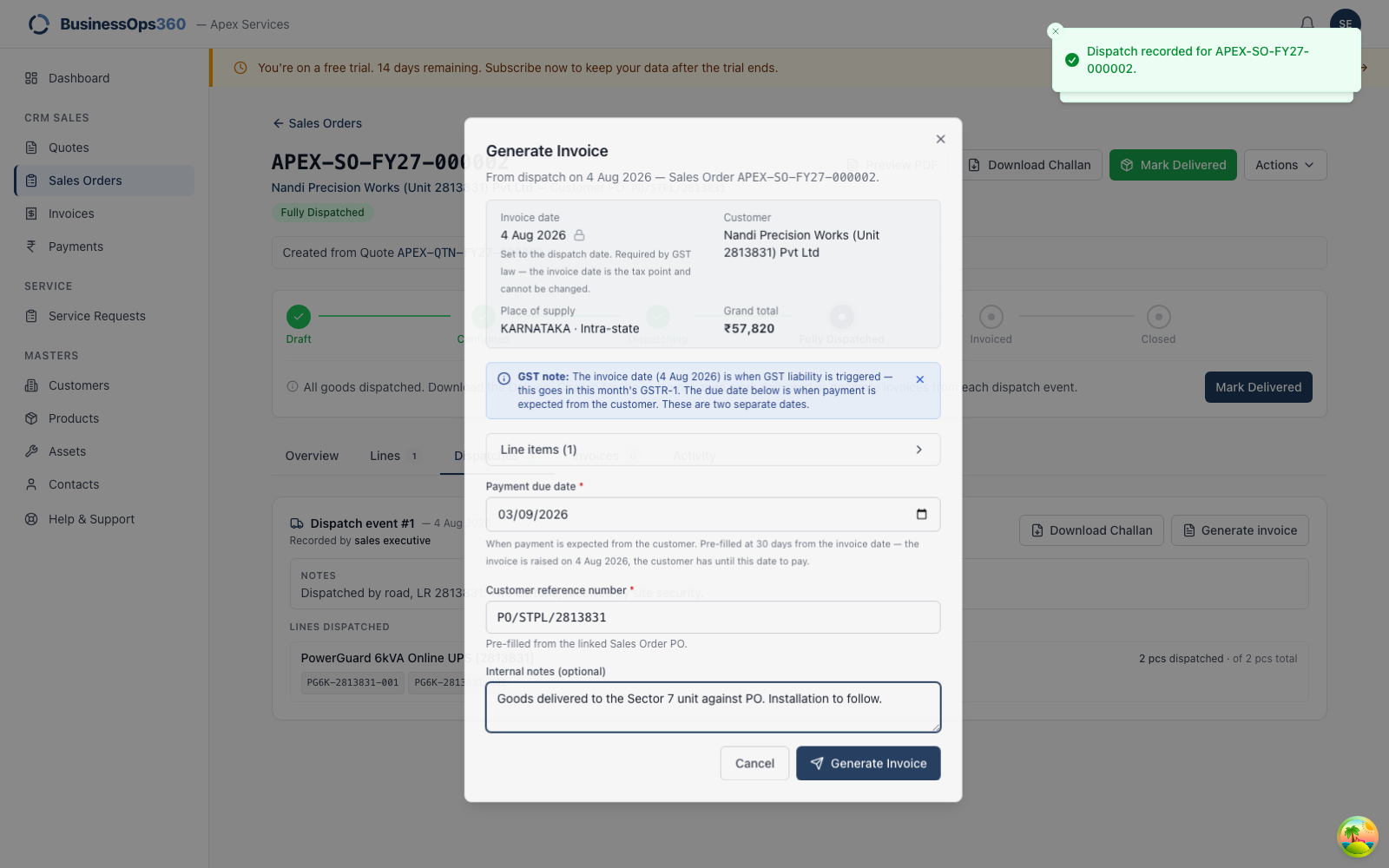
| Field | Notes |
|---|---|
| Due date | When payment is due. Drives overdue tracking. |
| Customer reference | Normally their PO number, so it matches their books. |
| Internal notes | For your team. Not printed. |
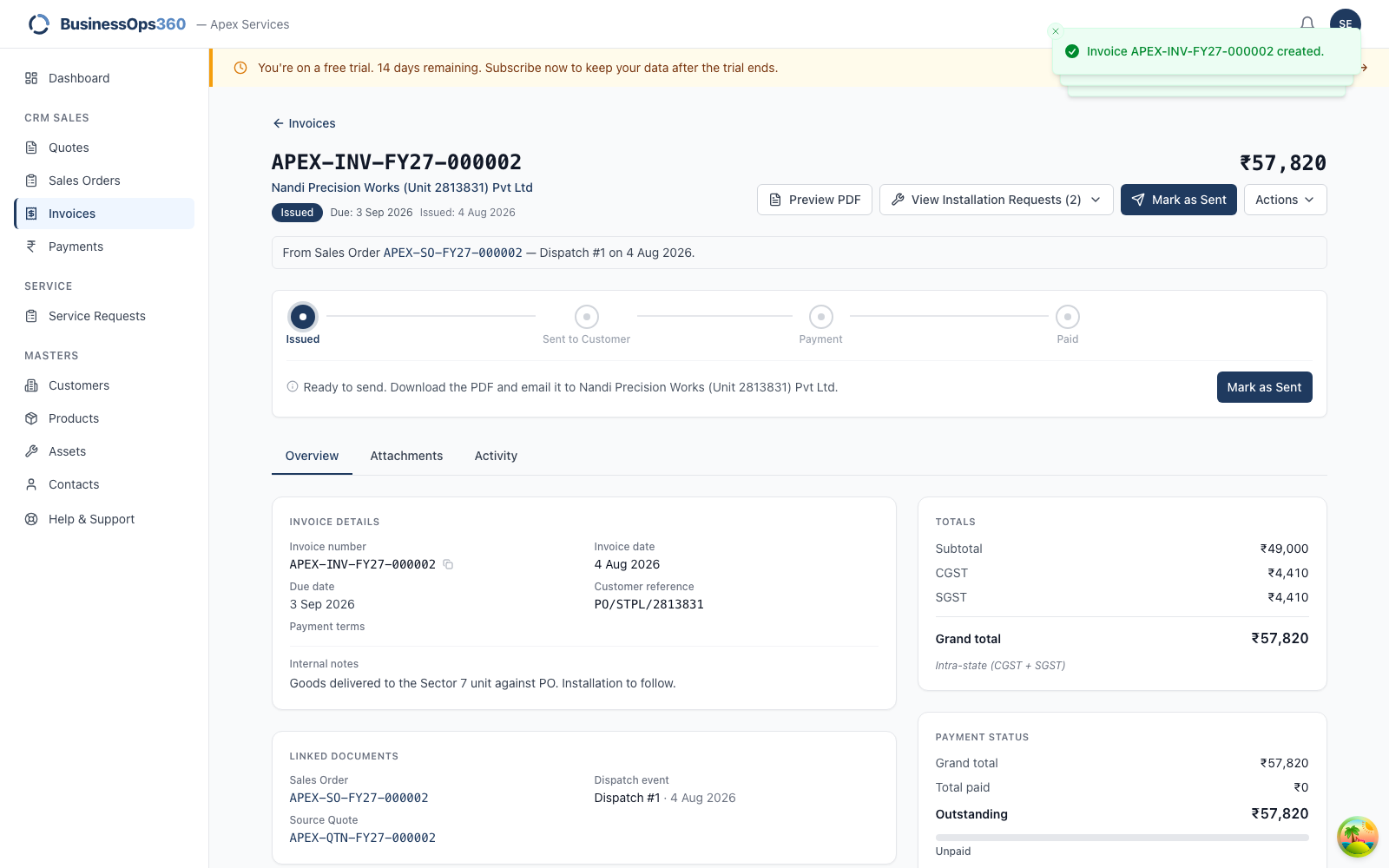
Check before you send: invoice number, the CGST + SGST split (for a
same-state customer — no IGST line), the grand total, the buyer's GSTIN, and the
linked Sales Order and dispatch.
Step 13 — Send it, then record the payment
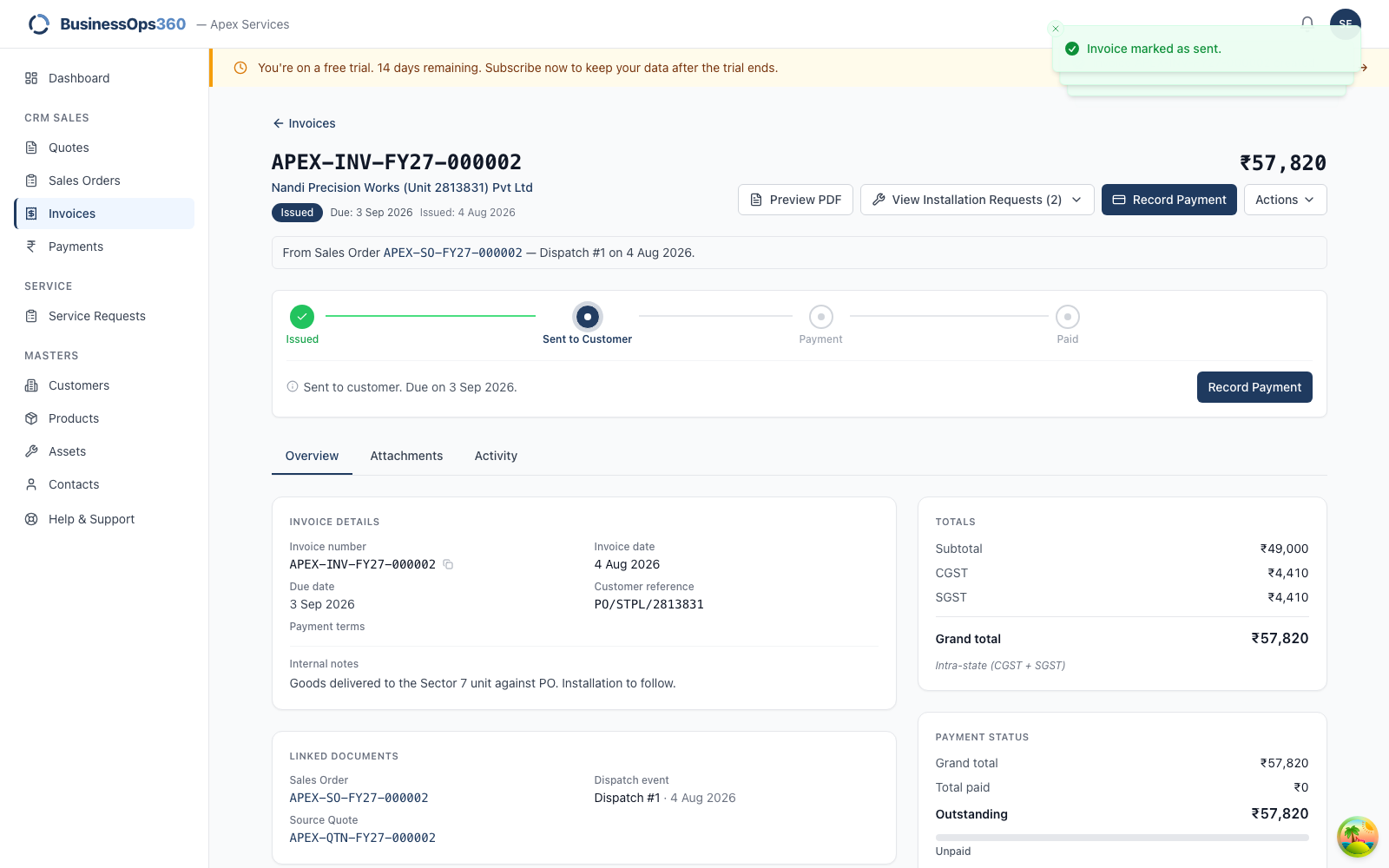
Download the PDF, send it, then Mark as Sent. The status still reads
Issued — that's correct, "sent" is recorded as a date, not a status. After
this the invoice can no longer be voided.
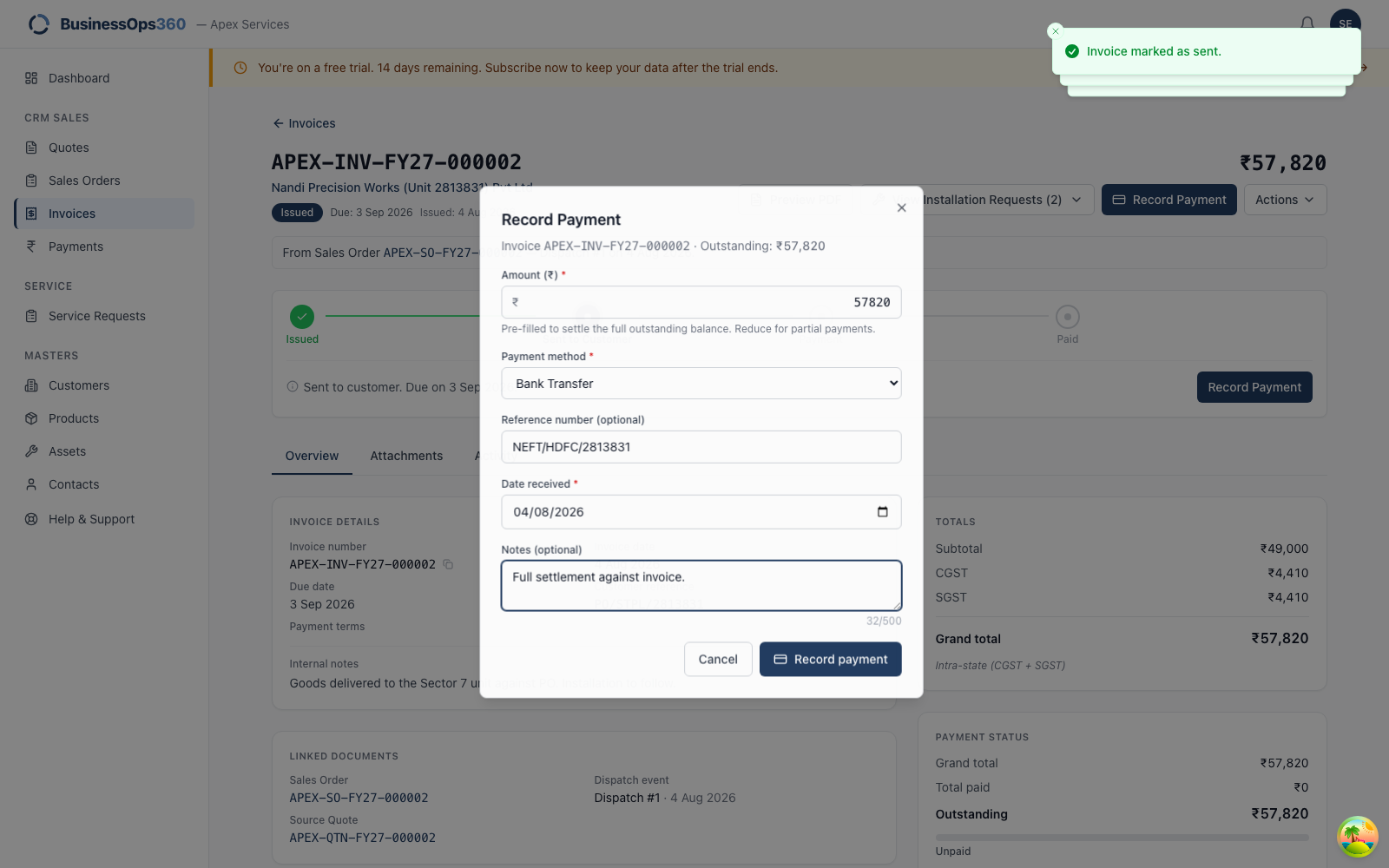
When the money arrives, click Record Payment: amount, date received, method,
and the bank reference (UTR / cheque number) so finance can reconcile it.
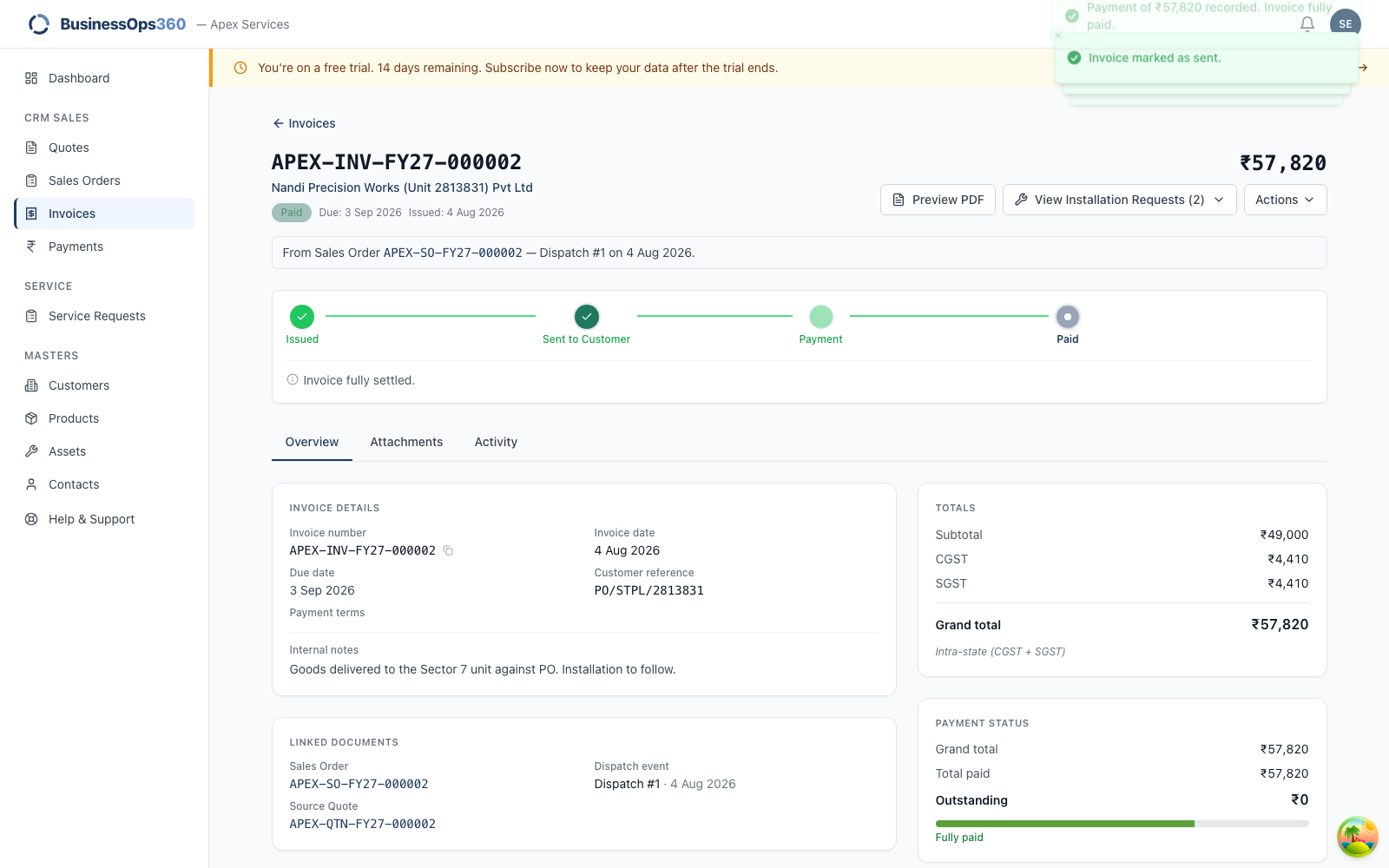
Paying the full amount settles the invoice to Paid. The sale is closed.
Two things send a quote for approval: it's over the approval threshold
(₹1,00,000 by default), or a line is priced below list.
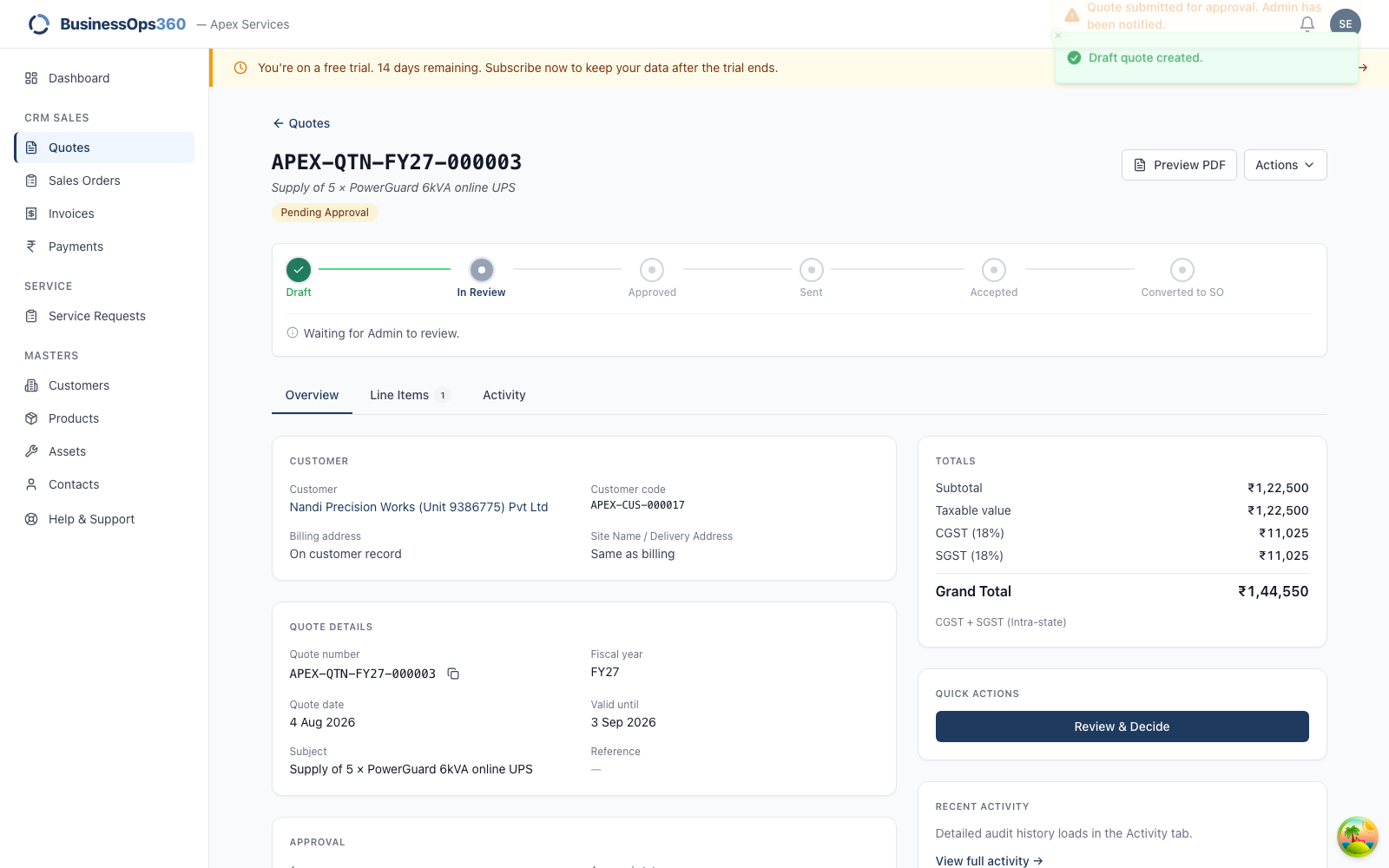
Submitting puts it in Pending approval. You can't send it to the customer yet.
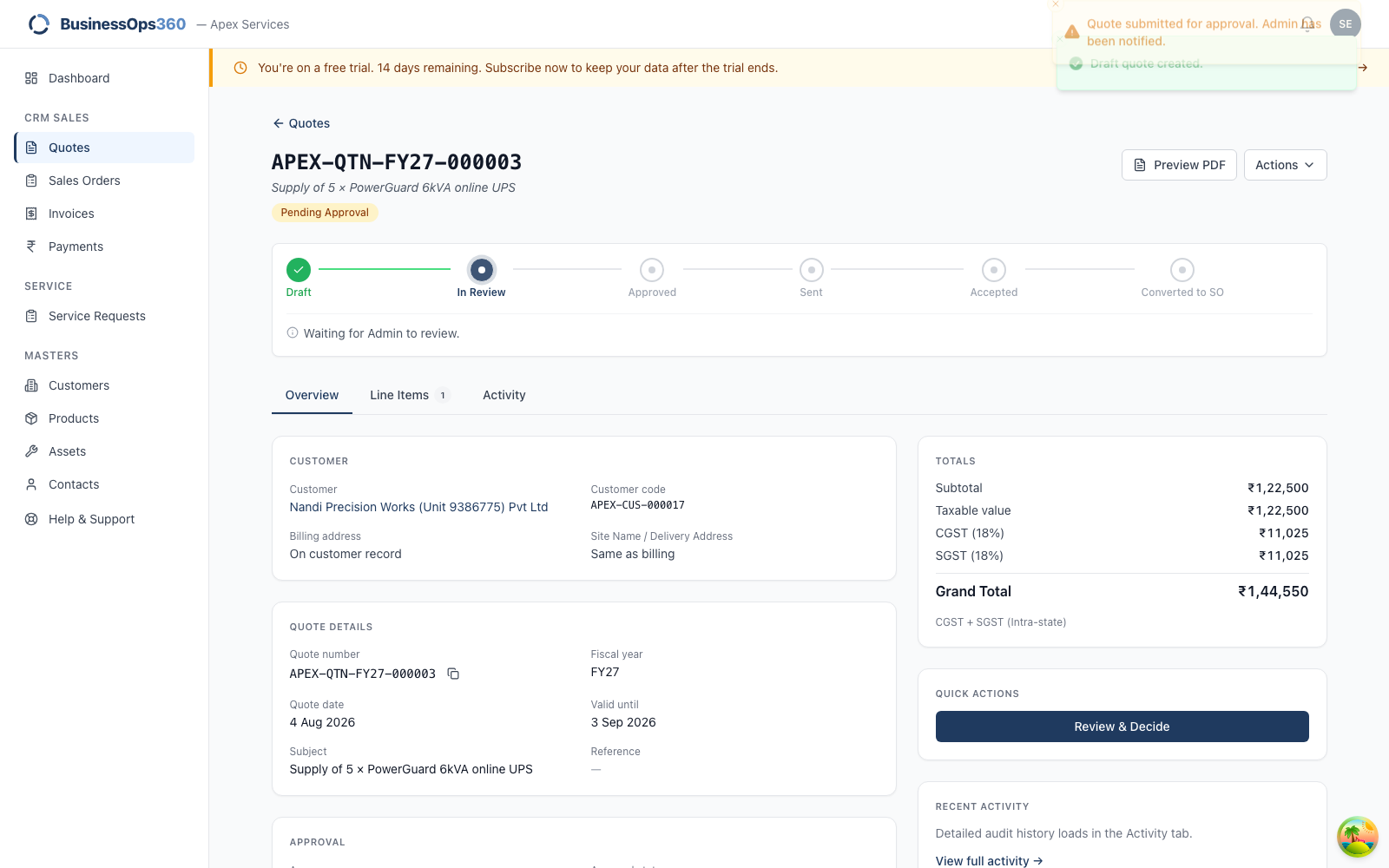
You cannot approve it yourself — there's no Approve button on your screen,
even on a quote you raised. That's deliberate: it stops a salesperson clearing
their own discount.
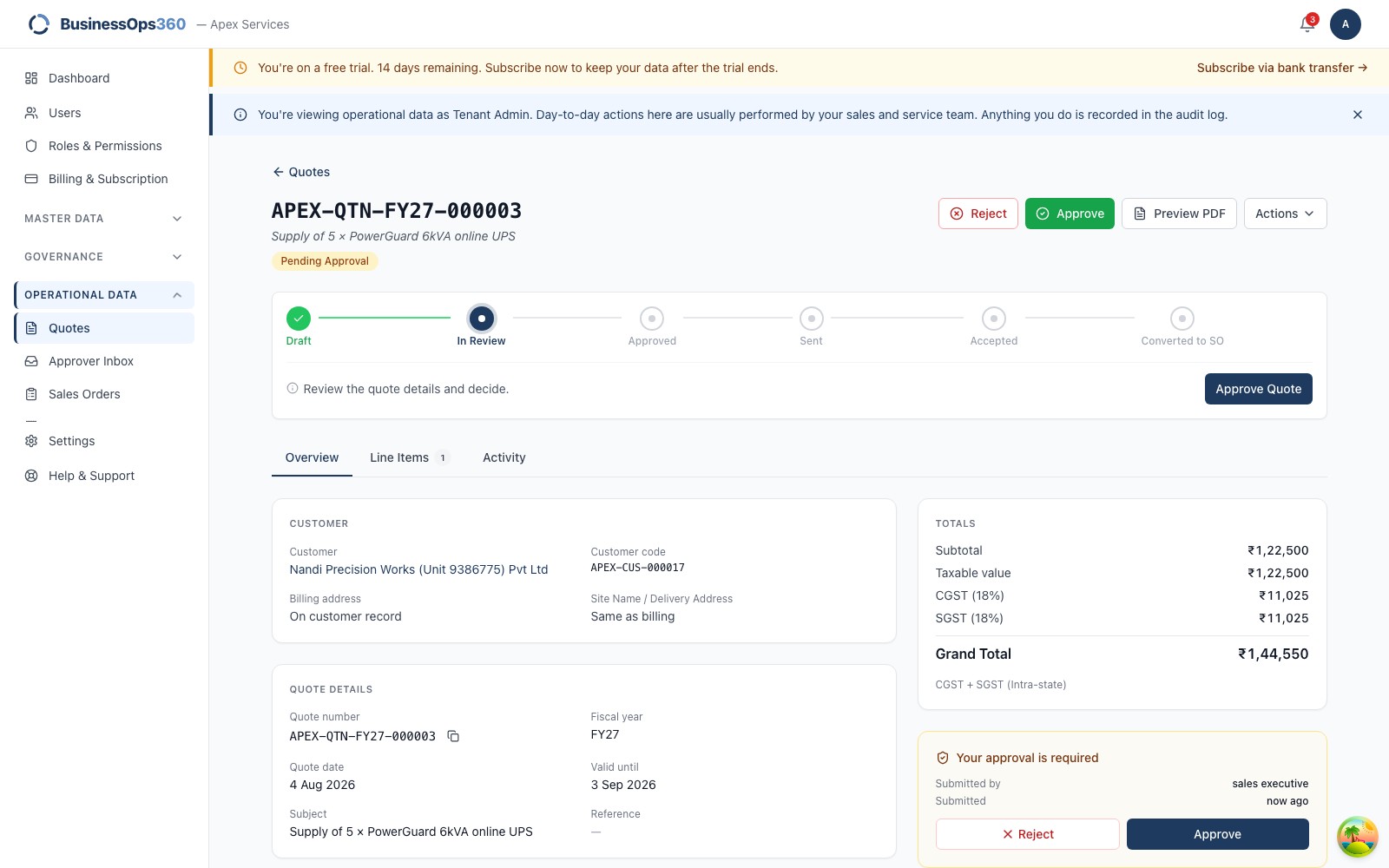
Your designated approver sees the quote in their Approver Inbox with an
Approve control, and can approve with a note.
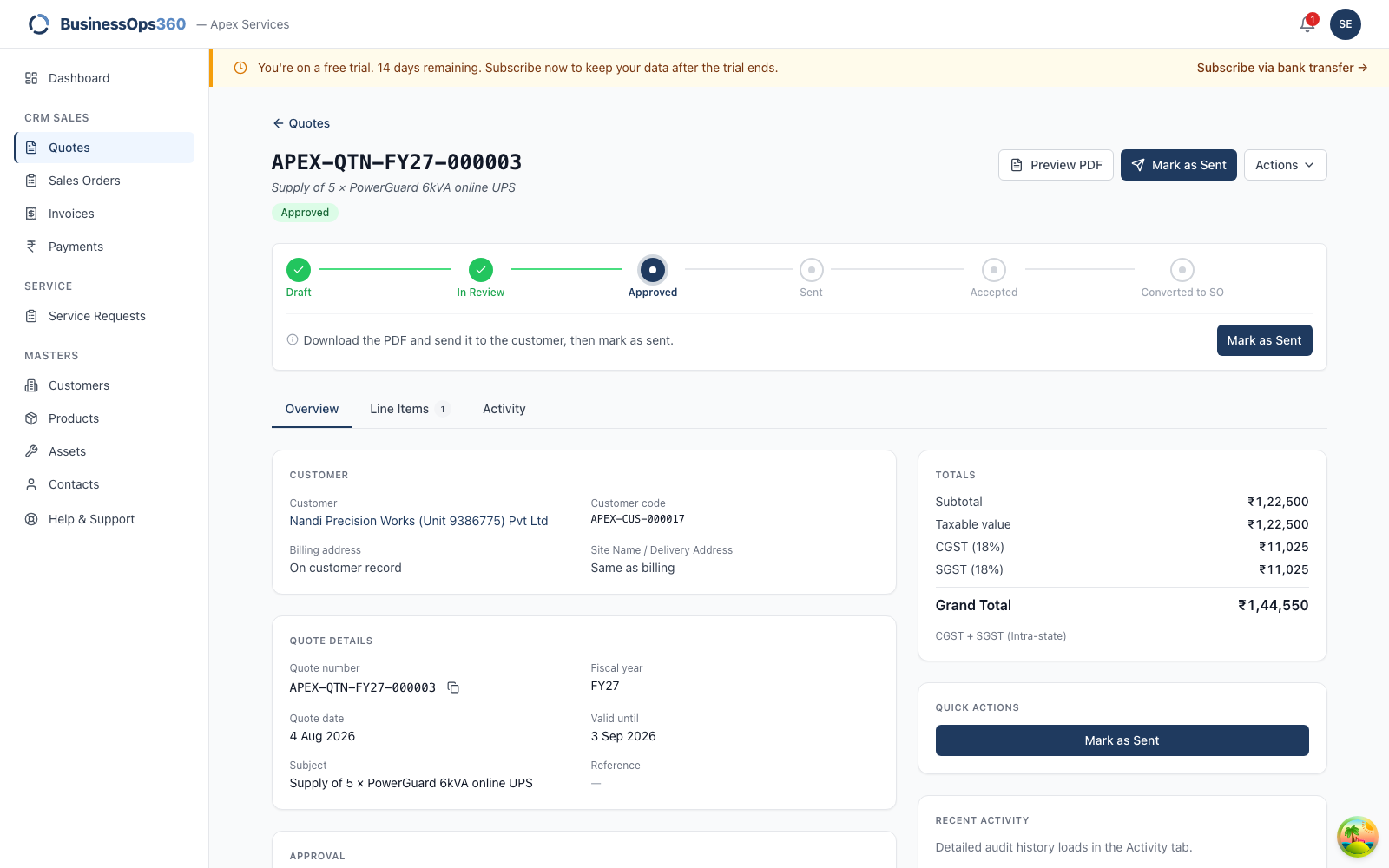
Once approved it's back in your hands and you can carry on from
Step 8.
Waiting too long? Nudge your approver directly — it sits in their inbox until
they act.
Discounting below list price
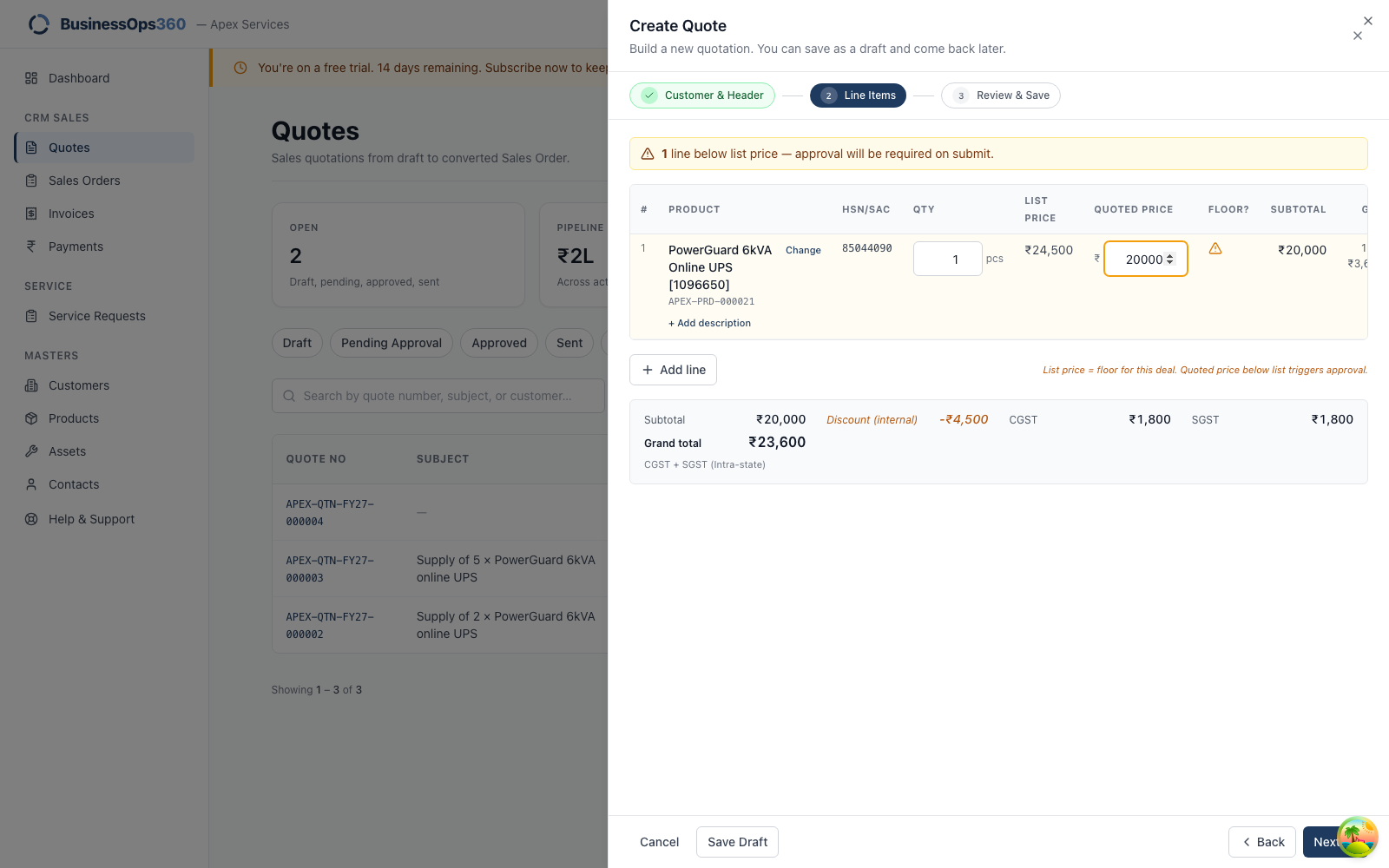
Quoting under the catalogue list price is allowed — the line is flagged, not
blocked.
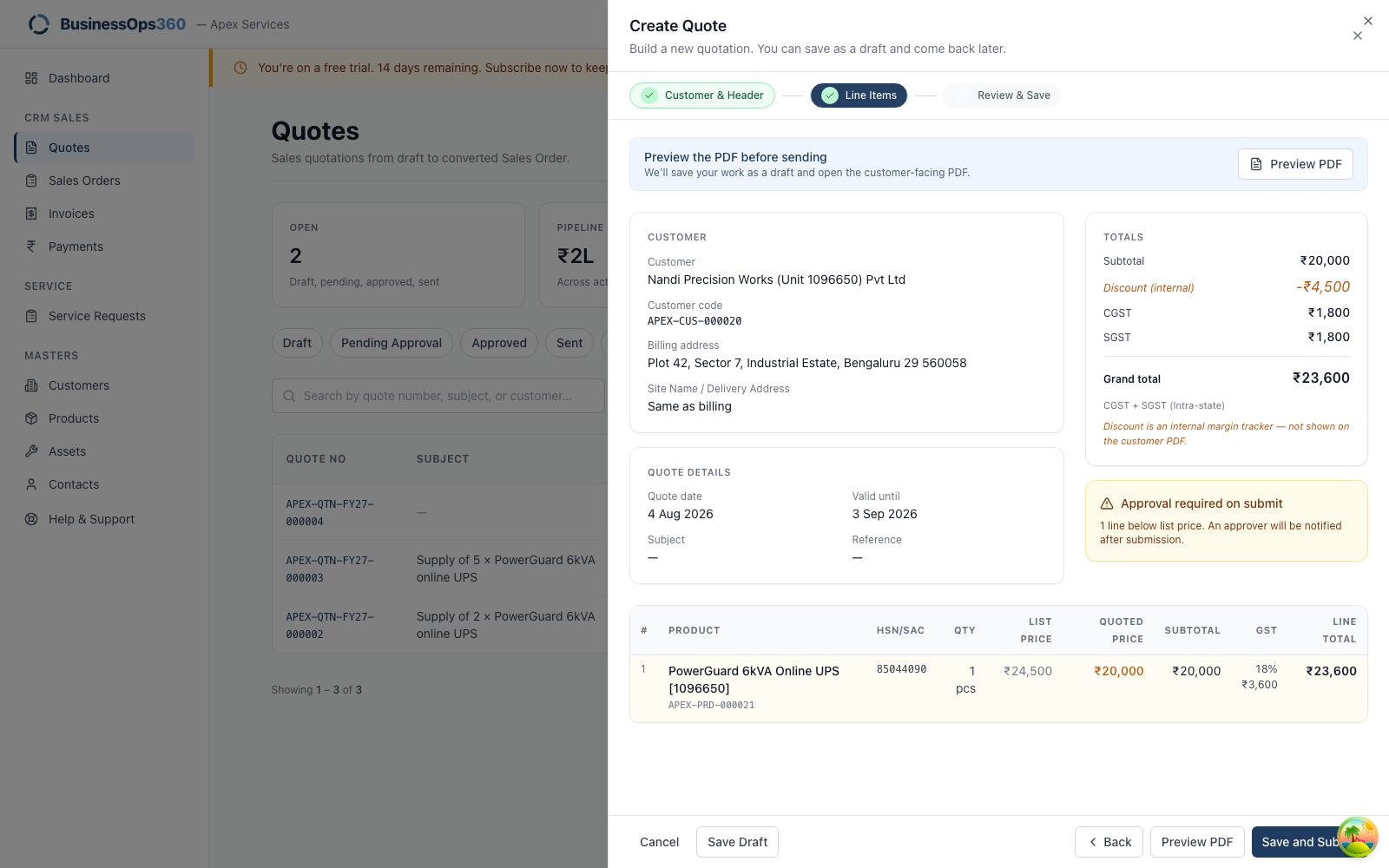
But it forces the quote through approval whatever the value, even a small
one. If a low-value quote is unexpectedly waiting for approval, check whether a
line was discounted.
The form checks each step before letting you continue. It never loses your work.
"Select a customer to continue."
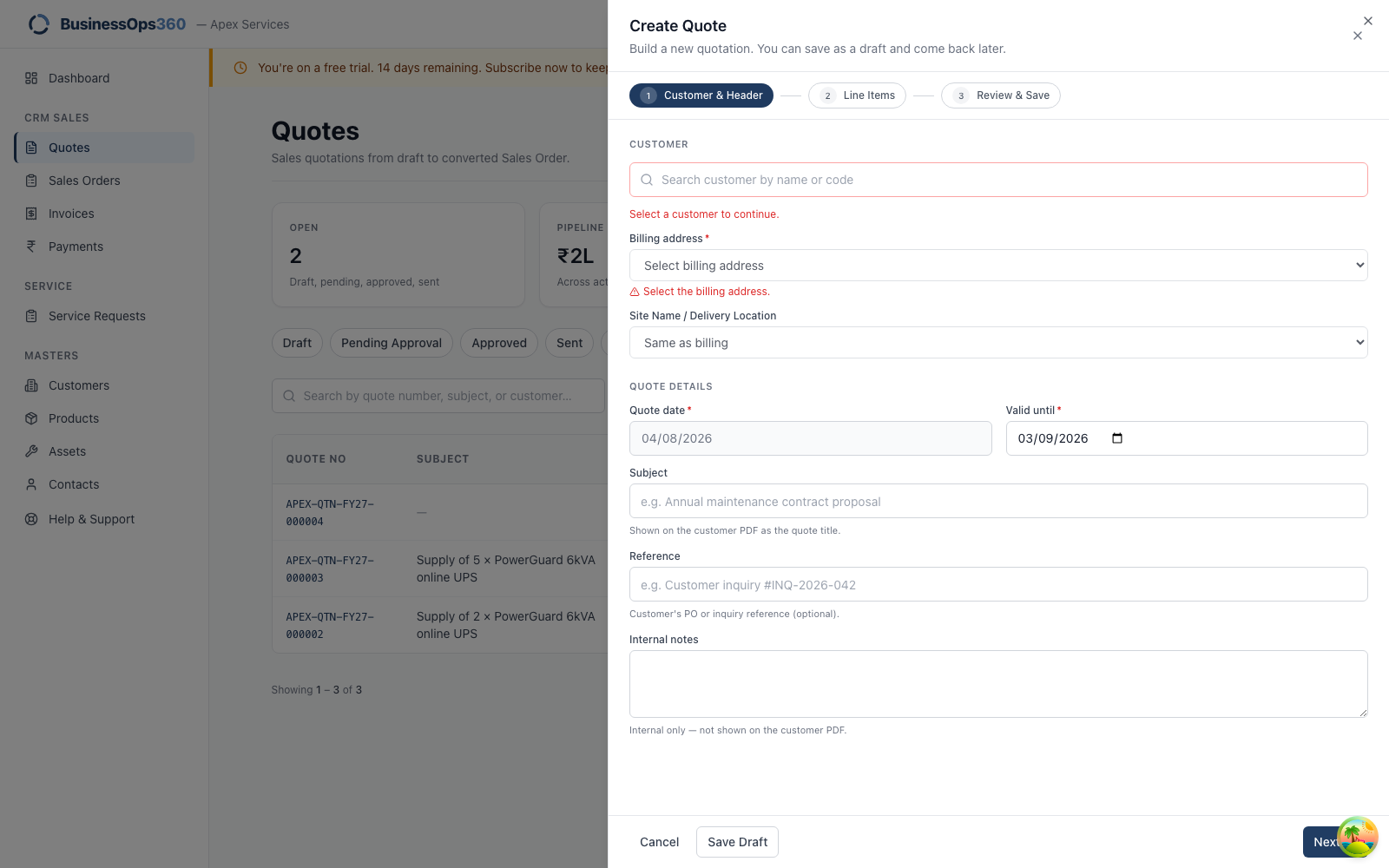
You clicked Next without choosing a customer. Type in the Customer box and pick
from the list — typing a name without clicking a result doesn't count.
Not finding them? Search by customer code, which is unique where names are
often similar. If they genuinely don't exist, you can create them yourself.
"Valid until must be on or after the quote date."
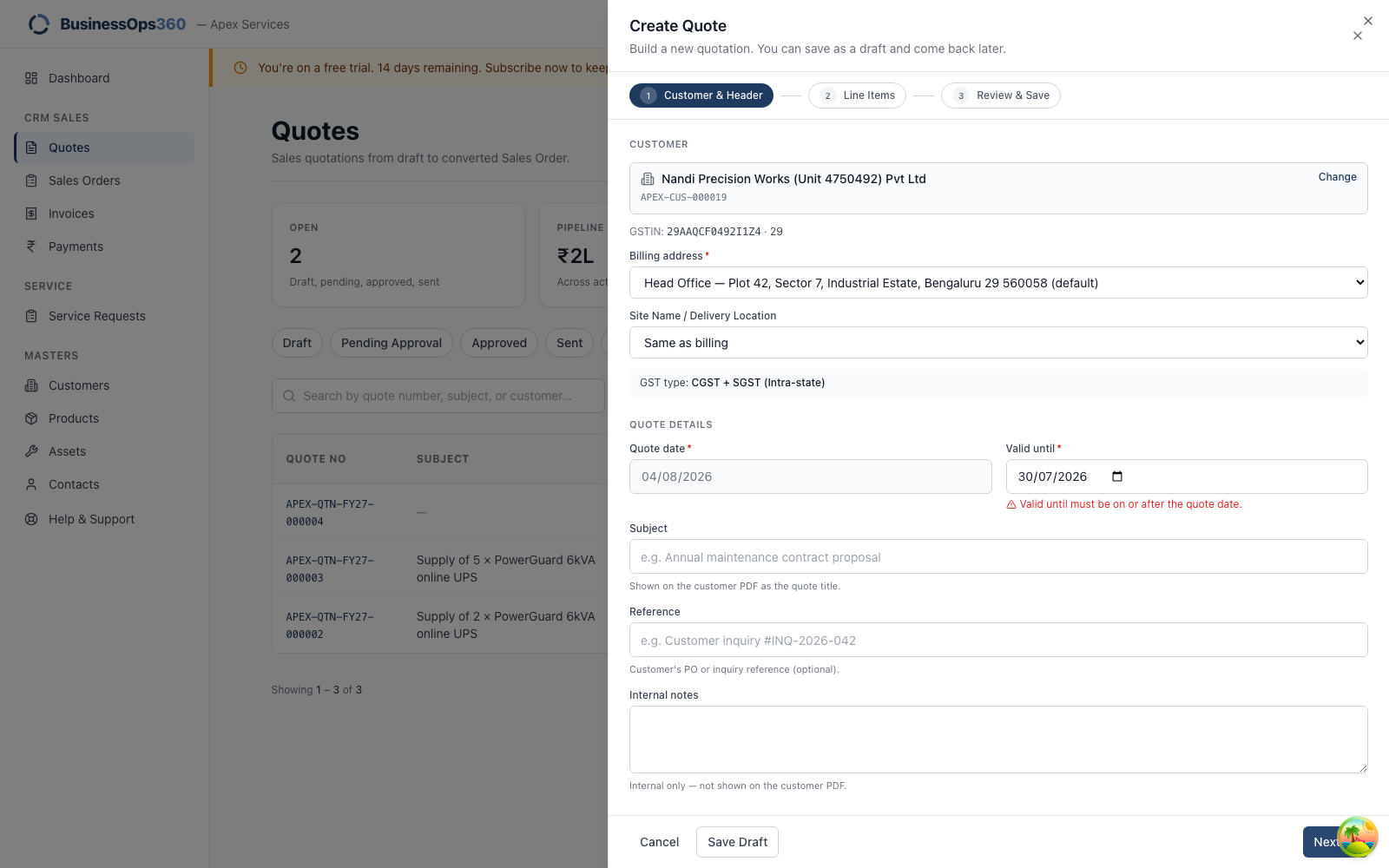
The validity date is earlier than the quote date. Set Valid until to today or
later — the quote date is fixed at today and can't be changed.
"Select a product."
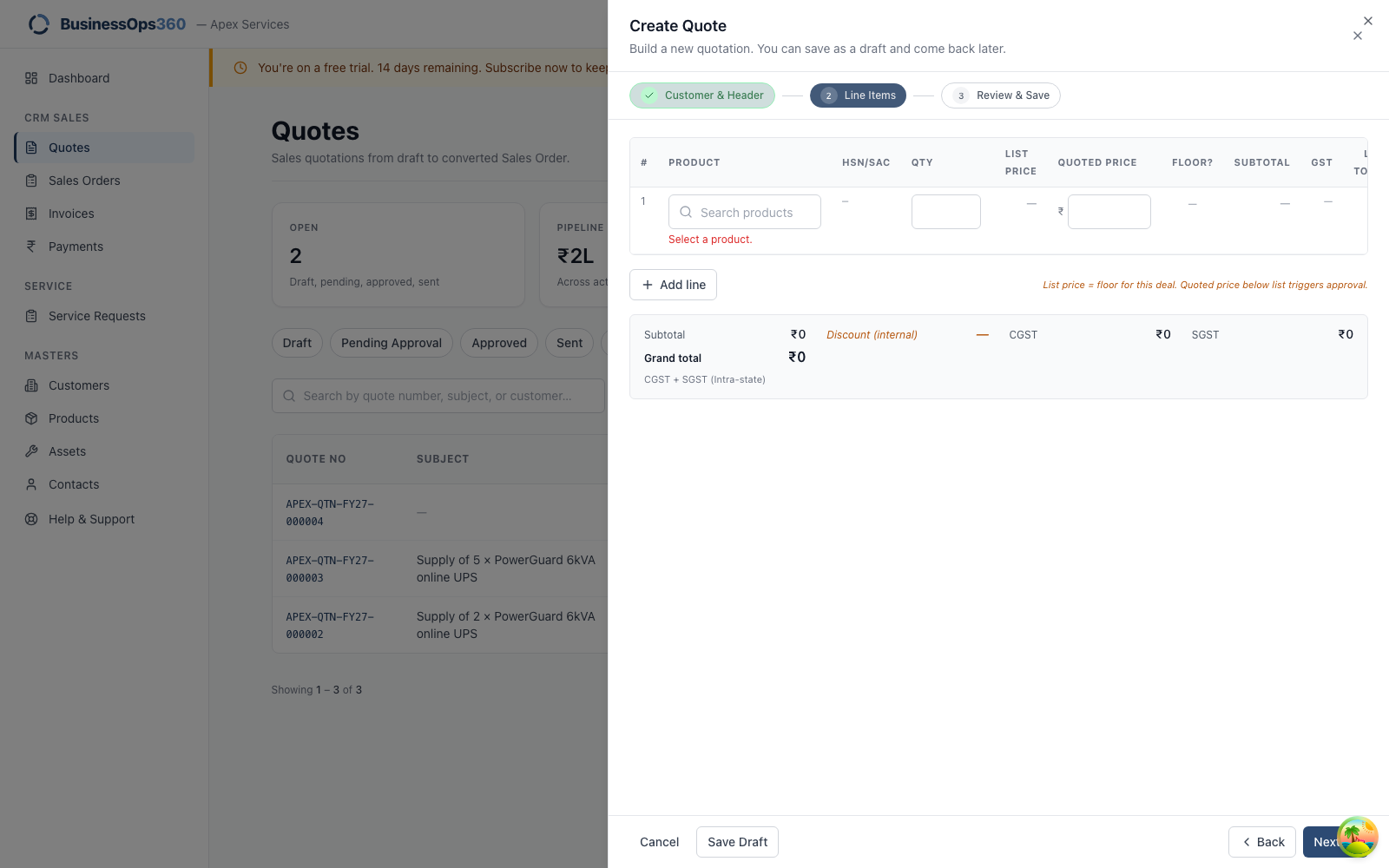
There's an empty line. Choose a product, or remove the line with the bin icon.
Product not listed? It may be inactive or not in the catalogue — ask your Tenant
Admin, as you can't add it yourself.
"Quantity must be greater than zero."
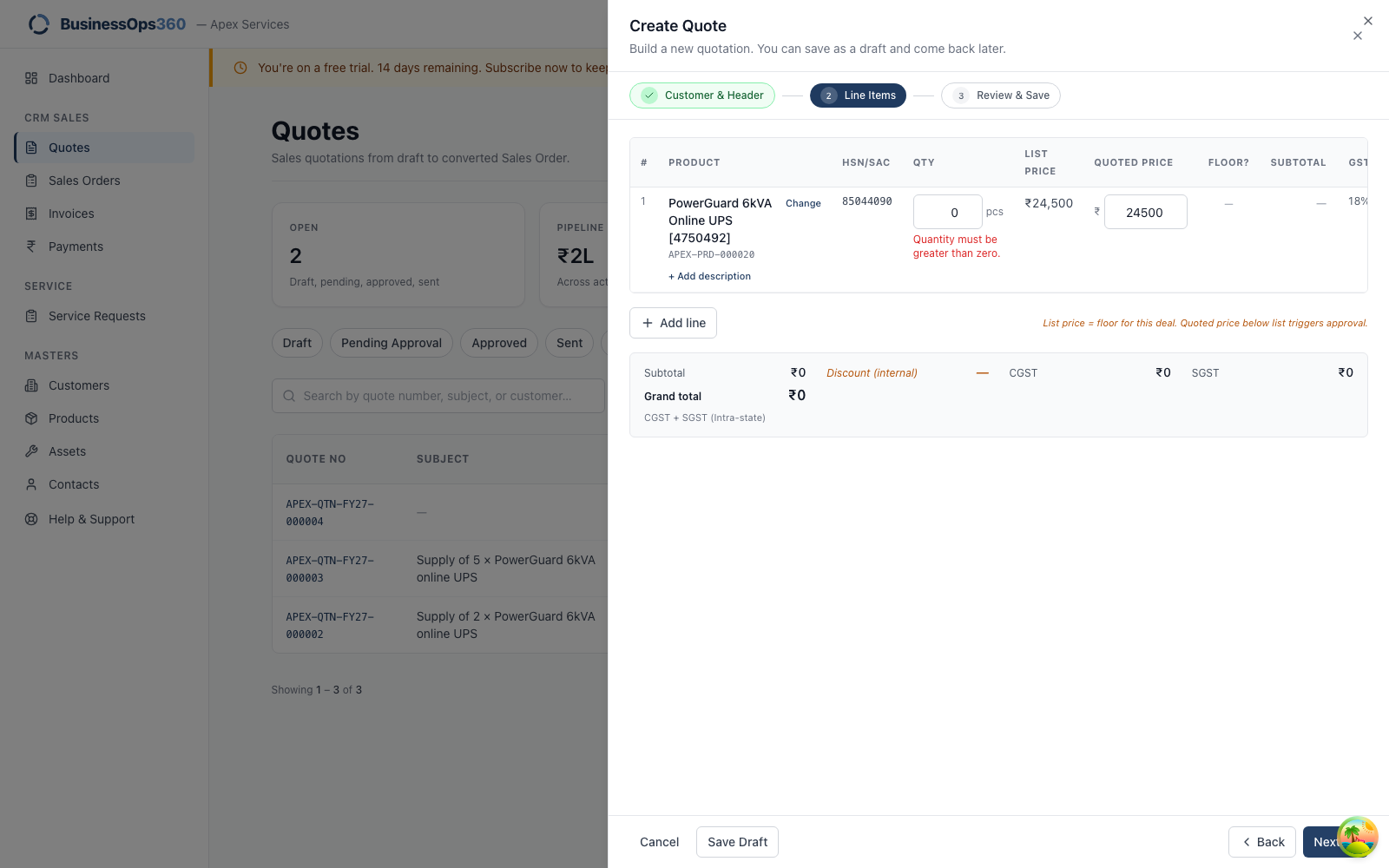
Enter how many you're quoting. To remove an item, delete the whole line rather
than setting it to zero.
"Enter the quoted price."
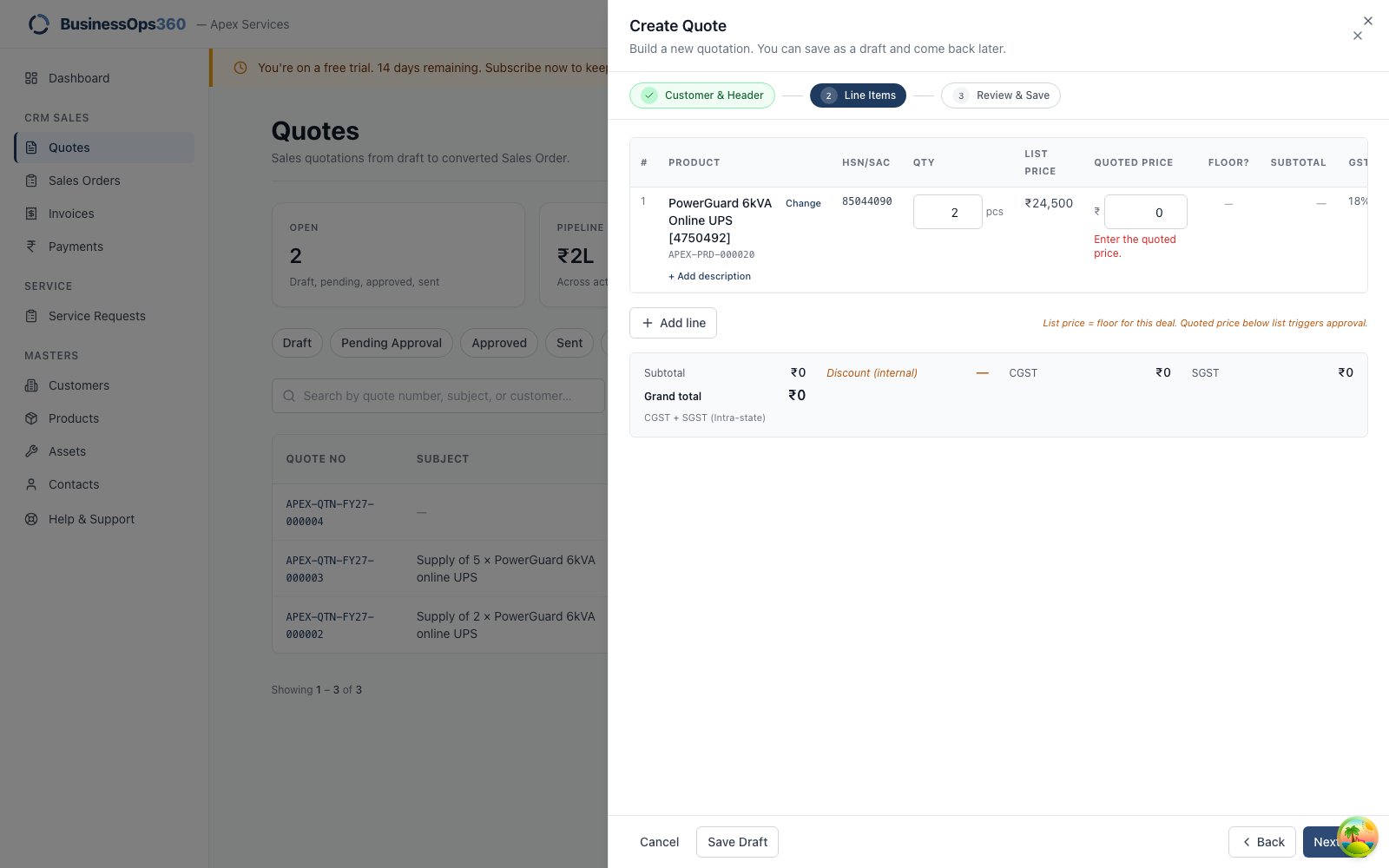
Enter a price per unit. If you genuinely mean to supply something free of charge,
speak to your Tenant Admin — a zero-value line can't be quoted this way.
Other things people hit
"The totals say IGST but my customer is local."
GST follows the billing address on the quote. IGST means the address on that
customer's record is in a different state from your own registered state — check
the customer record, and your company's registered state under Settings.
"I can't find the units to dispatch."
The serial box only offers stock the system knows about. No serials in stock
means the units haven't been taken in yet — ask your Tenant Admin.
"There's no Add product button."
Correct — the catalogue is Tenant-Admin territory. You can search and quote from
it, but not change it.
"I need to change a price after converting."
You can't edit a converted quote or a confirmed order's prices. Cancel the Sales
Order (before anything is dispatched) and raise a fresh quote. Once goods have
been dispatched, the order can't be cancelled at all.
"Which serial numbers did I bill this customer for?"
The invoice PDF prints them under each line. On screen, open Sales Order →
Dispatches.
Screens shown are from a demo workspace, signed in as a Sales Executive. Your
document numbers, prices and company details will differ.