Reporting a problem with your equipment
Who this is for: customers of a BusinessOps360 service agency. If your UPS, battery or electrical equipment needs attention, this is how you tell your service provider — and how you check what's happening afterwards.
What you'll do: raise a service request for your equipment from the customer portal, and track it through to completion.
Signing in
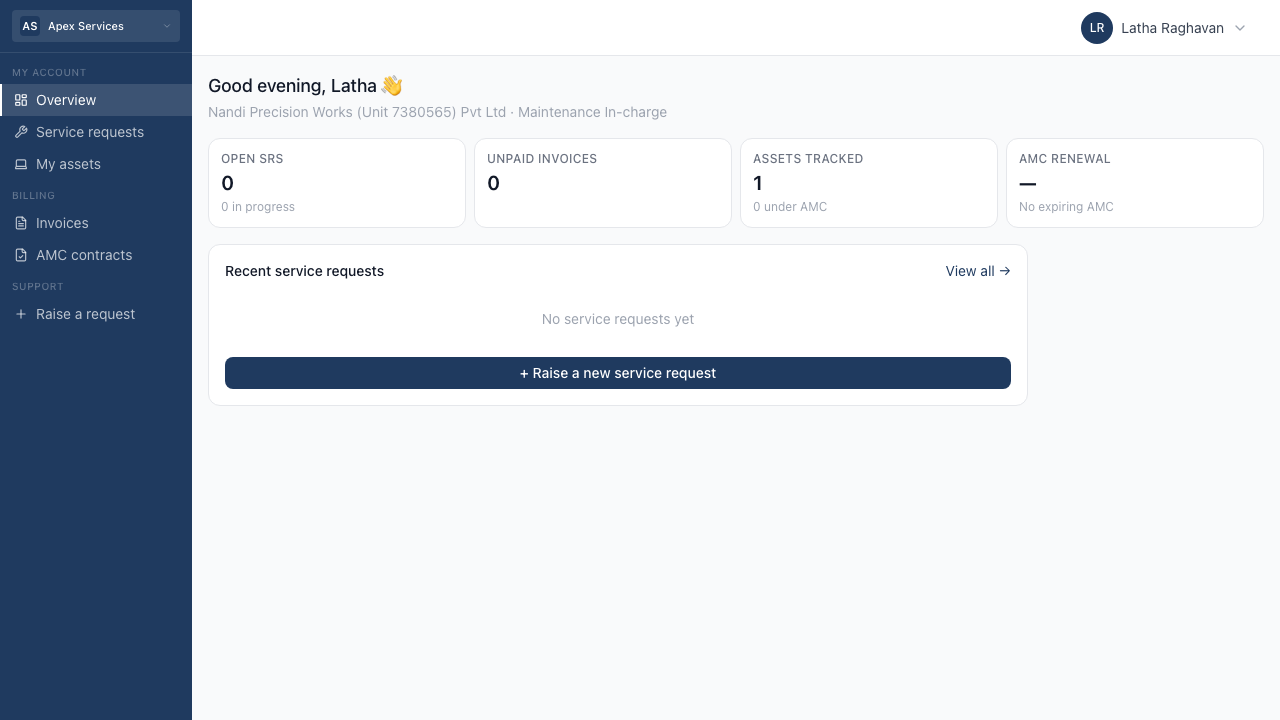
Your agency will send you a link to your service portal. Bookmark it.
- Enter your email address — the one your agency has on file for you.
- Tap Send OTP. A 6-digit code arrives by email.
- Type the code. You're in.
The code lasts 10 minutes. If it expires, ask for another.
If nothing arrives
- Check your spam folder first — it's the usual answer.
- Make sure it's the right address. The code only goes to an address your
agency has registered. If you've changed email, or a colleague set this up
originally, call your agency and ask them to add you. - For security, the screen looks the same whether or not your address is
registered — so "I got to the code screen" doesn't mean a code was sent. - You can ask for a code 5 times an hour. If you've been retrying, wait.
Raising a service request
Step 1 — Open the form
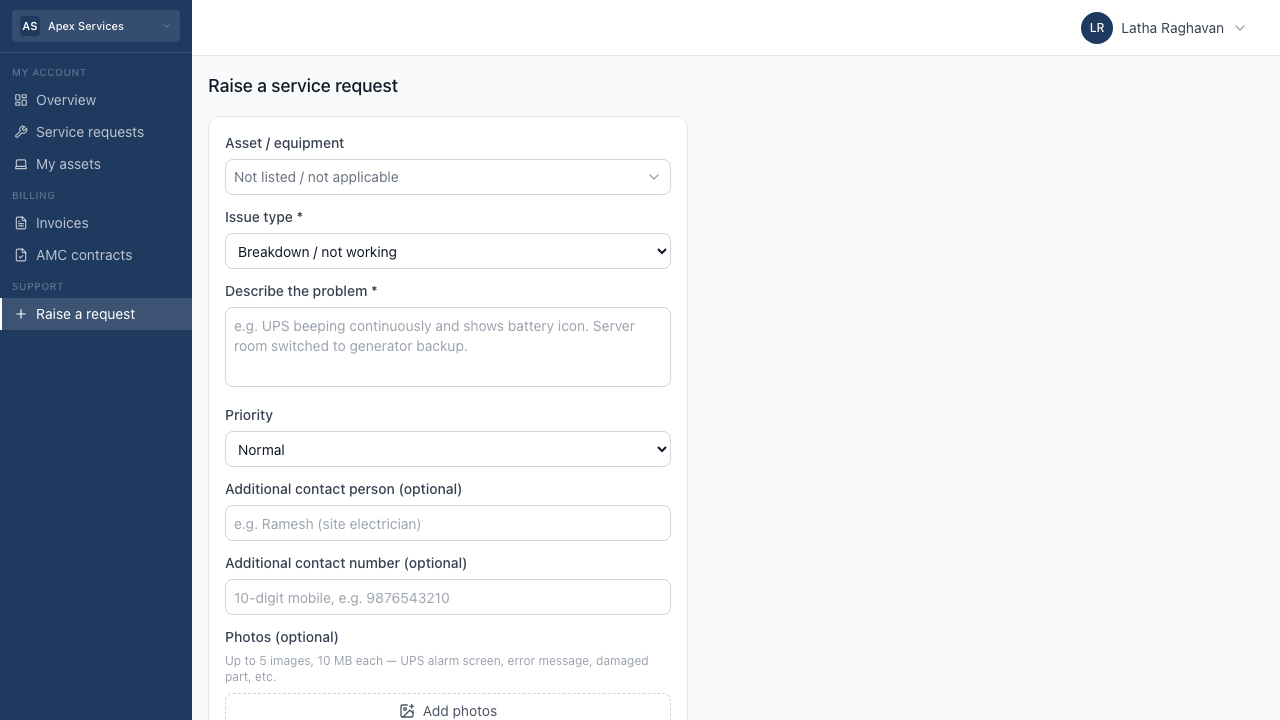
Tap Raise a request in the menu.
Step 2 — Say which machine
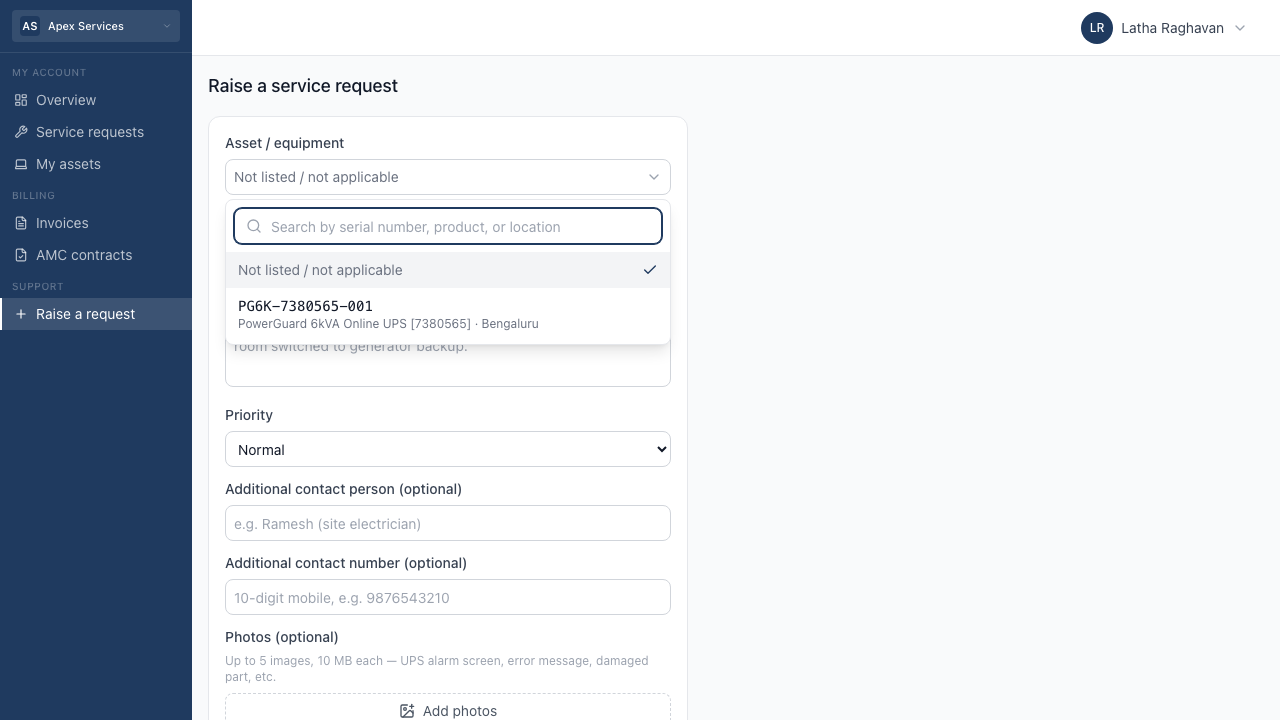
The Asset / equipment list shows the units your agency has recorded at your
site. You can search by serial number, product name or location.
Picking the right unit matters — it gives the engineer the machine's full service
history before they arrive. If you genuinely can't identify it, choose Not
listed / not applicable and describe it in the next box.
Step 3 — Choose the type of request
| Type | Use it when |
|---|---|
| Breakdown / not working | Something has stopped, is failing, or is alarming. The most common. |
| General service visit | Not a breakdown — a check-up or a general look at something. |
| Preventive maintenance | A scheduled service visit for equipment you maintain. |
| Inspection | A survey or condition check. |
| New installation | You need something new put in. |
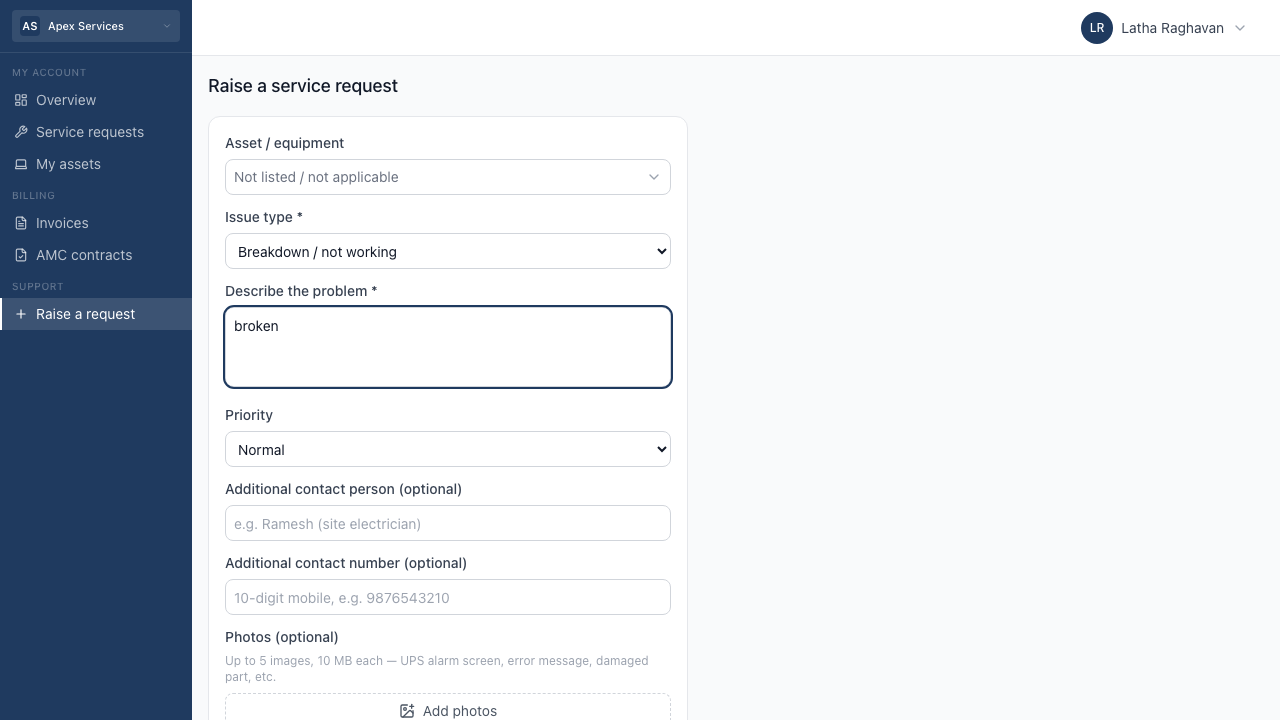
Step 4 — Describe the problem
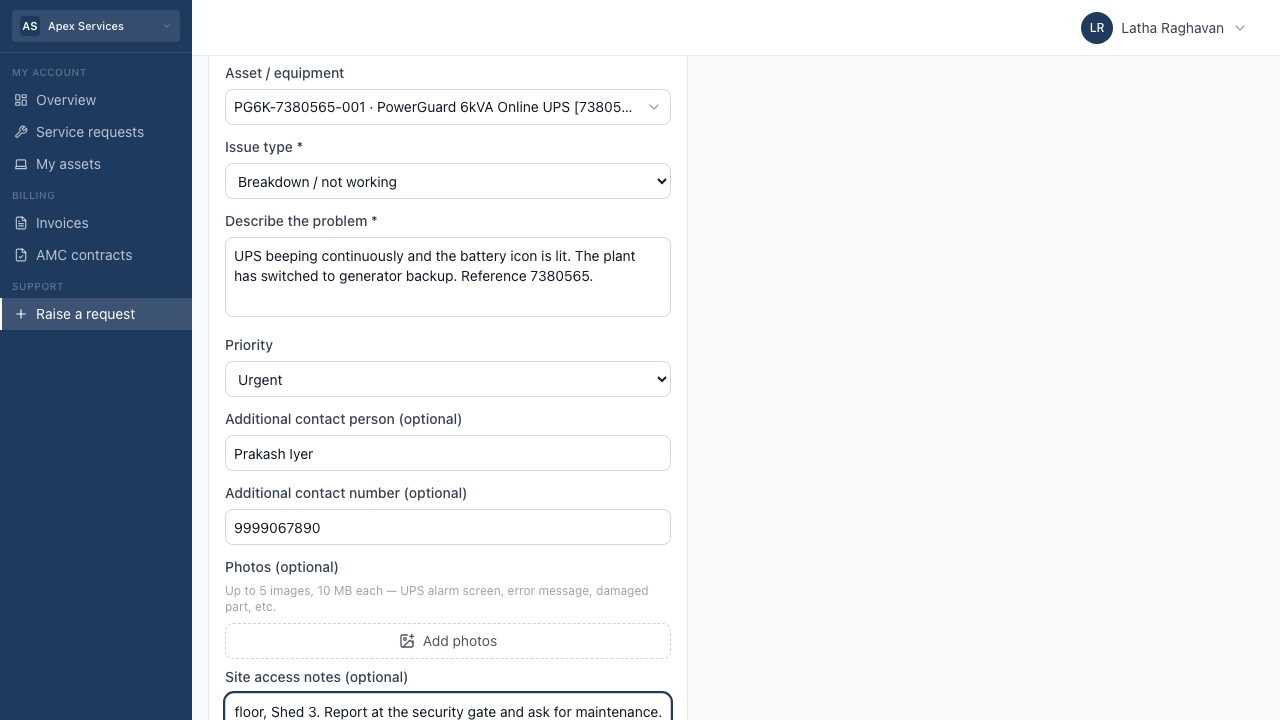
| Field | What helps |
|---|---|
| Describe the problem | What you can see and hear, not what you think is wrong. "Beeping continuously, battery light on, the server room switched to generator" tells an engineer far more than "UPS faulty". |
| Priority | Be honest — see below. |
| Additional contact person | Optional. Someone on site the engineer can ask for if you're not there. |
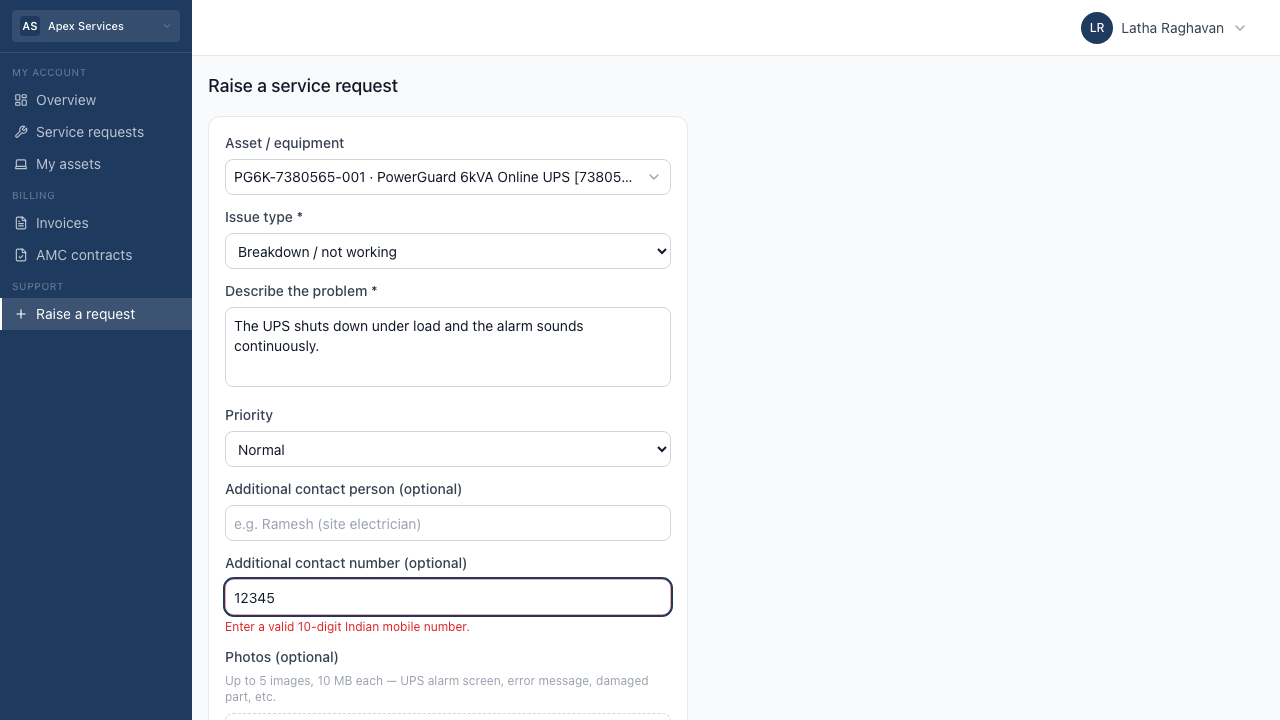
| Additional contact number | Optional, but if you give one it must be a valid 10-digit Indian mobile. |
| Photos | Optional, up to 5. A photo of the alarm panel or the error message is often the single most useful thing you can send. |
| Site access notes | Optional. Gate procedure, ID requirements, who to report to. This is what stops an engineer losing an hour at your reception. |
Step 5 — Submit
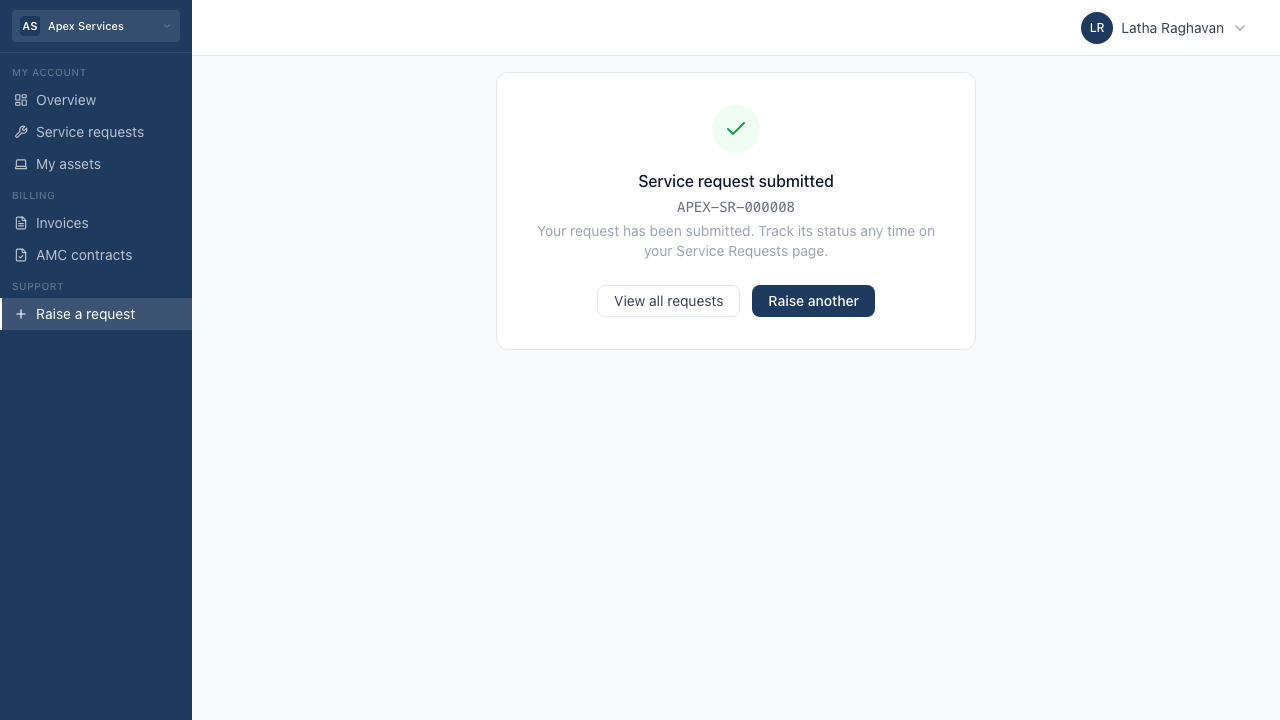
You get a reference number — APEX-SR-000104 in this example. Quote it in
any phone call or email about this problem.
The request goes straight to your agency's service coordinator, who assigns
an engineer. You don't need to ring to confirm it arrived.
Tracking it
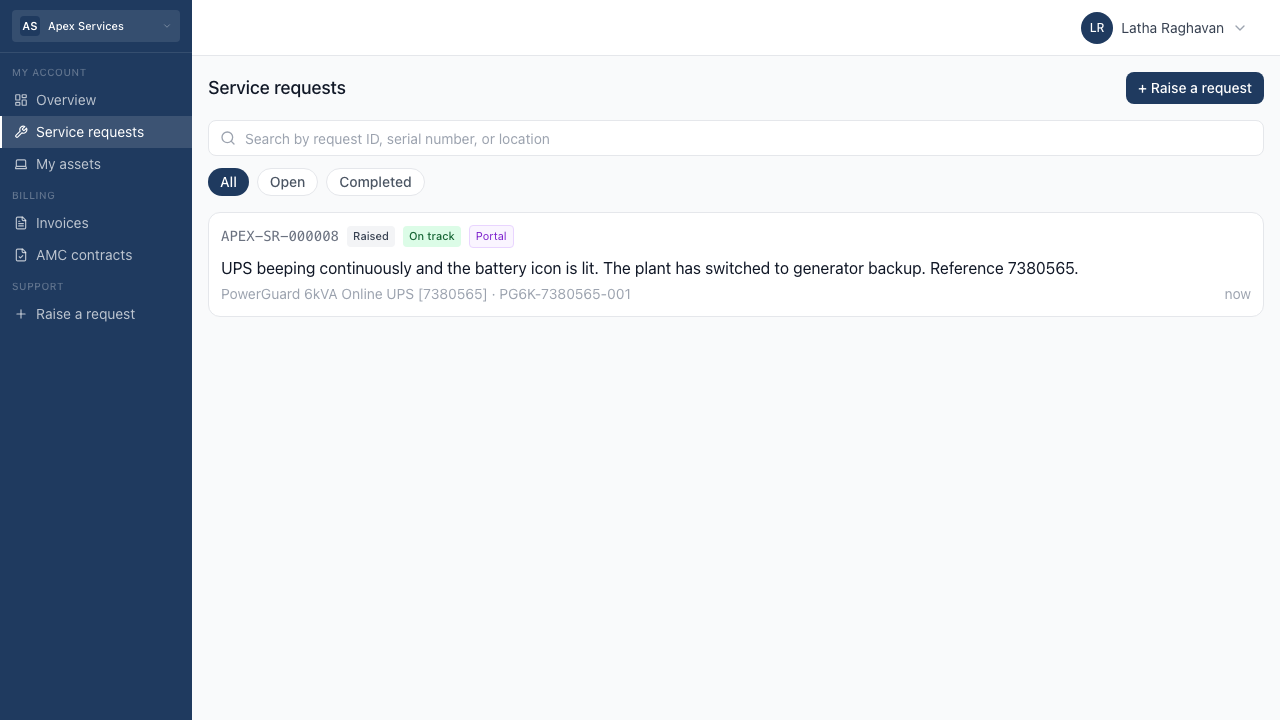
Service requests in the menu lists everything you've raised, newest first,
with filters for Open and Completed. Each one shows its reference, its
status, and — if your agency has it switched on — whether it's on track
against their response commitment.
Tap any request to open it.
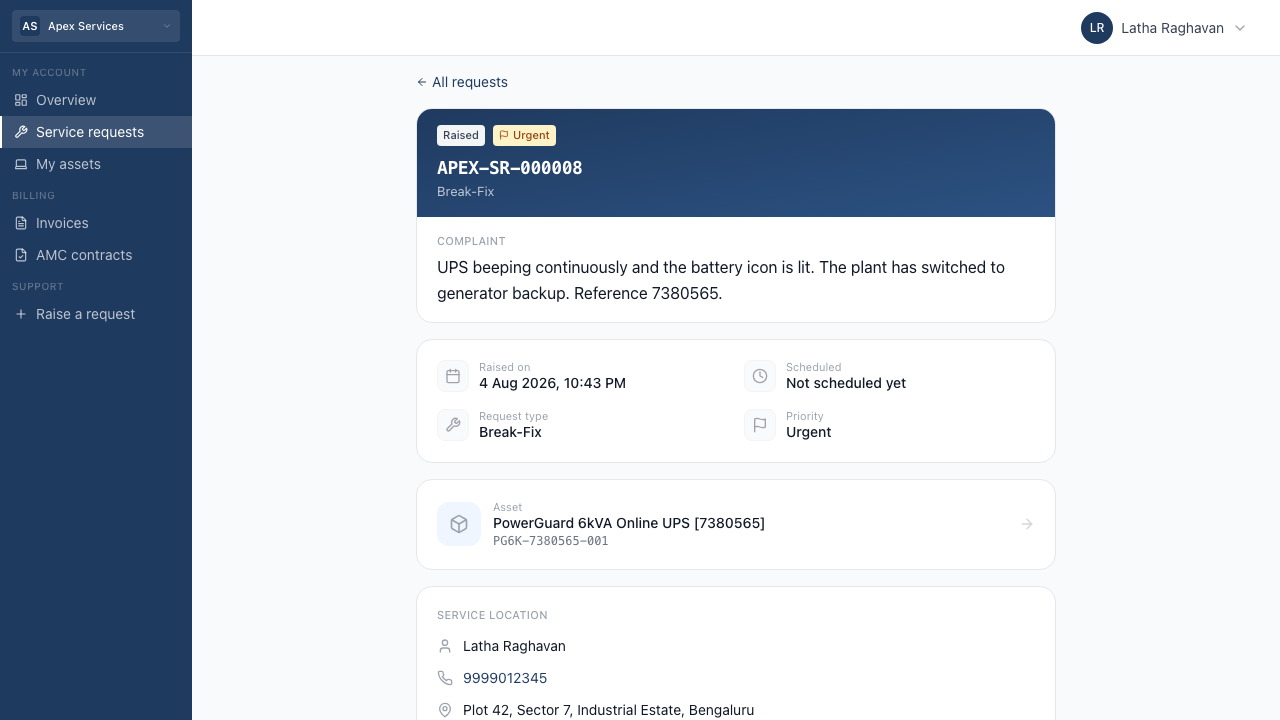
| What you'll see | Meaning |
|---|---|
| Raised | Your agency has it. Nobody is assigned yet. |
| Scheduled | A visit has been booked. |
| Engineer assigned | Someone is allocated and on their way to being dispatched. |
| In progress | An engineer is working on it. |
| Completed | The work is done. |
| On track / At risk / Breached | How the visit is tracking against your agency's response time. |
Service location is filled in from your account — the contact and site
address your agency holds for you. If it's wrong, tell them; it's the address
the engineer will be sent to.
You'll also see the scheduled visit date once one is booked, and the
engineer's name once assigned.
What you can't do here
This portal is for raising and following requests. You can't cancel,
reschedule or edit a request yourself, and you can't message the engineer through
it — ring your agency for any of that. Once a job is completed you may be asked
to rate the visit, which genuinely does get read.
Your other pages
| Page | What's there |
|---|---|
| Overview | A summary — open requests, upcoming visits. |
| My assets | Every unit your agency has recorded at your site, with its service history and maintenance schedule. |
| Invoices | Your invoices, with PDFs to download. |
| AMC contracts | Your maintenance contracts, if you have any. |
"Submit" is greyed out
Two things do this:
- The description is too short. You need at least a sentence — the box needs
about 10 characters before it will accept anything. - The contact number isn't valid. It must be a 10-digit Indian mobile
starting 6, 7, 8 or 9. Clear the box entirely if you'd rather not give one —
it's optional.
My equipment isn't in the list
The list only shows units your agency has recorded against your account. If a
machine is missing, they haven't added it yet — raise the request with Not
listed / not applicable and describe the unit, and mention it when they call.
I can't see a colleague's requests
You see your own company's requests only, and access is granted per person. If a
colleague raised something you need to see, ask your agency to give you access
too — they can invite additional contacts.
"This agency does not take service requests online"
Your agency hasn't enabled online service requests. Contact them directly; they
will be happy to help.
I don't see a response time on my requests
Not every agency publishes their response commitment to customers. It doesn't
mean there isn't one — ask them.
I've changed email address
Ask your agency to update your contact record. Sign-in codes only go to the
address they hold, so nothing will arrive at a new address until they do.
Screens shown are from a demonstration account with invented company, contact
and equipment details. Yours will differ.