Logging a breakdown call and getting it fixed
Who this is for: two people, and the guide says which is which.
What you'll do: take a breakdown call about a unit in the field, get an engineer to site inside the promised time, and record the fix.
- Service Coordinator — takes the call, raises it, sends an engineer.
- Field Engineer — travels, attends, does the work, writes the report.
Step 1 — Your workspace
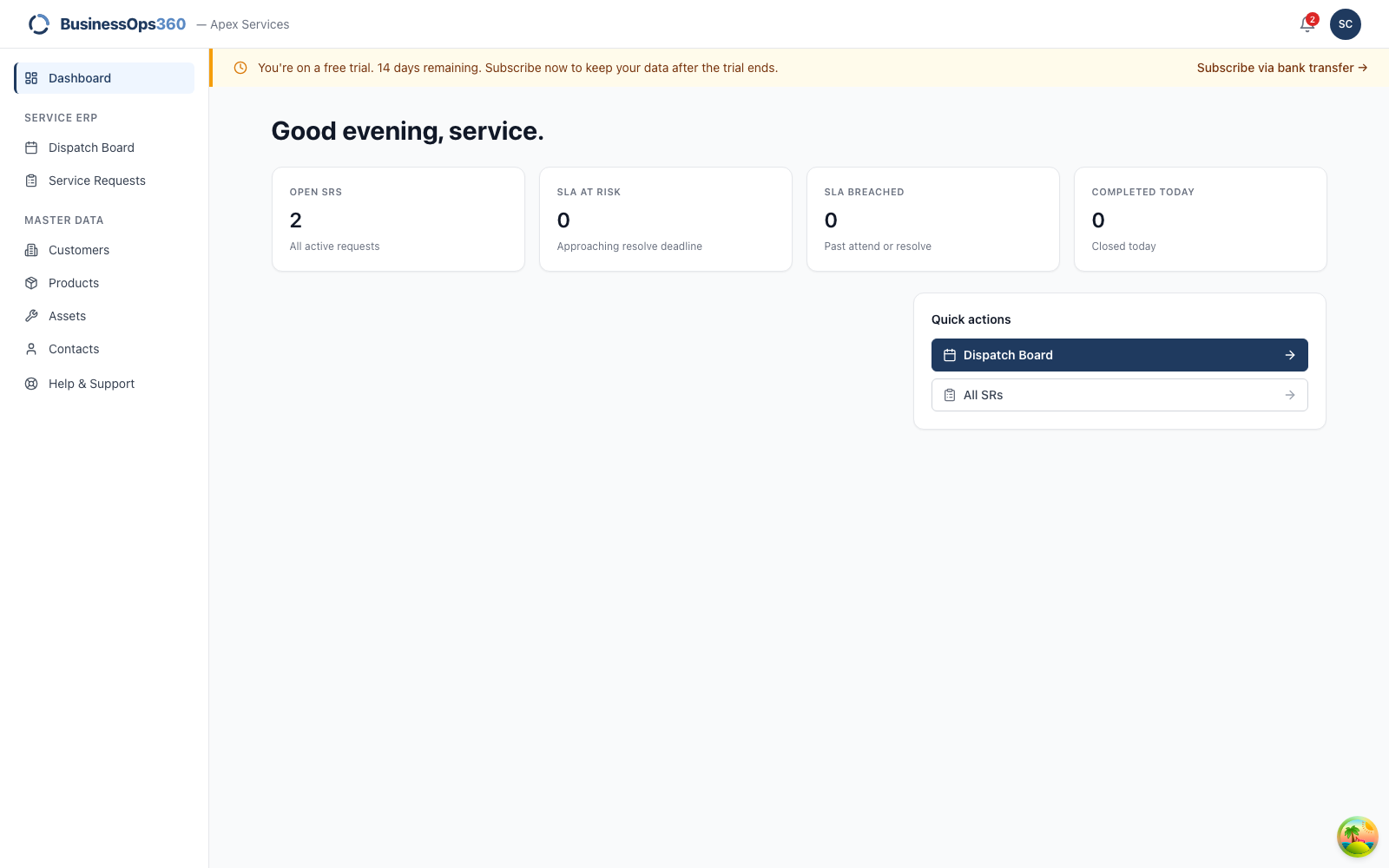
Your nav is the service desk: Dispatch Board and Service Requests, plus
the customers, products and assets you look things up in. No quotes, no invoices
— those belong to sales.
Step 2 — Open Service Requests
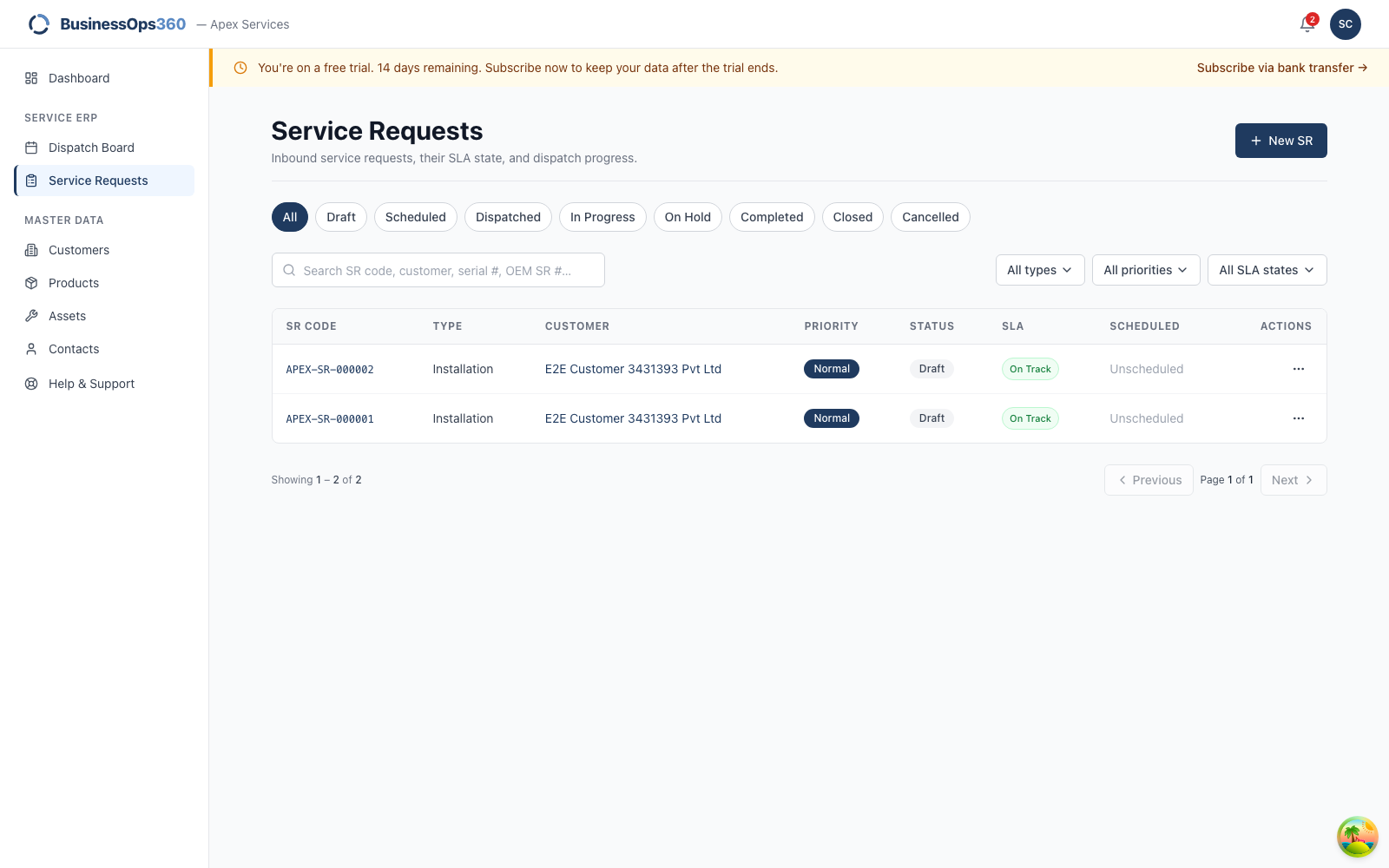
Every live call, with its status, priority and SLA. Click New SR.
Step 3 — Take the call
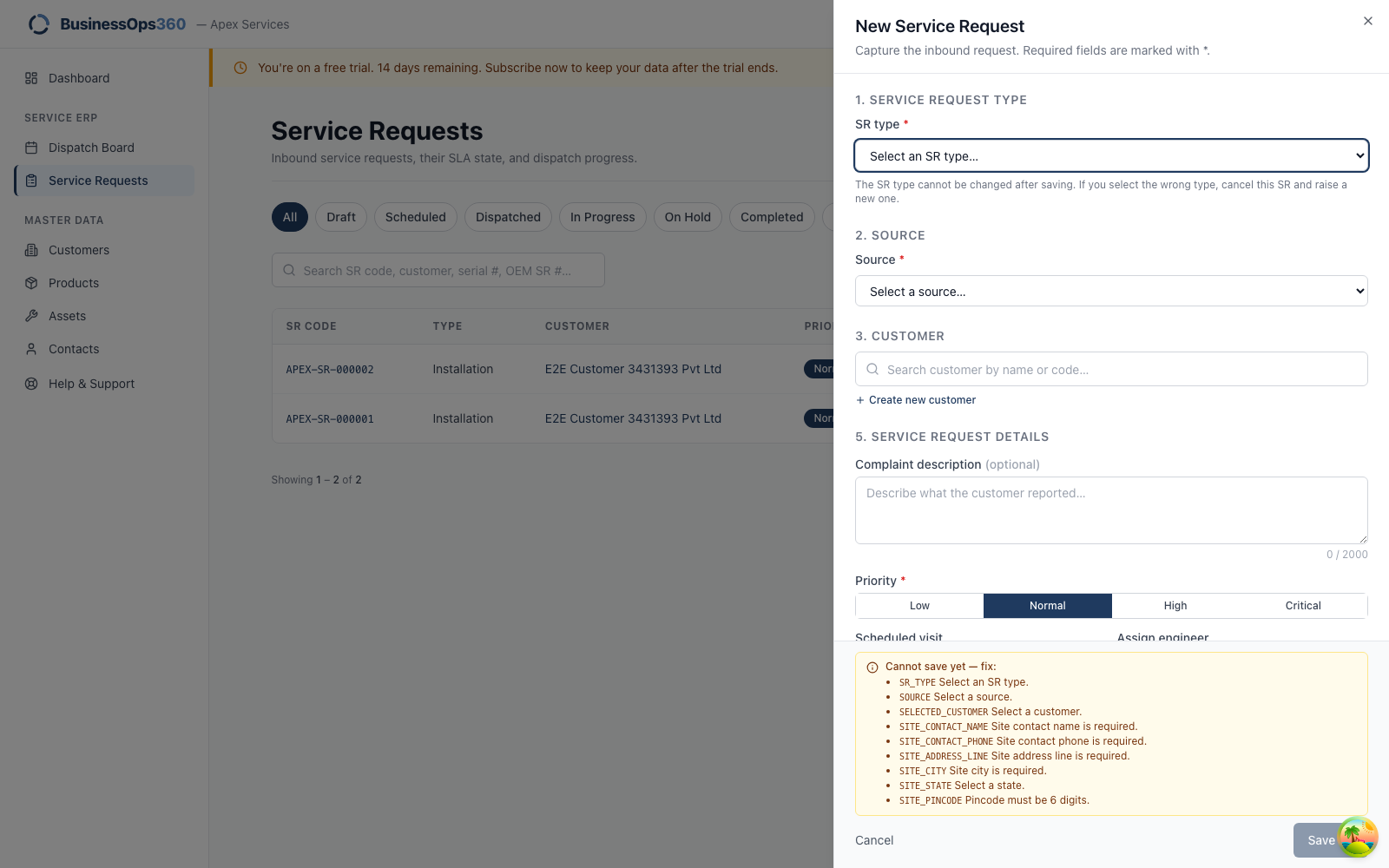
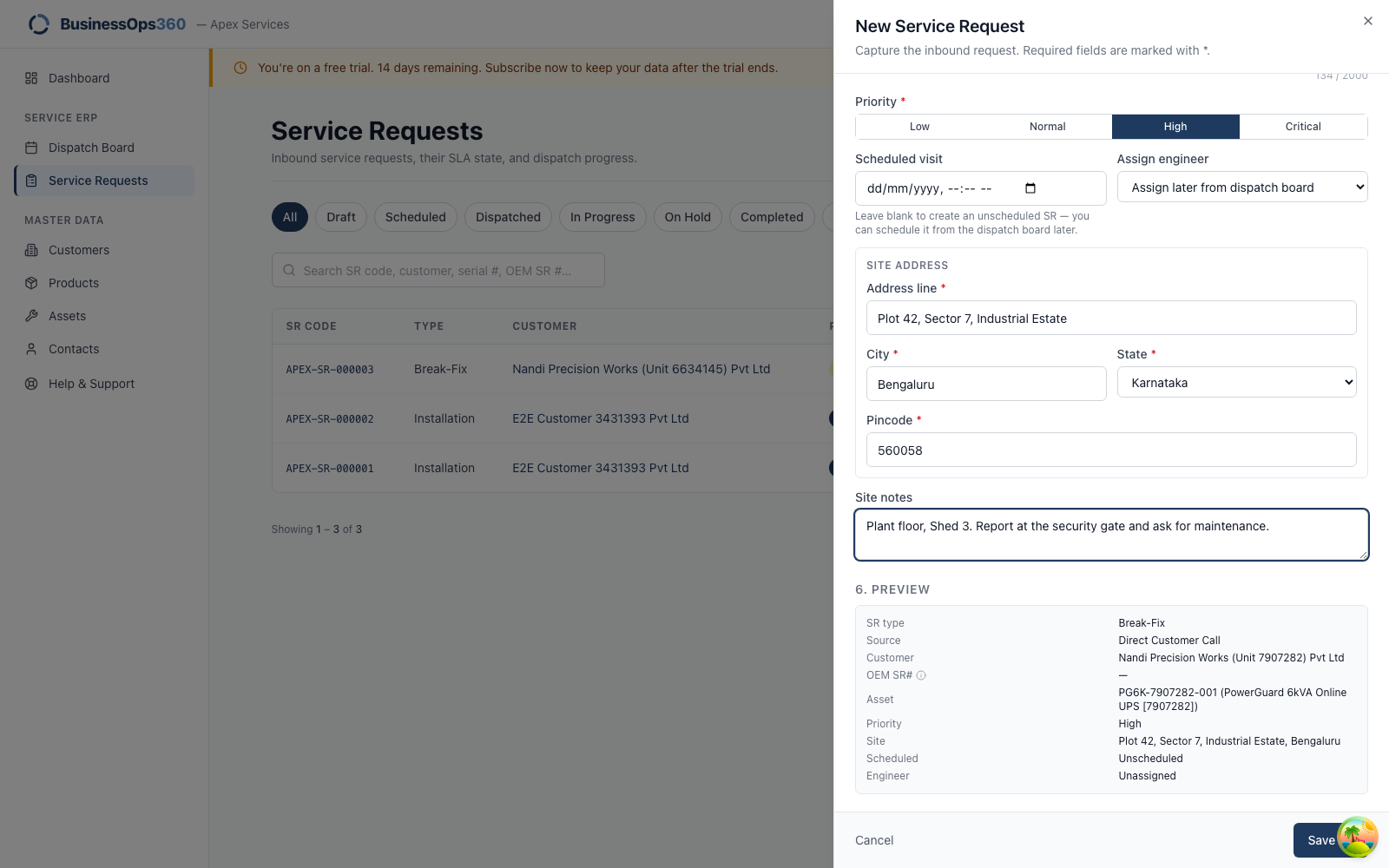
Fill it while the customer is still on the phone.
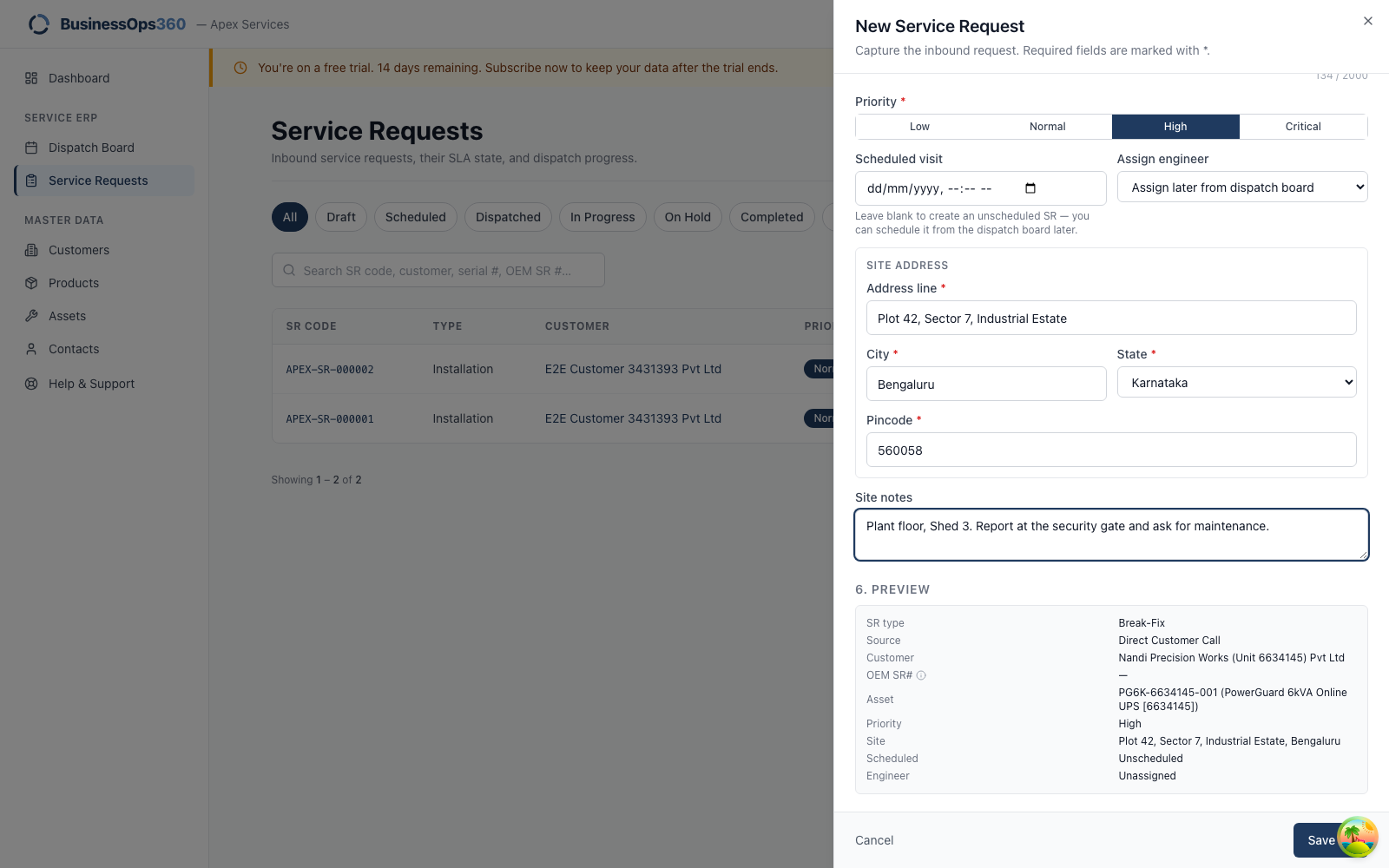
| Field | What it's for |
|---|---|
| SR type | Break-fix for a breakdown. The type drives the SLA — a breakdown gets a much tighter attend deadline than a routine visit. |
| Source | How the call reached you. Direct customer call for a phone call. |
| Customer | Search by name or code. |
| Asset | The specific unit. Search by serial. This is what gives the engineer the machine's history. |
| Complaint | What the customer actually said. Symptoms, not your diagnosis — the engineer forms their own. |
| Priority | Drives the queue. Be honest: everything marked Critical means nothing is. |
| Site contact + phone | Required. Nobody can be sent to a site with no one to ask for. |
| Site address | Where the unit is — often not the billing address. |
| Site notes | Gate procedures, access restrictions, who to report to. This is the field that saves an engineer an hour. |
Click Save.
Step 4 — Check what was raised
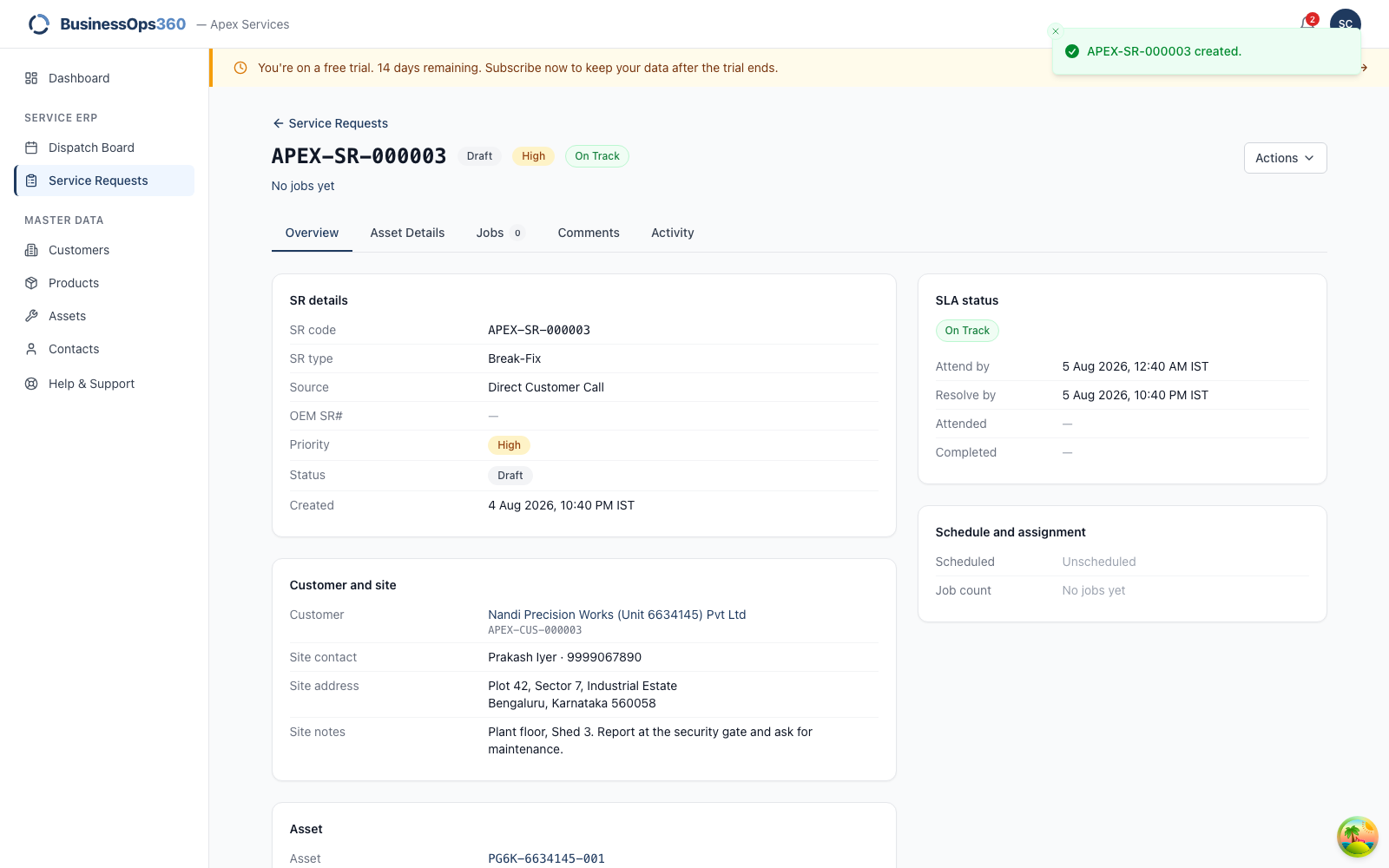
The call now has an SR number. Check the priority and complaint read back
correctly.
Step 5 — The SLA clock
The attend and resolve deadlines are set the moment you save, from the
work type and your agency's SLA settings. They are fixed — editing settings
later doesn't move an existing call's deadlines.
If a deadline looks wrong, it's the SLA configuration that needs changing
(Settings → SLA Configuration), and only for future calls.
Step 6 — Send an engineer
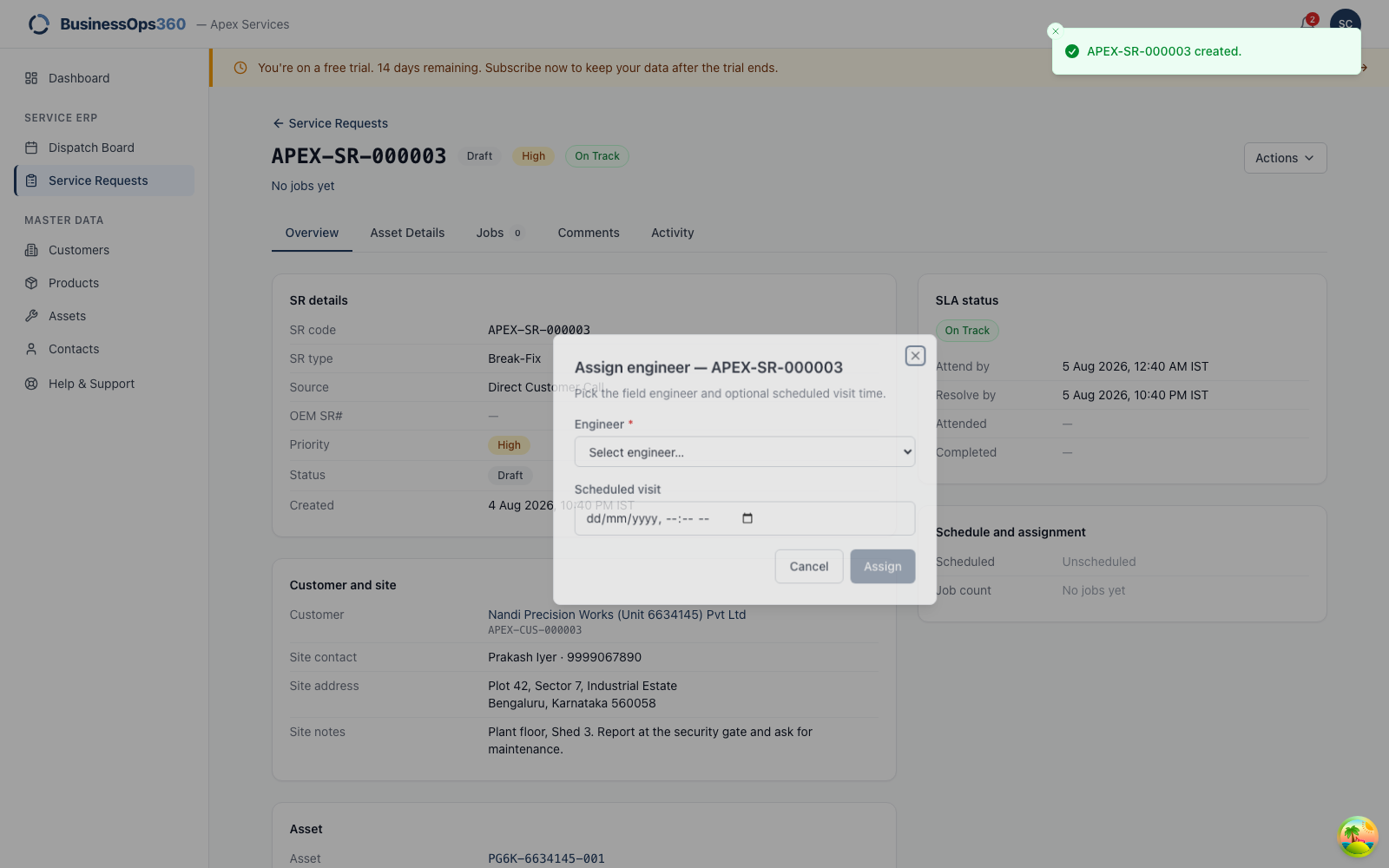
Open Actions → Assign and pick an engineer and a scheduled time. The list is
who can take the work.
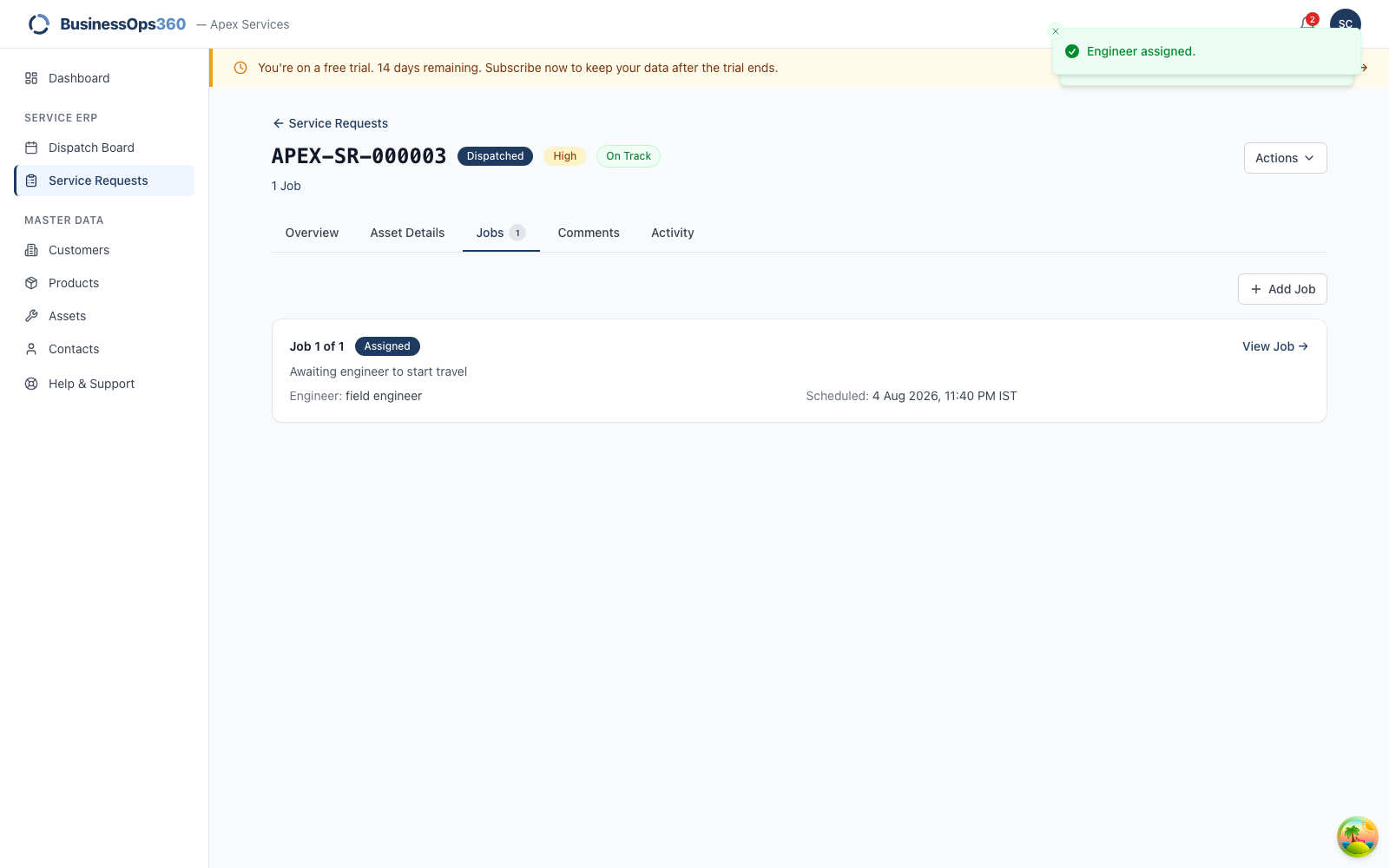
A job is created for that engineer, and the call moves to Scheduled. It is
now in their queue.
This is the hand-off. The rest belongs to the engineer.
Step 7 — Your jobs
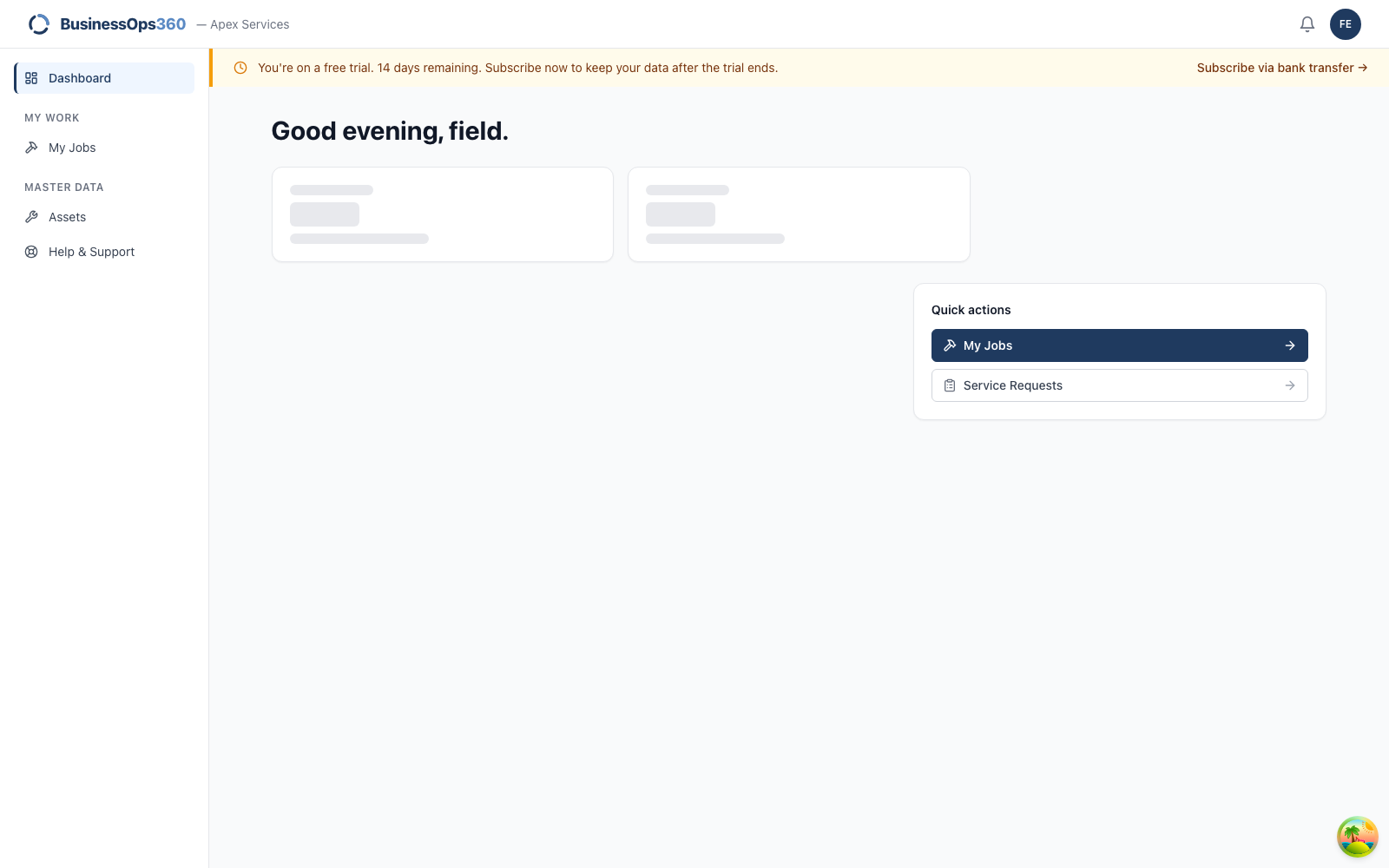
Your nav is My Jobs and the asset records you need on site. You don't raise
calls and you don't dispatch — that's the coordinator.
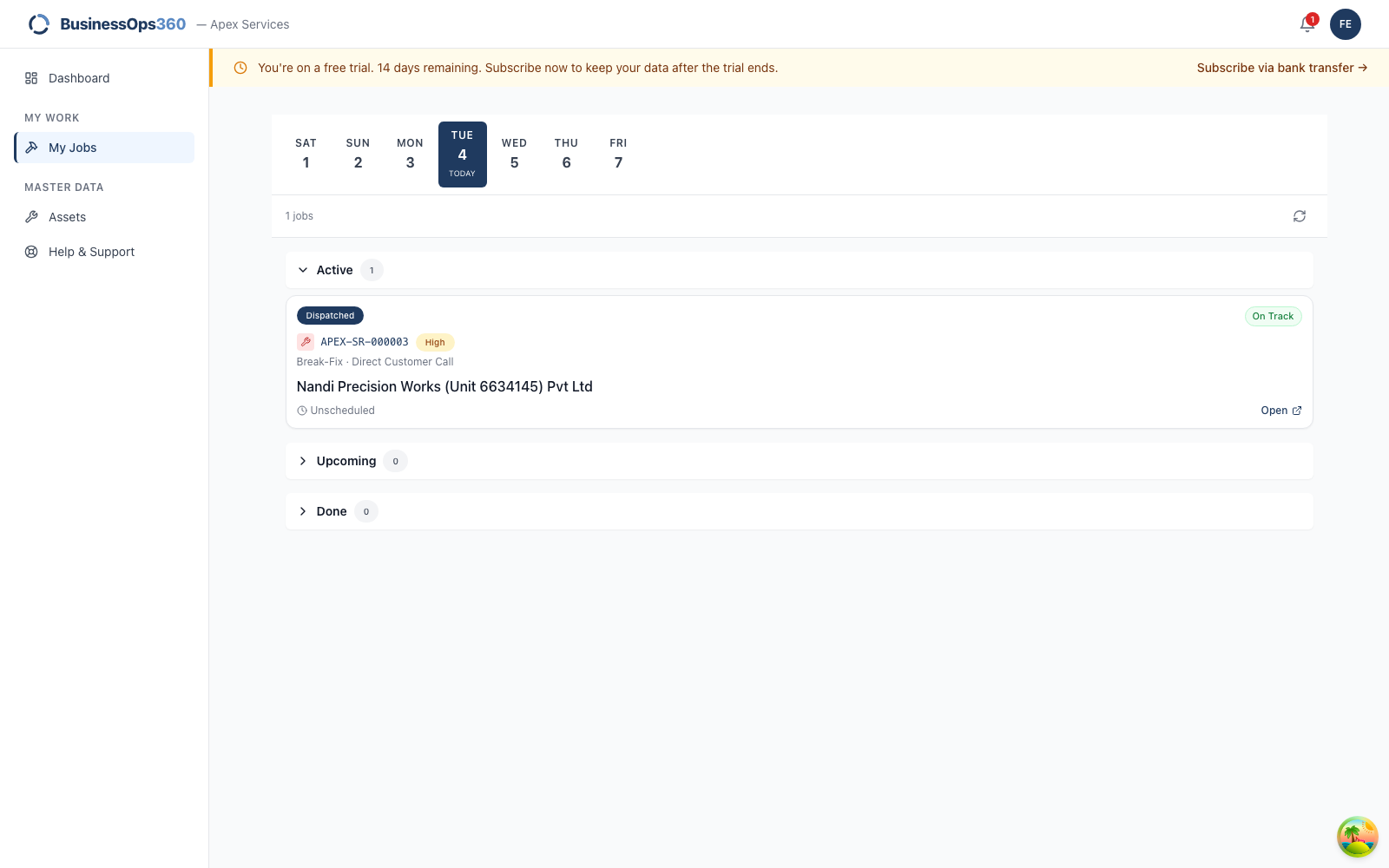
The job the coordinator assigned is here, with the SR number, customer and site.
Step 8 — Open the job
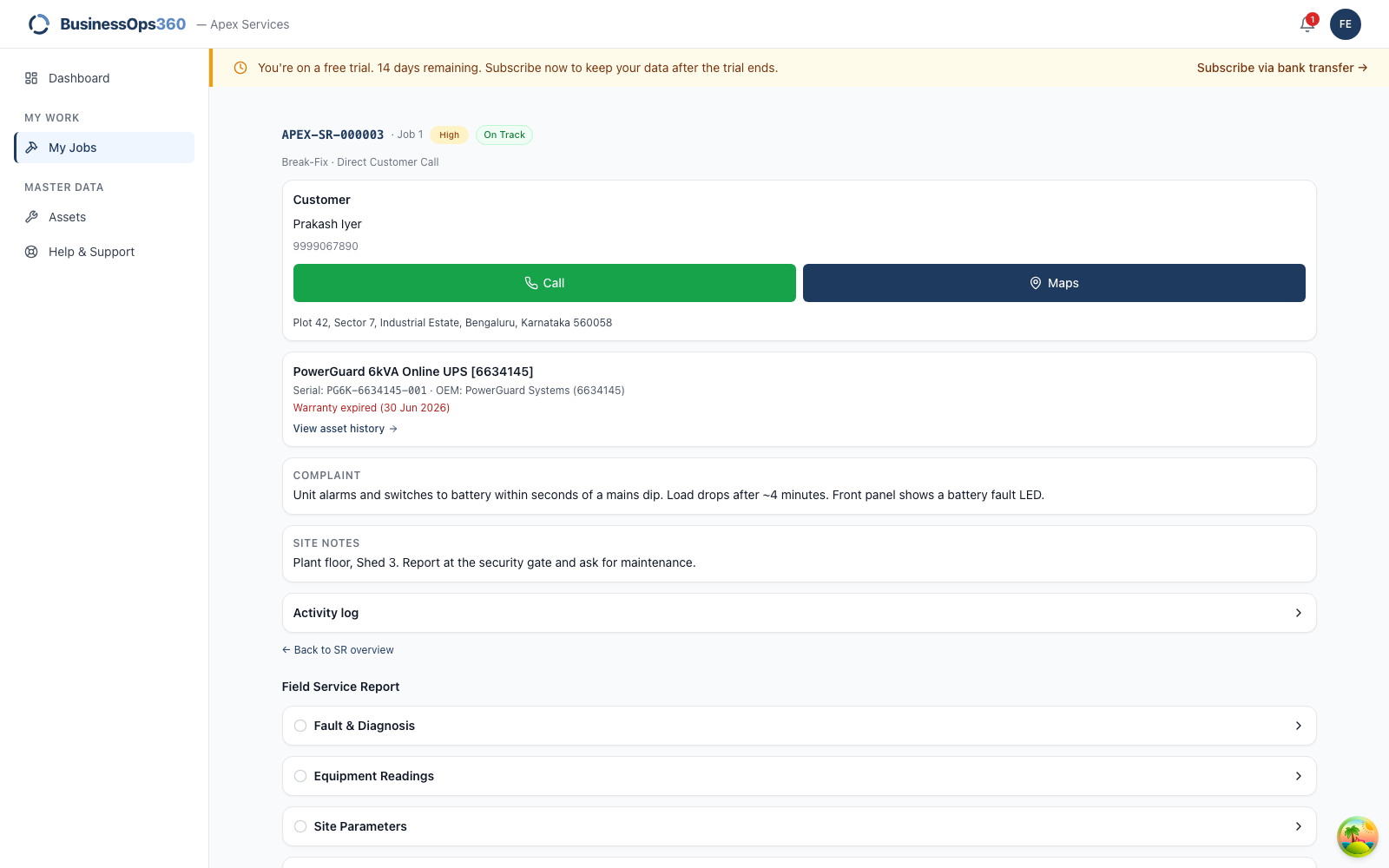
The complaint, the site contact, the address and the unit's history. Read the
site notes before you leave.
Step 9 — Start travel
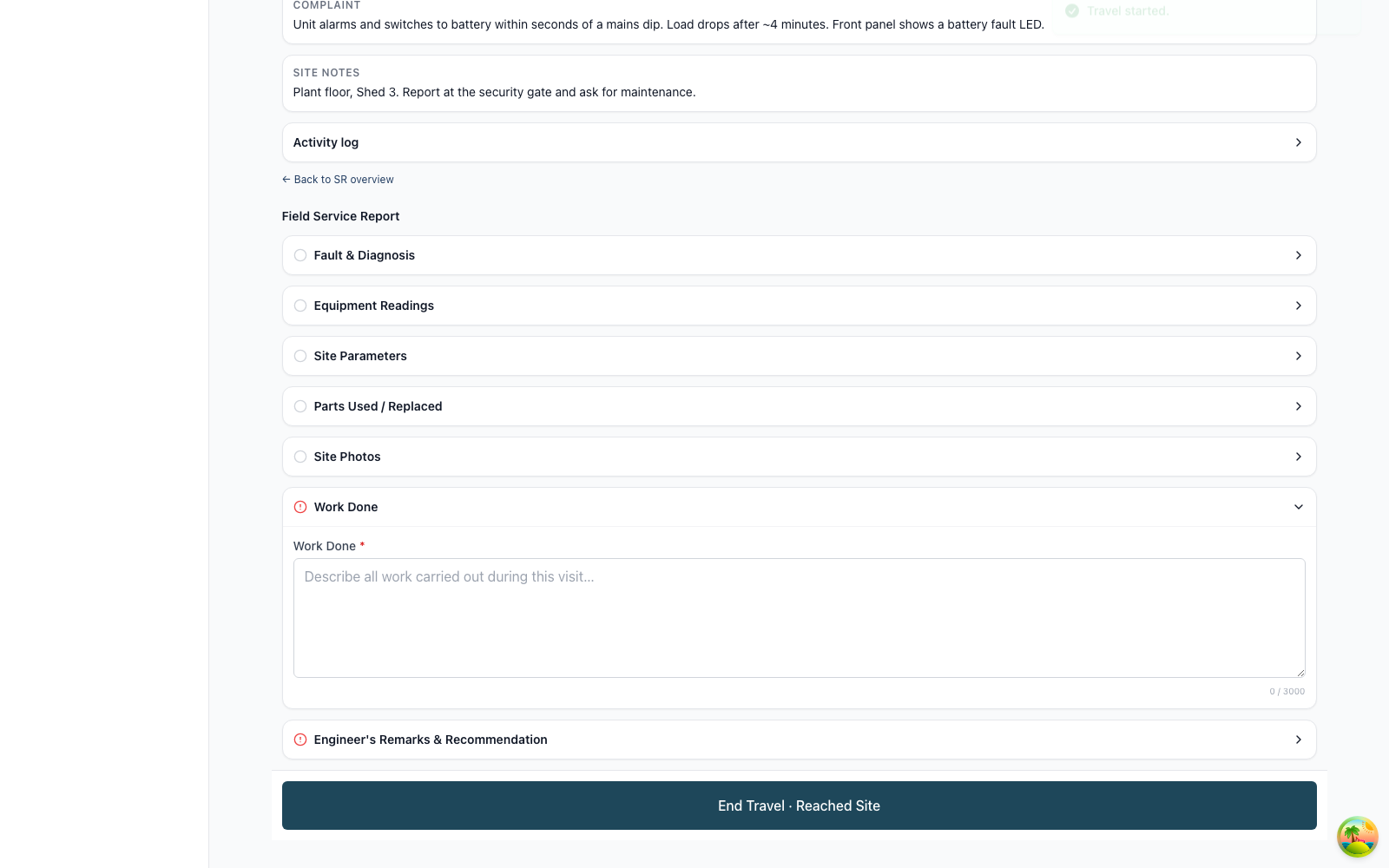
Tap Start Travel when you set off. This is what tells the coordinator you're
moving without them having to ring you.
Step 10 — Reached site
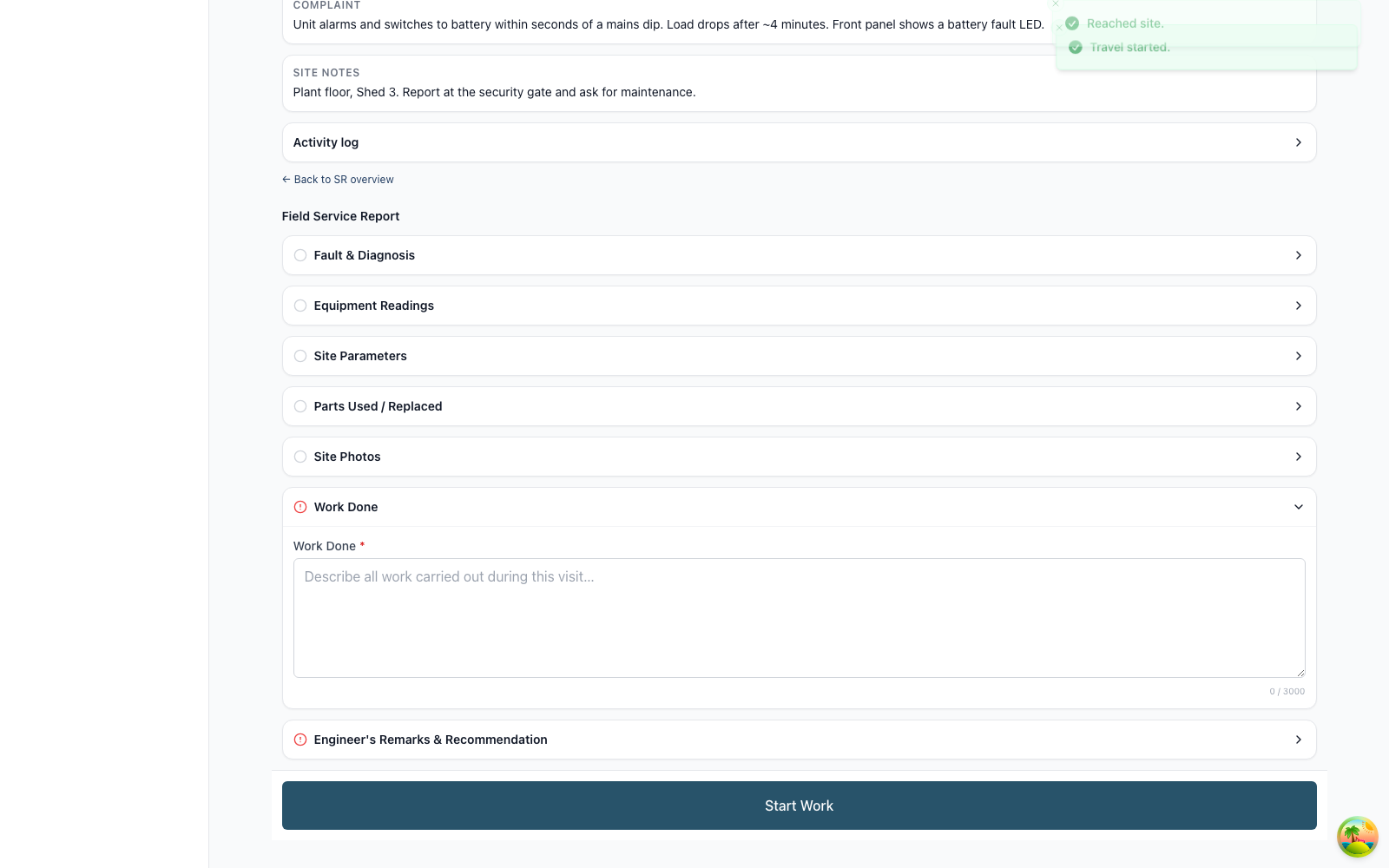
Tap End Travel / Reached Site when you arrive.
Step 11 — Start work
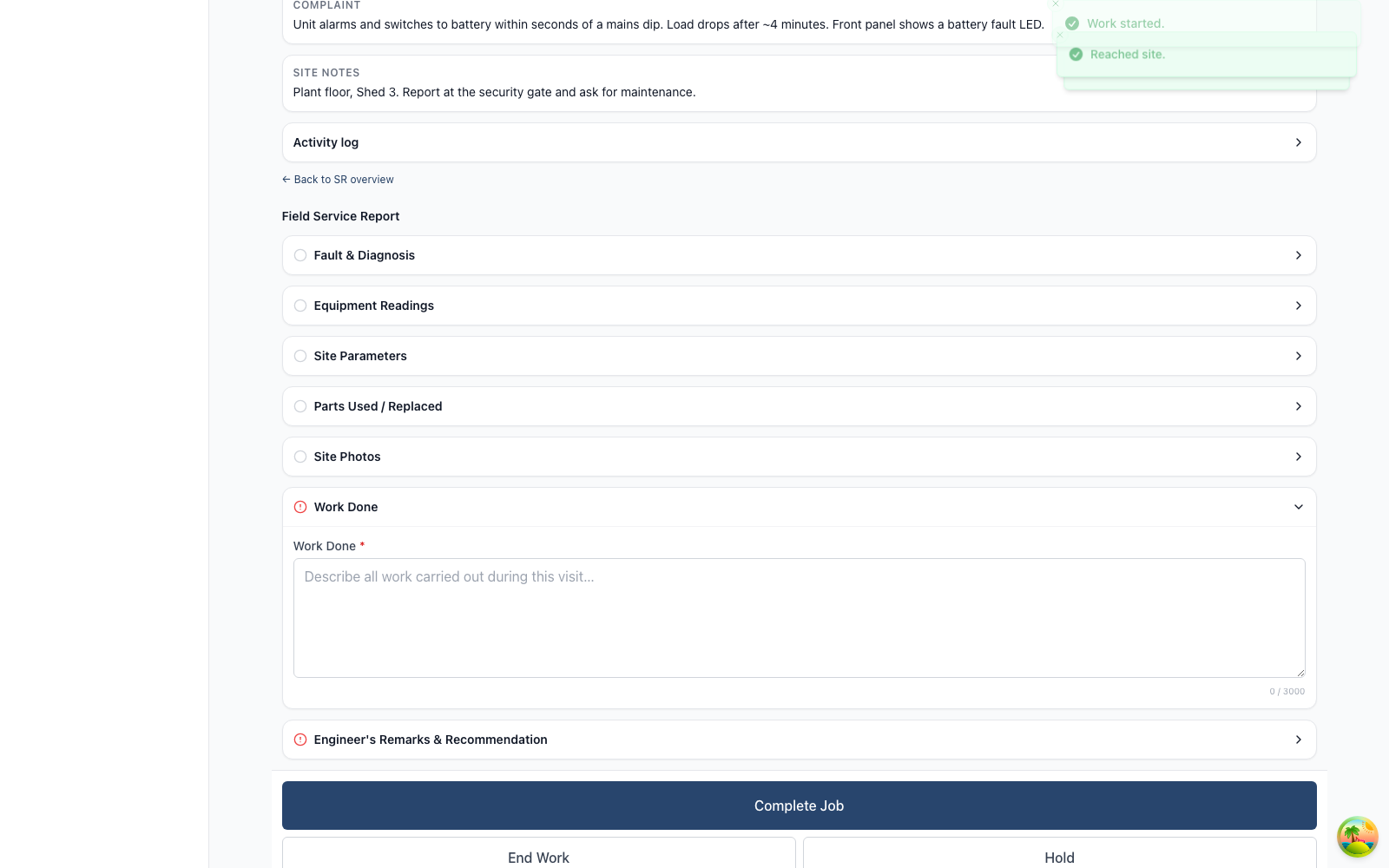
Tap Start Work. The job is now In progress and the report becomes editable.
Step 12 — Write the report
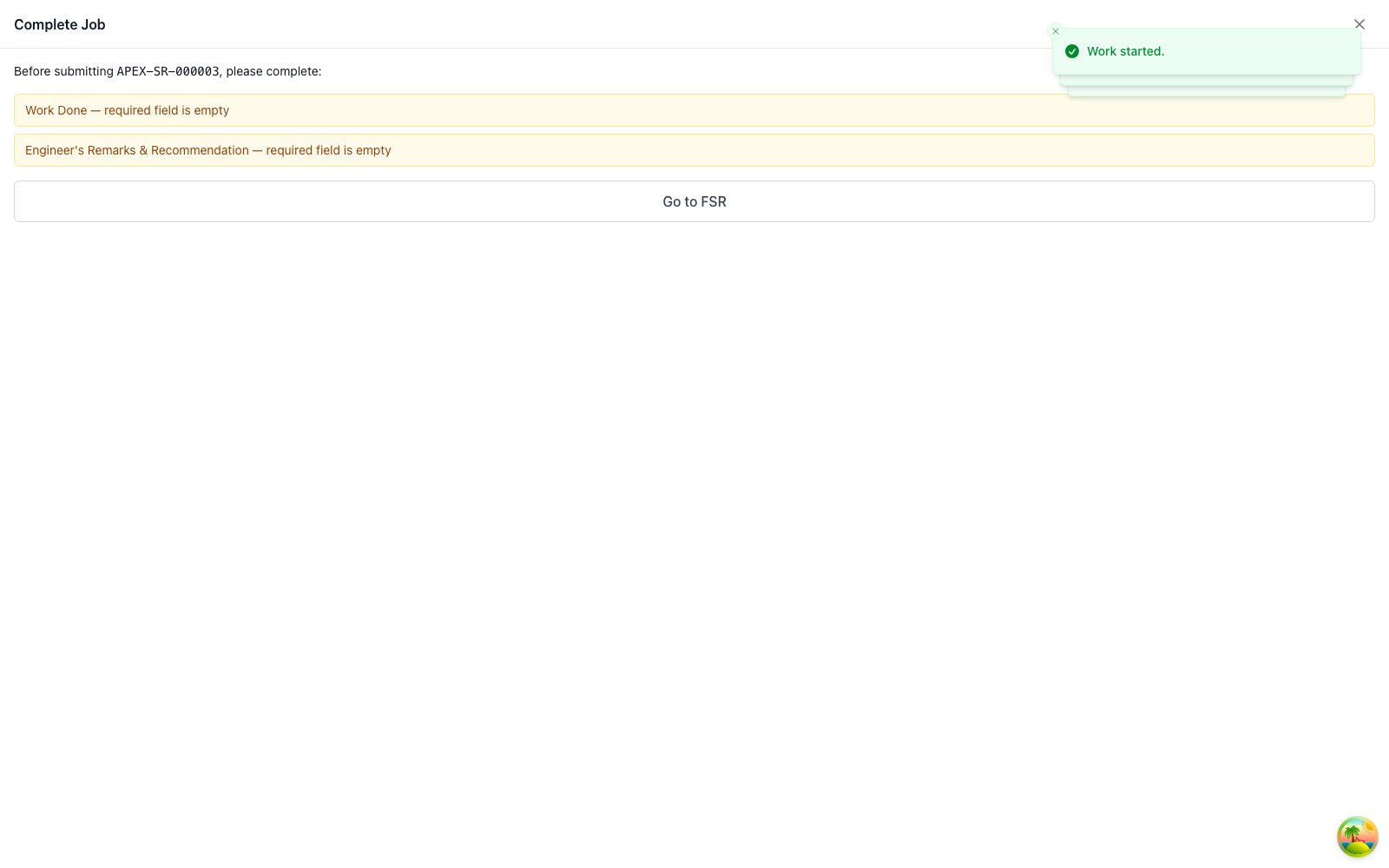
Tap Complete and the app checks the Field Service Report first. It won't let
you close the job while a required section is empty — the customer's report is
written on site, not from memory afterwards.
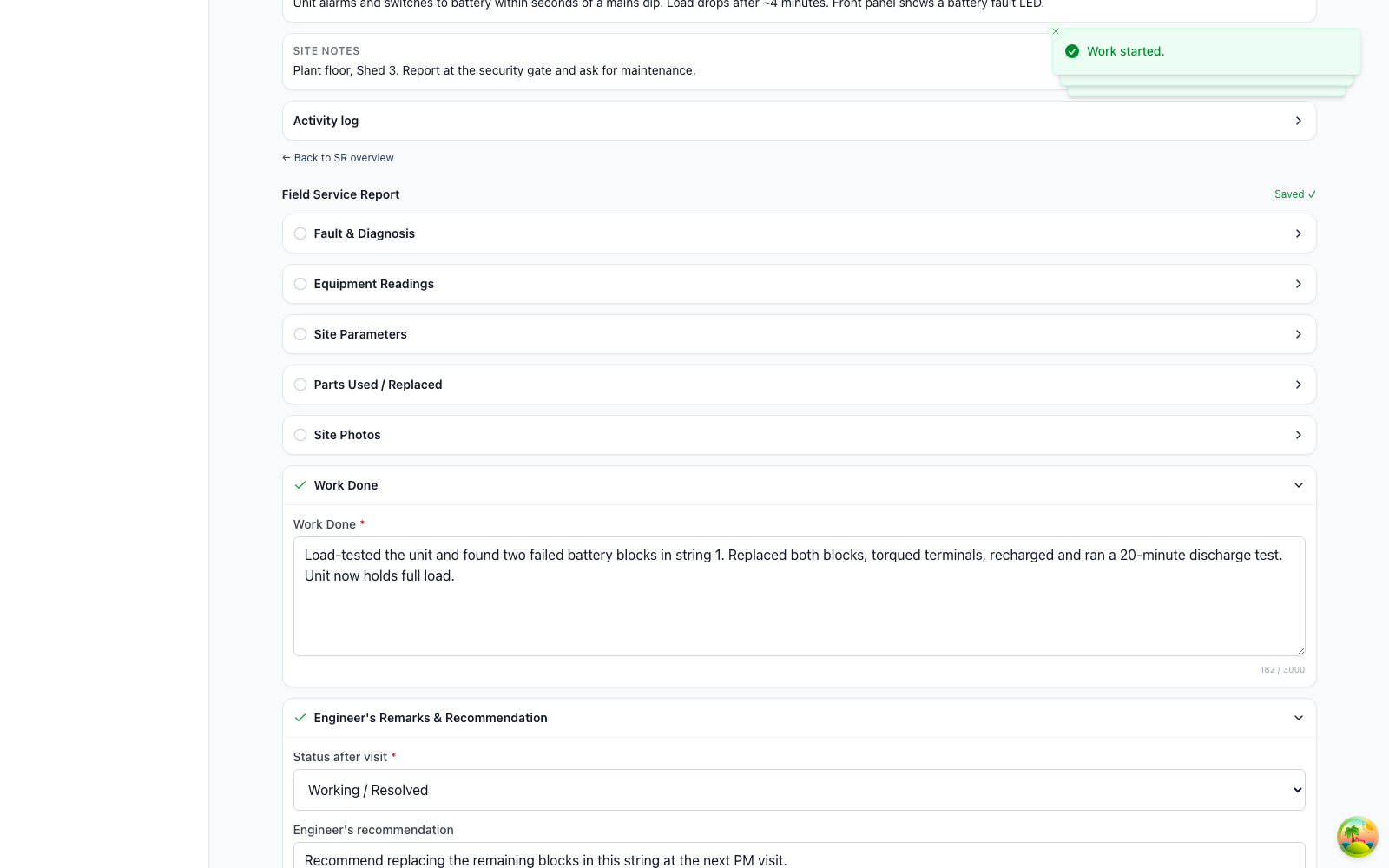
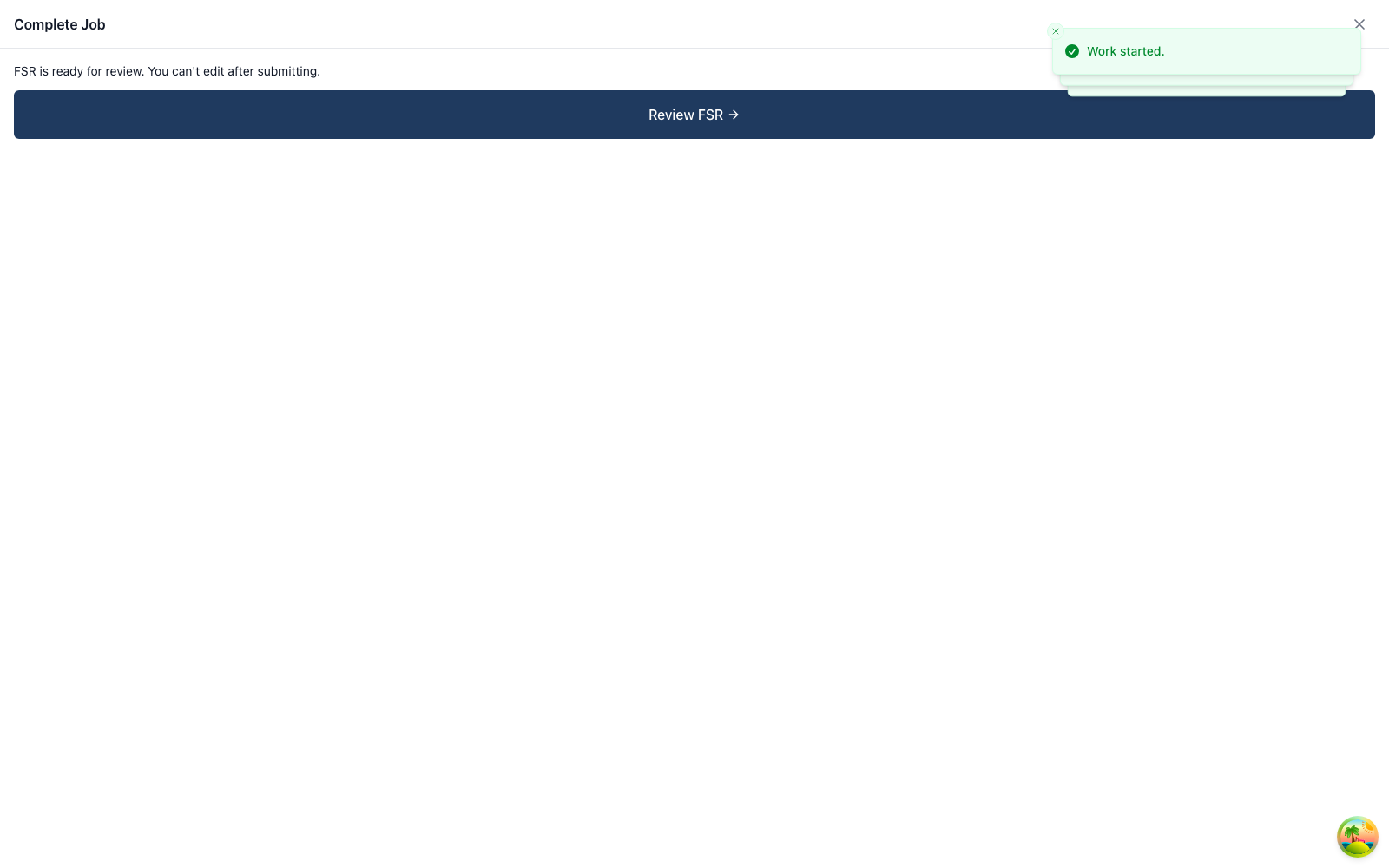
With the report complete, the precheck passes.
Step 13 — Review and sign
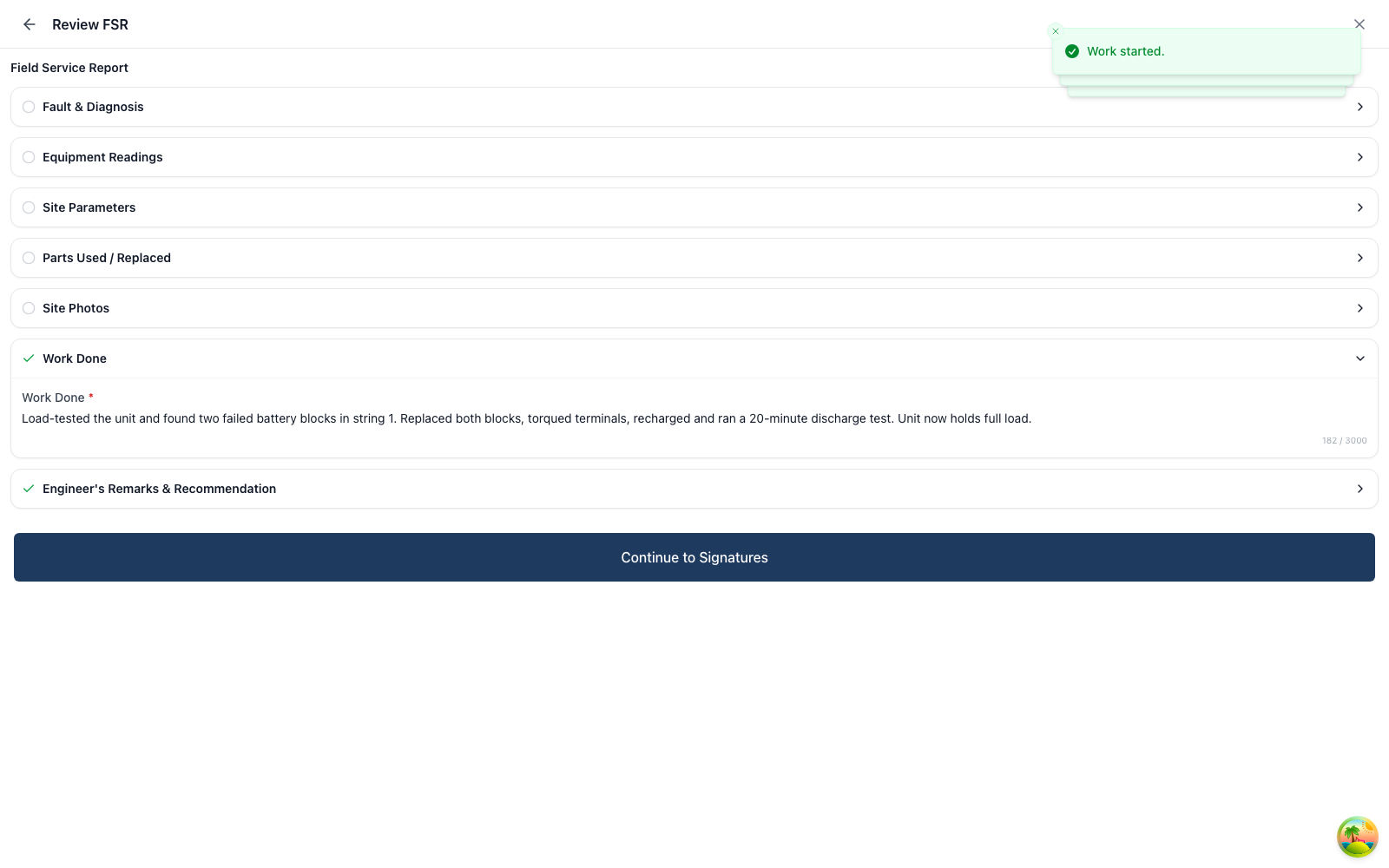
Read it as the customer will. You can't edit after submitting.
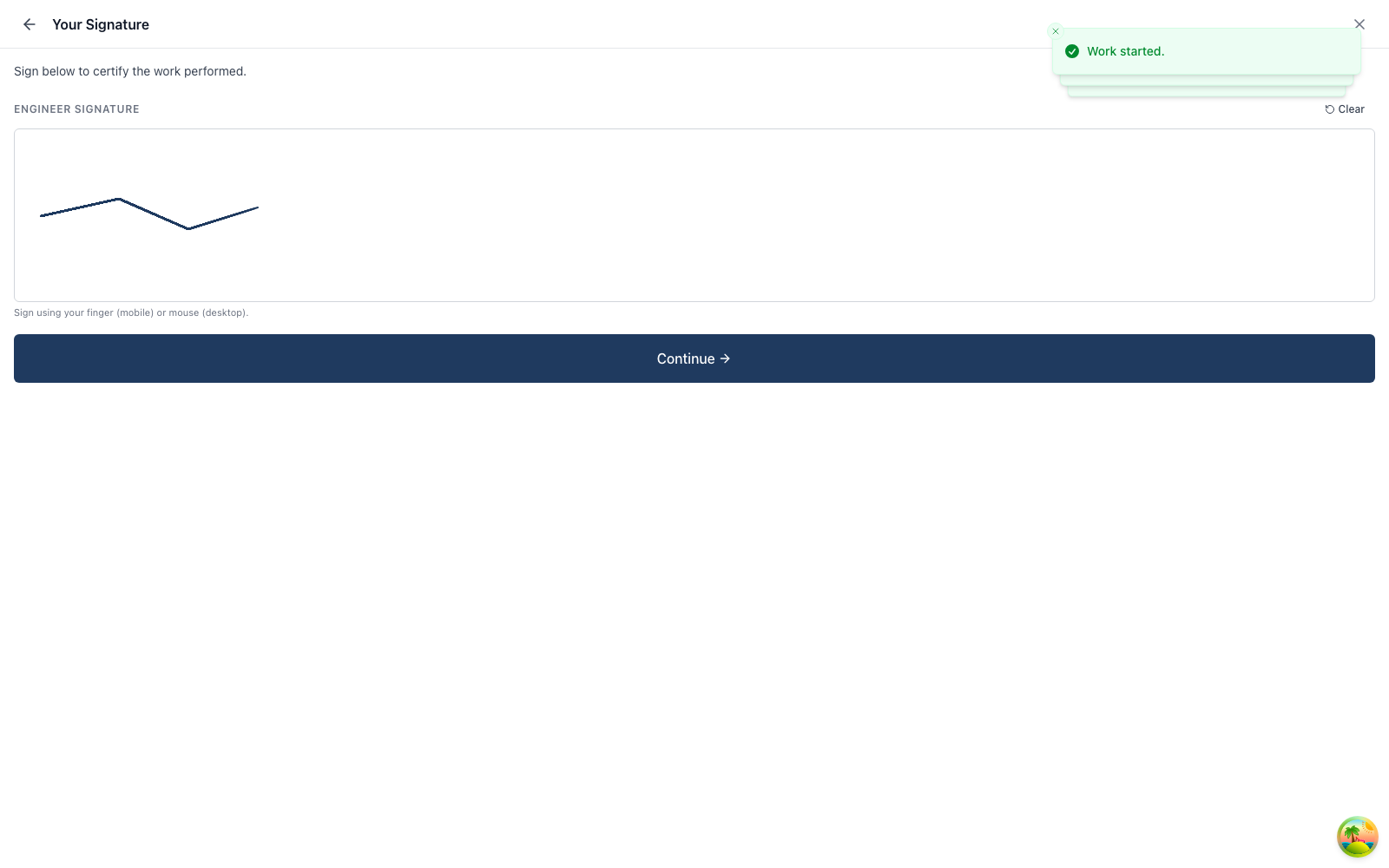
Sign to certify the work, then hand the device to the customer to sign. If
they've already left, use Skip — customer unavailable and give a reason.
When you pick an asset at intake, the app shows the product, serial, OEM,
customer and status — but not whether it's still under warranty or covered by
an AMC. So you can't see at intake whether the visit you're about to dispatch
is chargeable.
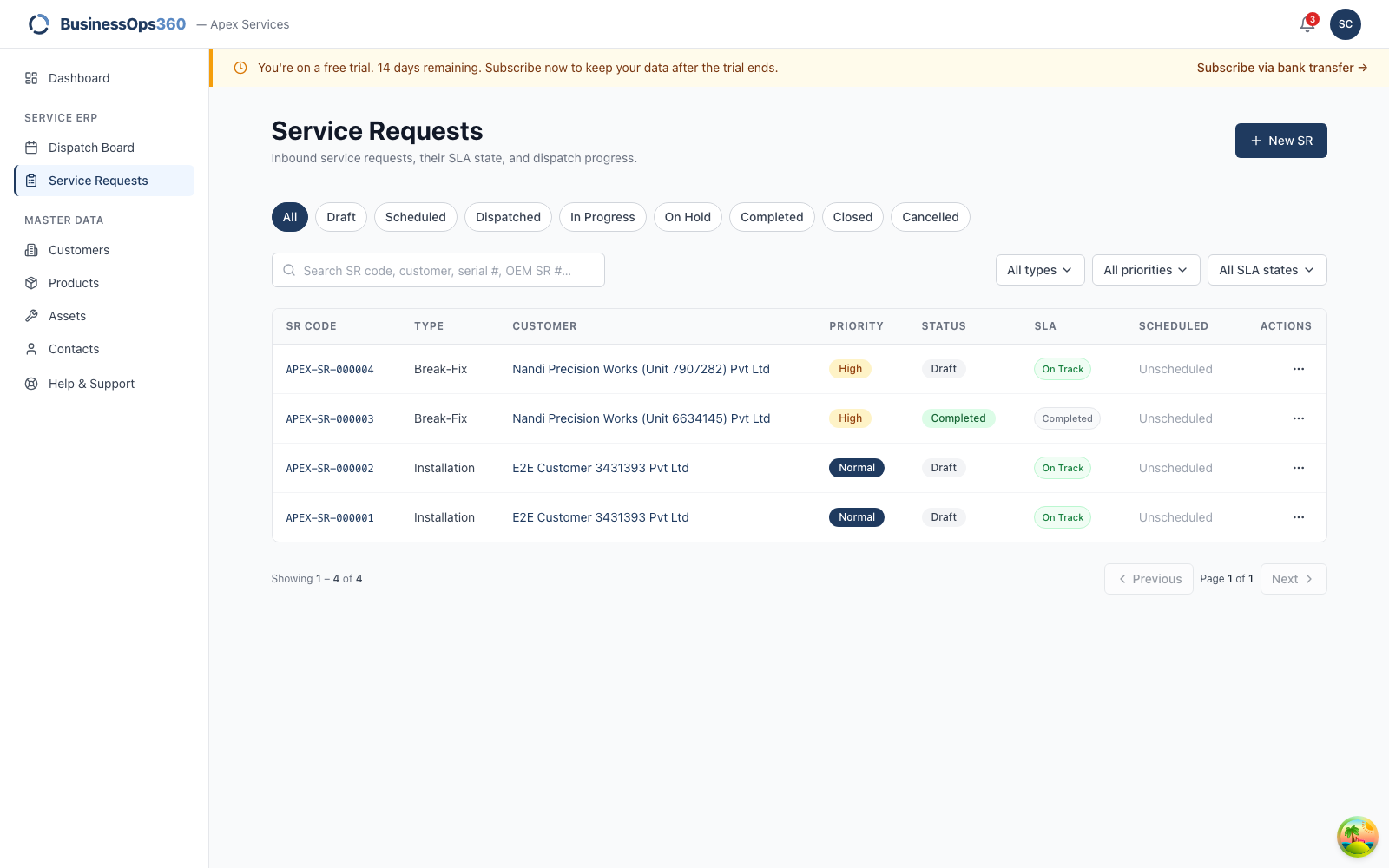
In the Service Requests list, a covered unit carries a Warranty badge.
An out-of-warranty unit has no badge — the absence is the only signal.
Until this improves: if it matters commercially, open the asset and check its
warranty dates before dispatching. The request itself records the billing
position correctly (chargeable vs covered) — it just isn't shown prominently.
"I can't save the service request"
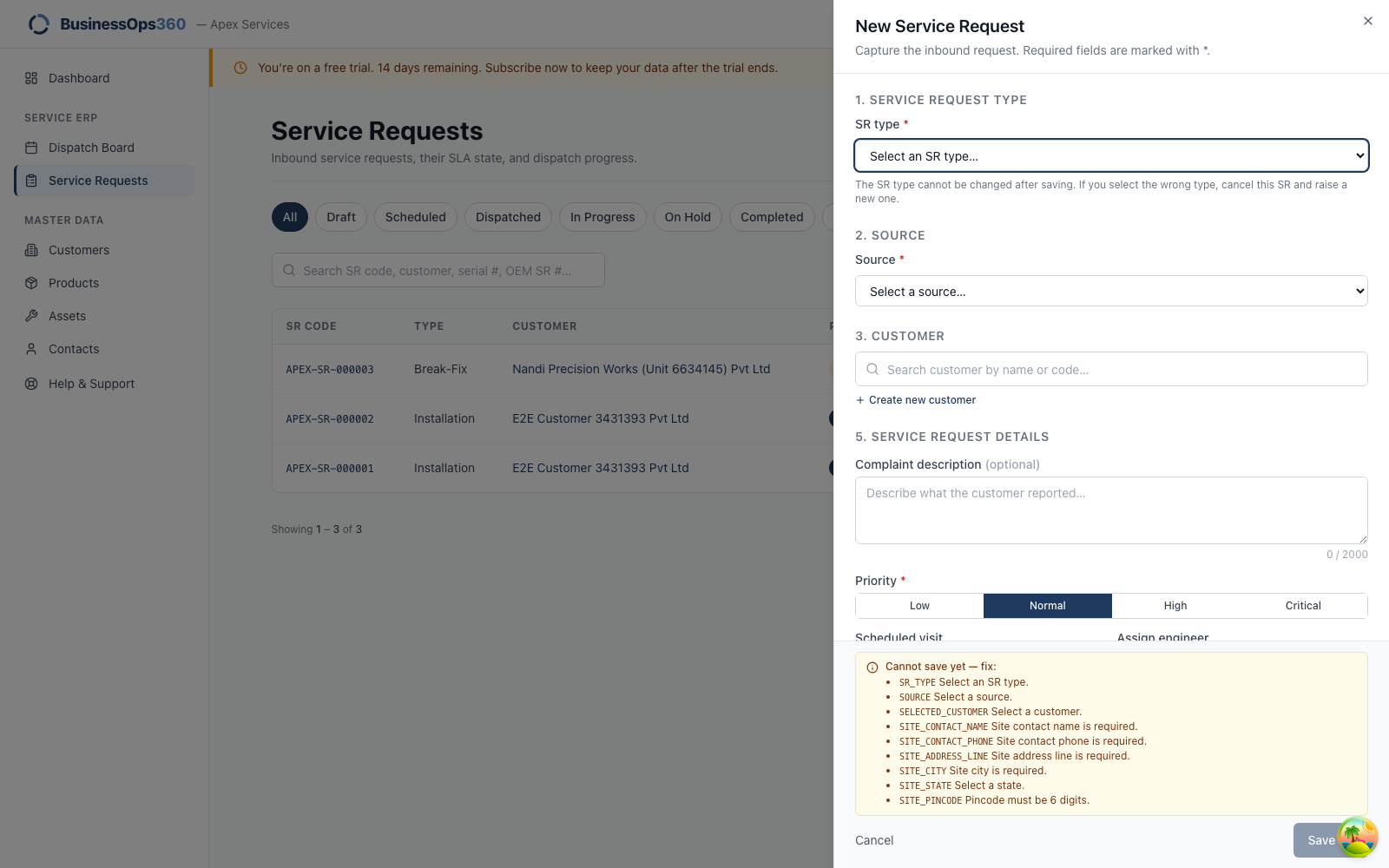
The Save button stays greyed out until everything required is filled. The
panel lists exactly what's missing.
"Site contact name is required"
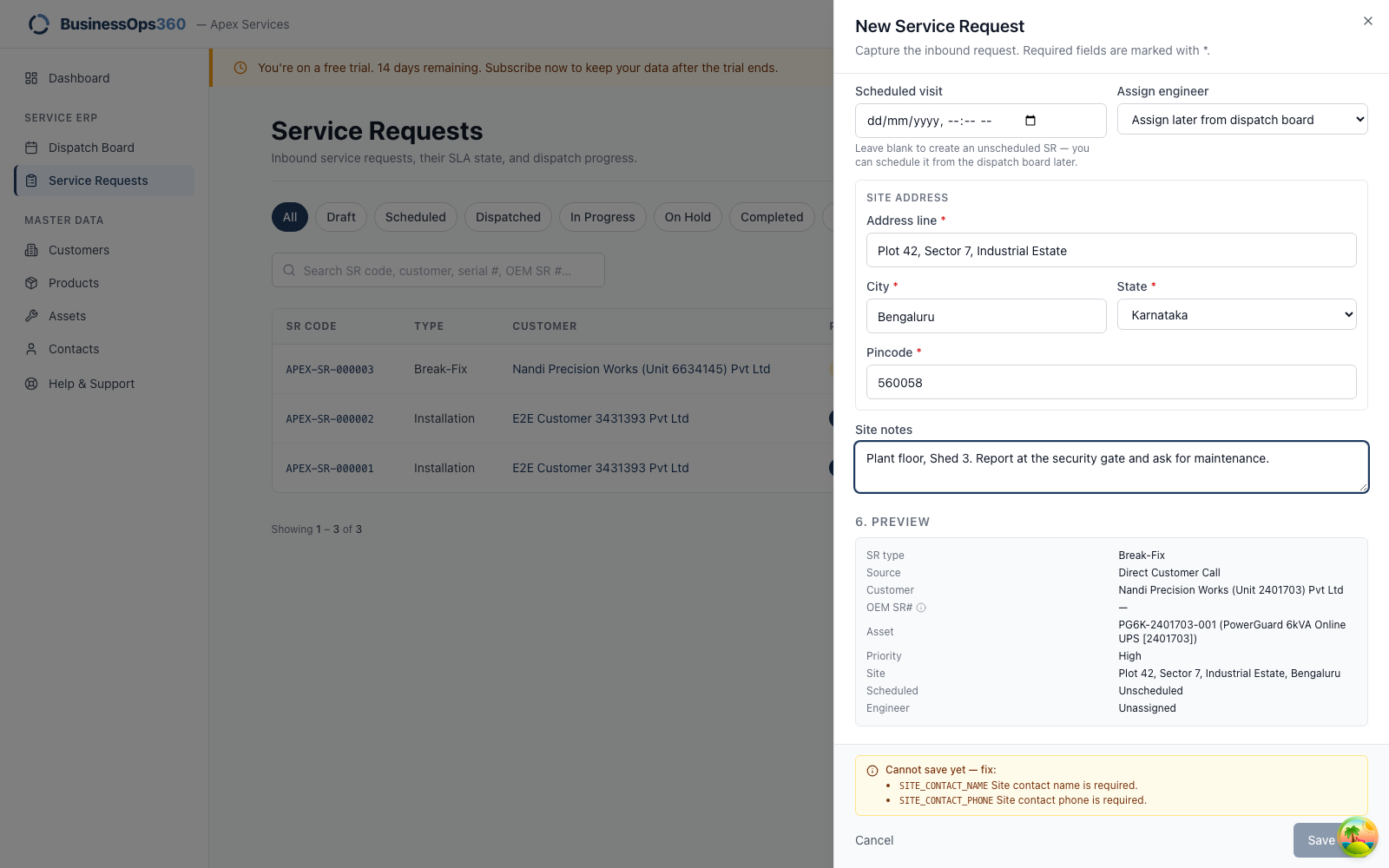
What it means: you haven't said who the engineer should ask for on site.
What to do: enter a name and a mobile number. If the customer genuinely
can't give you one, use the main contact from the customer record — but somebody
has to be reachable, or the engineer arrives at a gate with no one to ask for.
"The engineer can't see the job"
Check the request is actually assigned — a raised call with no engineer sits
in the coordinator's queue and appears in nobody's My Jobs. Open the request and
look at the Jobs tab.
"The SLA says breached but we were there on time"
The attend SLA is measured from the Reached Site tap. If the engineer tapped
it late, the record says late. Time on hold is excluded — a job held for parts
doesn't burn the clock while it waits.
"I can't complete the job"
The report isn't finished. The precheck names the sections it still needs —
normally Work Done and Status after visit. Fill those and try again;
sections that do not apply to the visit can stay empty.
If the precheck passes and the submit still fails, the message on screen names
the reason — most often a missing signature.
Screens shown are from a demo workspace with invented company, product and
contact details. Your numbers and names will differ.